How to Use Instagram: The Complete Beginner’s Guide (2026)
Opening the Instagram app for the first time feels confusing. Icons sit at the bottom of the screen with no labels, friends talk about Reels and Stories like everyone already knows them, and your feed looks empty because nothing is set up yet. The fix is simpler than it looks. Learning how to use Instagram comes down to five things: create a free account, set up your profile, learn the home screen, post your first photo or Reel, and try Stories and direct messages. That is the whole journey. Instagram, the photo and video sharing app owned by Meta, packs a lot into one screen, but you only need to learn it in the order real people actually use it. This guide walks you through every step from sign up to posting, Reels, Stories, DMs, the Explore page, privacy settings, and the fixes for the problems beginners hit most often.
Everything here works on both the Android and iPhone versions of the Instagram app, which is free to download. Where the phone app and the web version differ, you will see a note, so nothing surprises you later.
How to Create an Instagram Account
An Instagram account takes about five minutes to create and it is completely free. You sign up with an email address, a mobile number, or your Facebook account. Here is the exact process on a phone, which is how most beginners start.
Sign up on Android or iPhone
- Open the Play Store on Android or the App Store on iPhone and search for “Instagram”. Tap Install, then open the app once it downloads.
- On the login screen, tap Create new account. Enter your mobile number or email address. A confirmation code arrives by SMS or email; type it in to verify.
- Enter your full name, create a password, and add your birthday. Instagram asks for the birthday to decide whether you get a standard account or a Teen Account with extra limits for users under 18.
- Pick a username. This becomes your handle, the name after the @ that people use to find and tag you. If your first choice is taken, Instagram suggests close alternatives.
- Tap through the “find friends” screens or skip them. You can follow people later, so there is no pressure to do it now.
- Add a profile photo. You can take one with the camera or pick a photo from your gallery. A clear face photo works best for personal accounts; businesses should use their logo on a plain background.
Sign up on a computer
You can also create your account at instagram.com in any browser. The steps are nearly identical: click Sign up, enter your email or phone number, full name, username, and password, then confirm with the code Instagram sends you. The web version is fine for setting up, but posting and Reels feel much easier in the phone app, so most people install the app anyway after signing up on a computer.
Pick a username people can actually find
Your username is permanent until you change it in settings, so choose it with care. Short usernames close to your real name or brand name are easiest to remember and spell. Skip random numbers and long strings of underscores, because people will mistype them when they try to search for you. If the exact name you want is taken, add one simple word like “the”, “real”, or “official” rather than five extra characters. You can change your username later from Edit Profile, but every change confuses the people who already know your old handle.
Secure your account on day one
Most hacked accounts start with a reused password or a phishing DM, so lock things down before you post anything. Use a strong, unique password that you do not use on any other site. Then turn on two-factor authentication: go to Accounts Center, then Password and security, then Two-factor authentication, and choose an authenticator app like Google Authenticator over SMS codes, because SMS codes can be intercepted through SIM swapping. Link your Instagram and Facebook accounts in Accounts Center too, which gives Meta another way to verify it is really you if you ever get locked out. These three steps take about ten minutes and prevent the vast majority of account takeovers.
Plan your first week of posting
New accounts grow faster with a simple rhythm than with random bursts. A beginner week that covers every format looks like this: one photo post, one carousel, two Reels, and Stories on three to five days with a poll or question sticker each time. This schedule is easy to keep up, it teaches you every major feature in seven days, and it gives the algorithm enough signals to start understanding who should see your content. Run it for a month, check which posts get saves and shares, then do more of what works.
How to Log In to Instagram
After signing up, the app usually keeps you logged in. When you get a new phone or get signed out, open the Instagram app, enter your username, email, or phone number, then your password, and tap Log In. If you signed up with Facebook, tap Log in with Facebook on the login screen instead of typing anything.
Forgot your password? Tap Forgot login details on the login screen, enter your username, email, or phone number, and Instagram sends a reset link or code. Follow it and set a new password. This works only if the email or phone number on your account is current, which is one more reason to sign up with an address you actually check.
The Instagram app lets you stay logged in to up to five accounts at once and switch between them without typing passwords. To add a second account, go to your profile, tap your username at the top, tap Add account, and log in normally. Switching takes one tap on the username from the same spot. People who run a personal account and a business account side by side use this constantly.
Set Up Your Instagram Profile Like a Pro
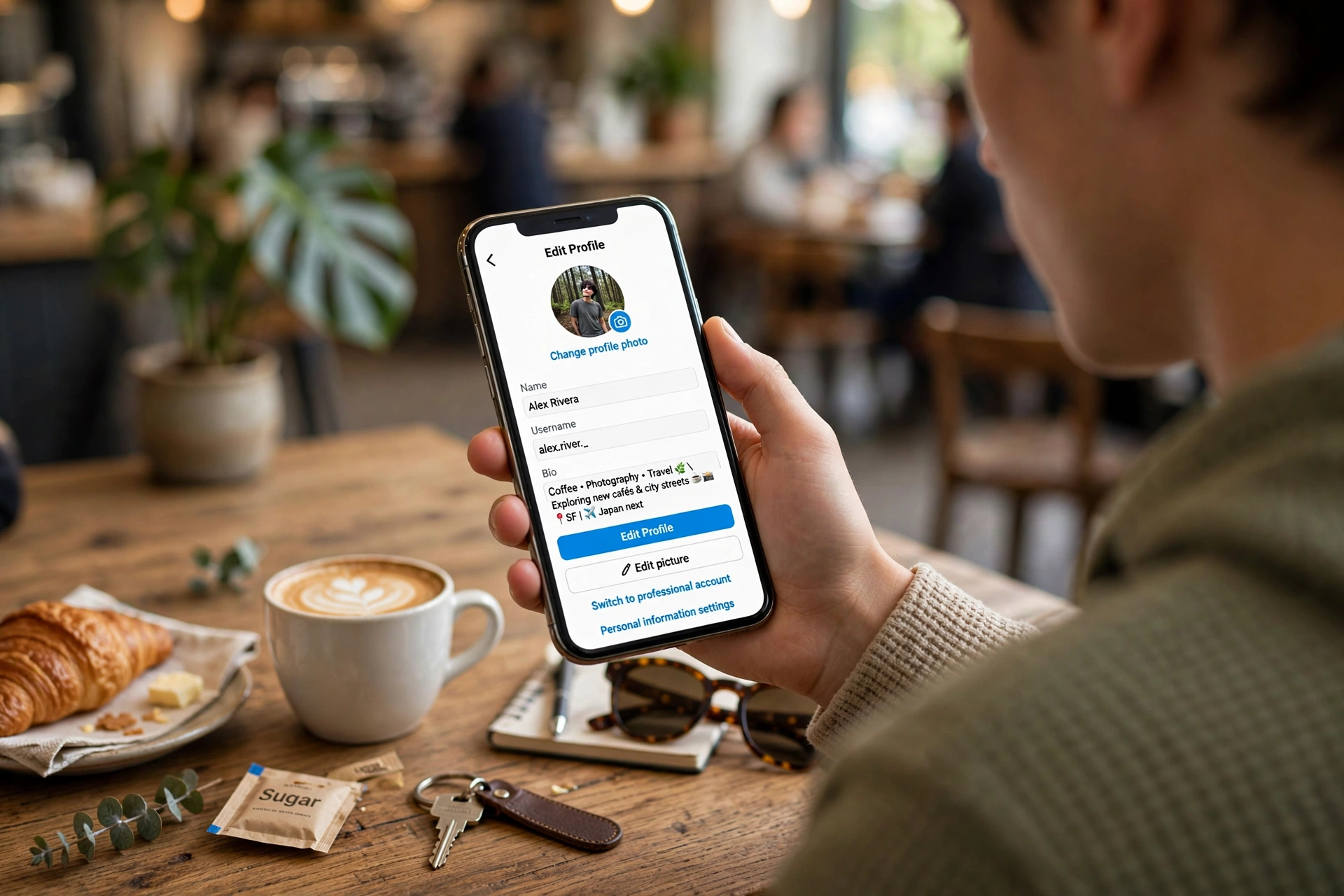
Your profile is the first thing people see when they tap your name. A finished profile turns visitors into followers; a half-empty one sends them away. Four pieces matter.
Profile photo
The photo shows up as a tiny circle next to everything you post, so it must read at a small size. A well-lit face photo fills the circle best for personal accounts. Skip text-heavy graphics here; nobody can read text at forty pixels wide.
Name field
The Name field sits under your photo and it is searchable, which is separate from your username. Adding a keyword helps people find you. A fitness coach can write “Areeba | Home Workouts” and show up when someone searches that phrase, even if her username is @areeba.moves. Beginners often leave the default name, which wastes the easiest discovery trick in the app.
Bio
You get 150 characters. Use them to say who you are, what you post, and why someone should follow. A bio that works reads like “Street food reviews in Lahore. New spot every Friday.” A bio that fails reads like “Dreamer | Foodie | Living life”. The first tells a stranger exactly what to expect; the second tells them nothing. One or two emojis help readability, but a wall of emojis does not.
Links
Instagram lets you add up to five links under Edit profile, then Links. The first link shows most prominently, so point it at the page you most want new visitors to open. Creators often link their YouTube channel or online shop there. Since many people keep an instagram follower tracker open while they grow, linking your best platform first gives new visitors a clear next step instead of leaving them guessing where to find you.
Switch your account type
Instagram offers three account types and you can switch any time. Personal is for everyday sharing with friends and family. Creator suits influencers and artists and unlocks Insights, which show who your audience is and when they are online. Business suits shops and brands and adds contact buttons, shopping features, and ad tools. If you plan to grow an audience or sell anything, switch from your profile settings under Account type and tools, then Switch to professional account. Switching is free and takes under a minute, though professional accounts must stay public.
The Instagram Home Screen, Explained
The bottom bar of the Instagram app holds five icons and almost everything in the app lives behind one of them. Learn these five and the app stops feeling random.
| Icon | What it opens |
|---|---|
| Home | Your feed: the latest posts and Reels from accounts you follow, newest first or ranked by what you engage with most |
| Search / Explore | The Explore page: photos, Reels, and topics Instagram thinks you will like, plus the search bar for people, hashtags, and places |
| Reels | The Reels feed: full-screen short videos, mostly from accounts you do not follow yet, which makes it the discovery tab |
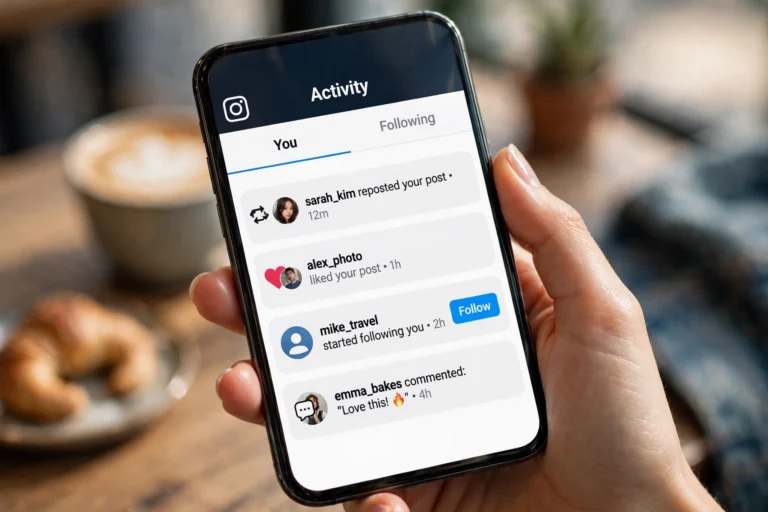
| Shop / Activity | Depending on your region, either the shop tab or your activity feed with likes, comments, and new followers |
| Profile | Your own profile: your posts, Reels tab, tagged photos, saved items, and the menu with all your settings |
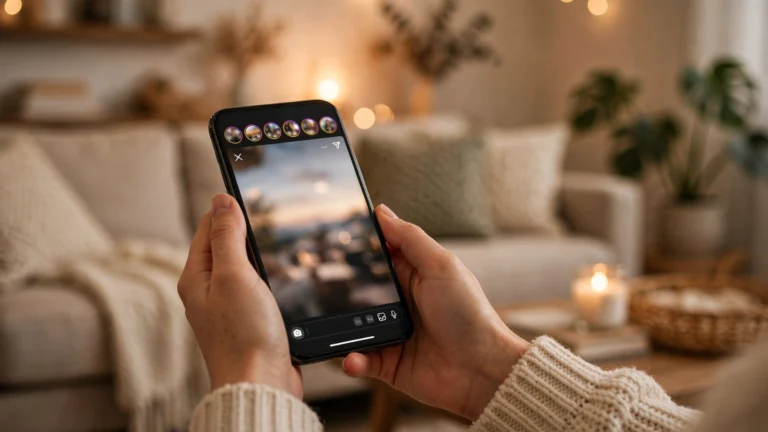
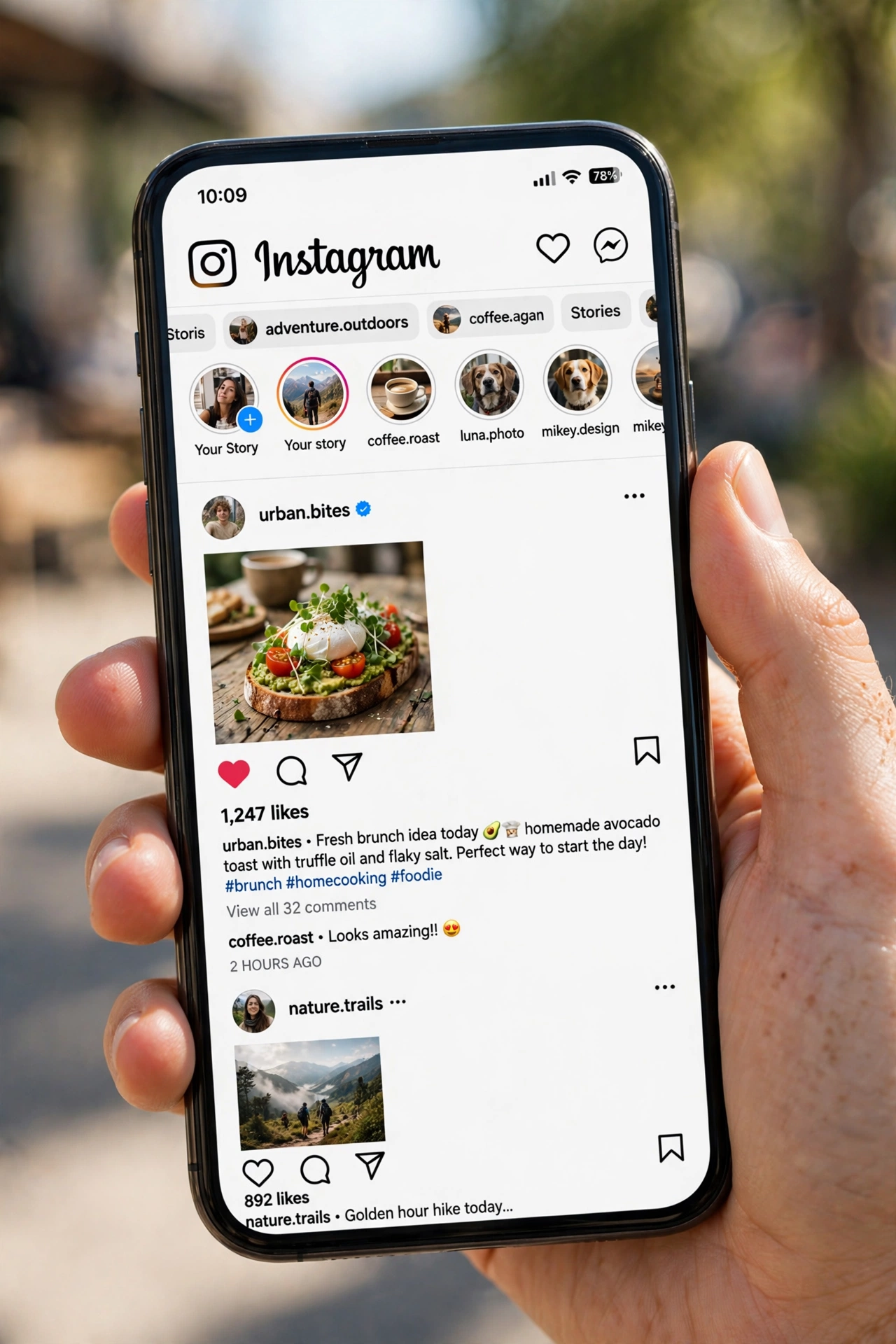
At the very top of the home screen you will see a row of circles. Those are Stories from people you follow. Tap any circle to watch. The paper plane icon in the top right opens your direct messages, and the heart icon shows your notifications: who liked your posts, who started following you, and who mentioned you. The plus icon in the middle of the top bar starts a new post, Reel, Story, or Live video.
How to Post Photos and Videos on Instagram
Posting is the core skill on Instagram, and the whole flow takes about a minute once you know it. Tap the plus icon, then choose Post. Pick a photo or video from your gallery, or tap the camera to take a new one. Tap Next, and you land on the editing screen. Here you can apply a filter, adjust brightness, contrast, and saturation, or crop the image. Filters are optional, but a light touch of editing makes phone photos look noticeably better.
Tap Next again to reach the caption screen, which is where beginners often freeze. A good caption says what is happening in the photo in one or two natural lines. You do not need to be clever every time; a simple line that matches the photo beats a forced joke. If you want ready-made lines for any mood, a collection of classy captions for insta saves a lot of staring at a blank caption box. On this screen you can also tag people who appear in the photo, add a location so the post shows up in that place’s page, and add alt text under Advanced settings so screen readers can describe your image.
Hashtags go at the end of the caption or in the first comment. Since late 2025, Instagram caps posts at five hashtags, so pick specific ones over generic ones: #LahoreFood beats #food because it reaches people who actually care about your topic. Tap Share and your post goes live to your followers. If you want it to appear later, tap Advanced settings and choose Schedule to pick a date and time.
Carousels: posts with up to 20 photos
On the photo picker, tap the stacked-squares icon to select up to 20 photos and videos into one swipeable post, called a carousel. Carousels work well for tutorials, before-and-after shots, and event recaps because every swipe keeps someone on your post longer. Treat the first slide like a book cover: if it does not give people a reason to swipe, the other 19 slides go unseen.
How to Use Instagram Reels
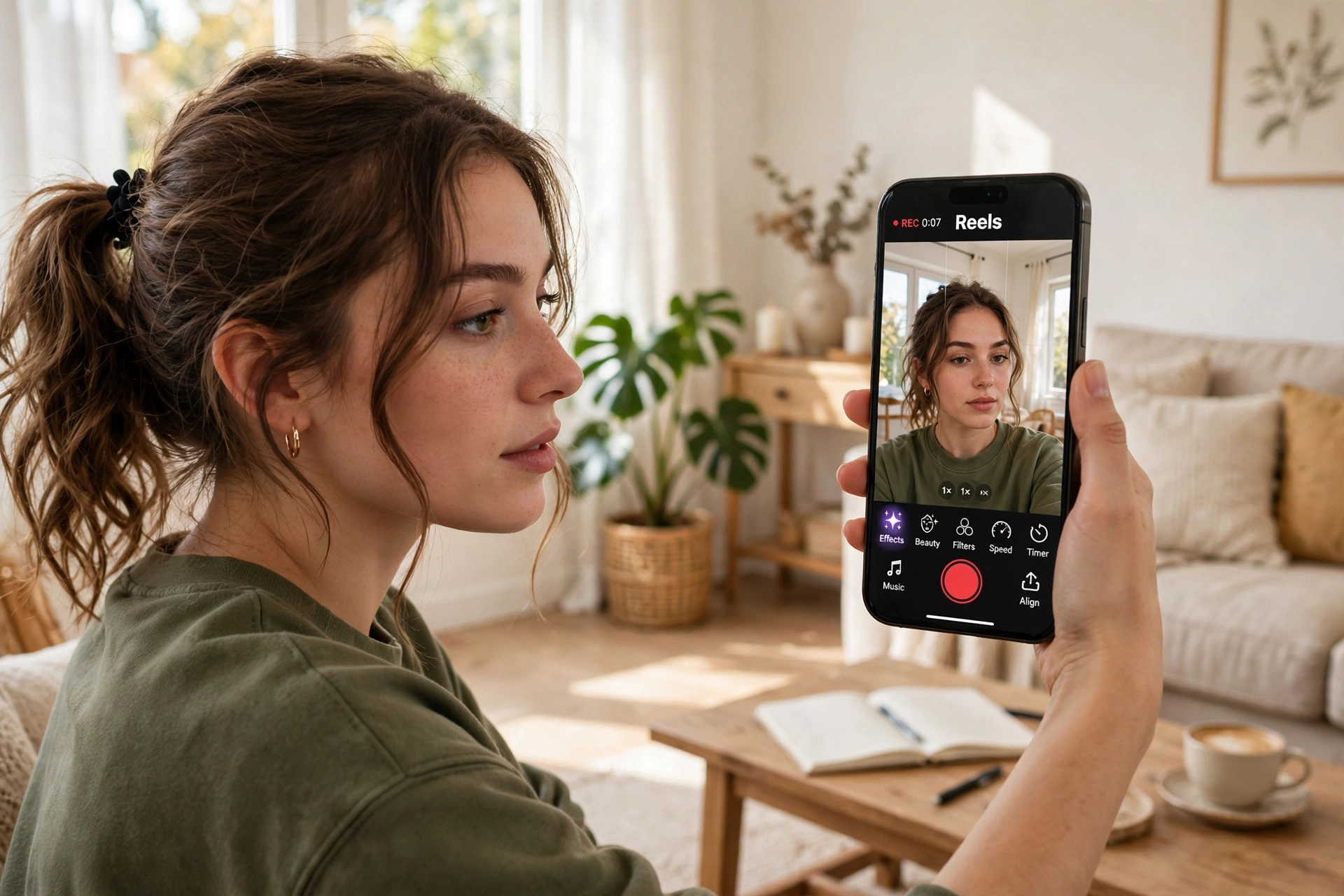
Reels are Instagram’s short vertical videos and the fastest way for a new account to be discovered. The Reels feed is full of accounts you do not follow, which is the big difference between Reels and regular posts: a Reel can reach thousands of strangers while a photo mostly reaches your existing followers.
Watching Reels
Tap the Reels icon at the bottom to open a full-screen stream. Swipe up for the next video. Tap the heart to like, the speech bubble to comment, and the paper plane to send it to a friend. The bookmark saves it to your Saved folder, and the three dots let you report, hide, or say you are not interested so the algorithm shows you less of that kind of content.
Making your first Reel
- Tap the plus icon and choose Reel. You can record clips inside the app or upload video from your gallery.
- Tap the music note to add audio. Trending sounds get extra distribution, so browse what other creators in your niche are using.
- Use the timer and countdown if you film alone, so you get three seconds to step back before recording starts.
- Record in short clips. Tap the stop button between takes and Instagram stitches the clips into one video automatically.
- Add on-screen text for the key points, because many people watch with sound off. Keep text inside the safe center zone so the caption and buttons do not cover it.
- Tap Next, write a caption, add up to five hashtags, choose a cover frame, and tap Share. Your Reel appears in the Reels tab on your profile.
For growth, keep Reels under three minutes. Longer Reels exist, but Instagram does not recommend Reels over three minutes to people who do not follow you yet, so short and tight wins for beginners. Watch time is one of the strongest signals the app uses, which means cutting the dead air at the start matters more than perfect polish. A phone, decent light, and clear audio are enough to begin.
How to Use Instagram Stories
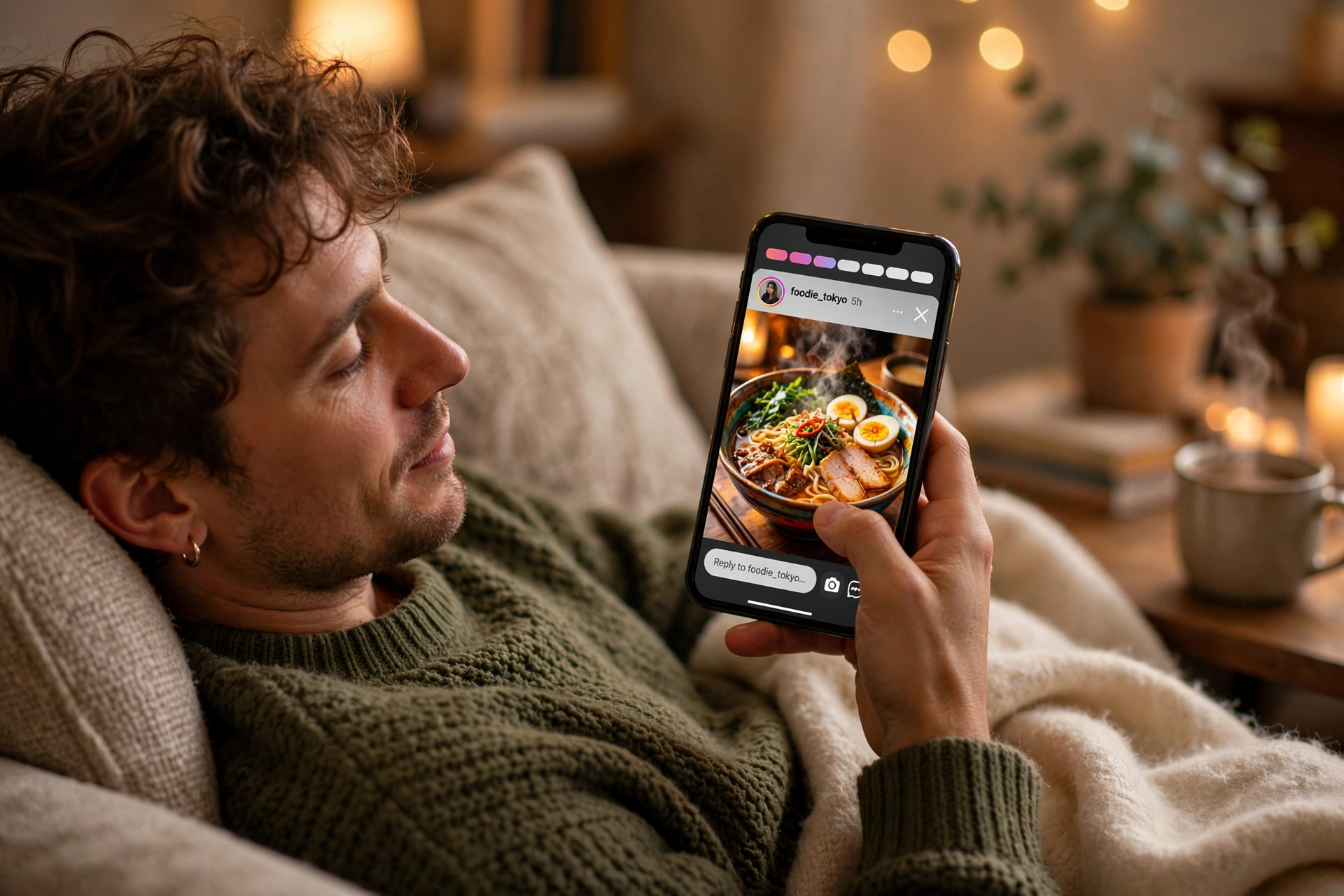
Stories are photos and short videos that disappear after 24 hours. They sit in the row of circles at the top of the home screen, and your followers see them first, which makes Stories ideal for quick updates, behind-the-scenes clips, and anything that does not need to live on your profile forever.
Posting a Story
- Swipe right from the home screen, or tap the plus icon and choose Story.
- Take a photo or video, or swipe up to pick from your gallery.
- Tap the sticker icon at the top to add polls, question boxes, quizzes, countdowns, music, or location tags. Interactive stickers get people tapping, which signals engagement.
- Draw or add text with the tools at the top, then tap Your story to publish.
Highlights and Close Friends
A Story you love does not have to vanish. After posting, open it and tap Highlight to save it to a Highlight, which lives permanently on your profile under your bio. Organize Highlights like a mini menu: “FAQ”, “Reviews”, “My work”. The green Close Friends star lets you share a Story with only a hand-picked list, which you manage under Settings, then Close Friends. If you ever want to keep a copy of someone else’s public Story for reference, people typically use an instagram story downloader rather than screenshotting frame by frame, which keeps the quality intact.
Instagram Notes and Live: Features Beginners Overlook
Two smaller features punch above their weight for new users. Notes are short text updates, up to 60 characters, that sit above your profile photo in the inbox for 24 hours. Open your DMs, tap the note bubble above your photo, and type something like “New Reel is up” or “Ask me anything today”. Your followers see it every time they open their inbox, which makes Notes a quiet traffic driver for your latest post.
Live video broadcasts you in real time to whoever tunes in. Tap the plus icon, choose Live, add a title, and tap the broadcast button. Viewers join, comment, and send hearts live. During a broadcast you can pin a comment, bring a guest on screen, and save the video to your profile afterward so people who missed it can watch the replay. You do not need a big audience to go Live; even ten viewers create a real conversation, and the replay keeps working for you after the broadcast ends.
How to Use Instagram DMs
DMs, short for direct messages, are Instagram’s private chat. Tap the paper plane icon at the top right of the home screen. Tap the pencil icon to start a new conversation and search for the person by username. Inside a chat you can send text, photos, videos, voice notes, Reels, and posts, and you can start a video call with the camera icon at the top.
Messages from people you do not follow land in Message Requests instead of your main inbox. Tap Requests at the top of the chat list to review them; you can accept, decline, or block without the sender knowing you saw the preview. Group chats work the same way: start a new message, add several people, and everyone chats in one thread. Vanish mode, found by swiping up inside a chat, makes messages disappear after they are seen and the chat closes, which suits quick private exchanges.
Likes, Comments, Follows, and the Explore Page
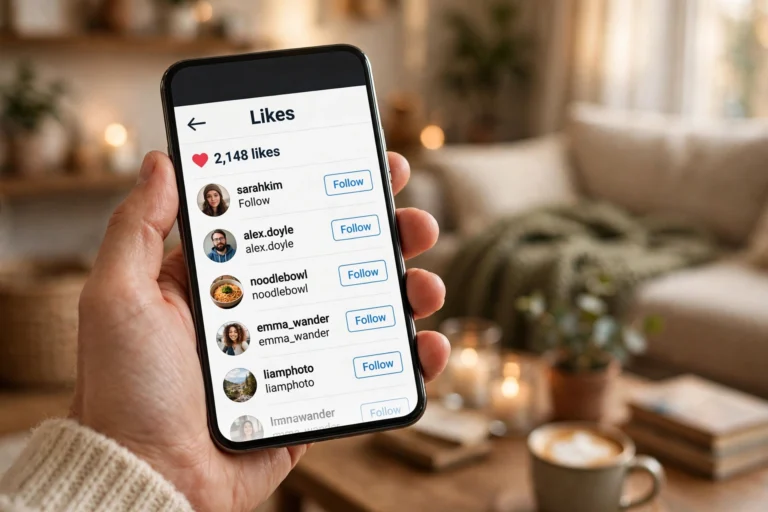
Engagement is how you take part in Instagram instead of just watching. Double-tap any photo to like it, which tells the poster you appreciated it and tells the algorithm to show you more of that kind of content. Tap the speech bubble to leave a comment. Comments carry more weight than likes, and a thoughtful comment often gets the poster to visit your profile back. Tap the paper plane under a post to share it to your Story or send it to a friend in DMs; shares and saves are among the strongest signals Instagram uses to decide what to recommend.
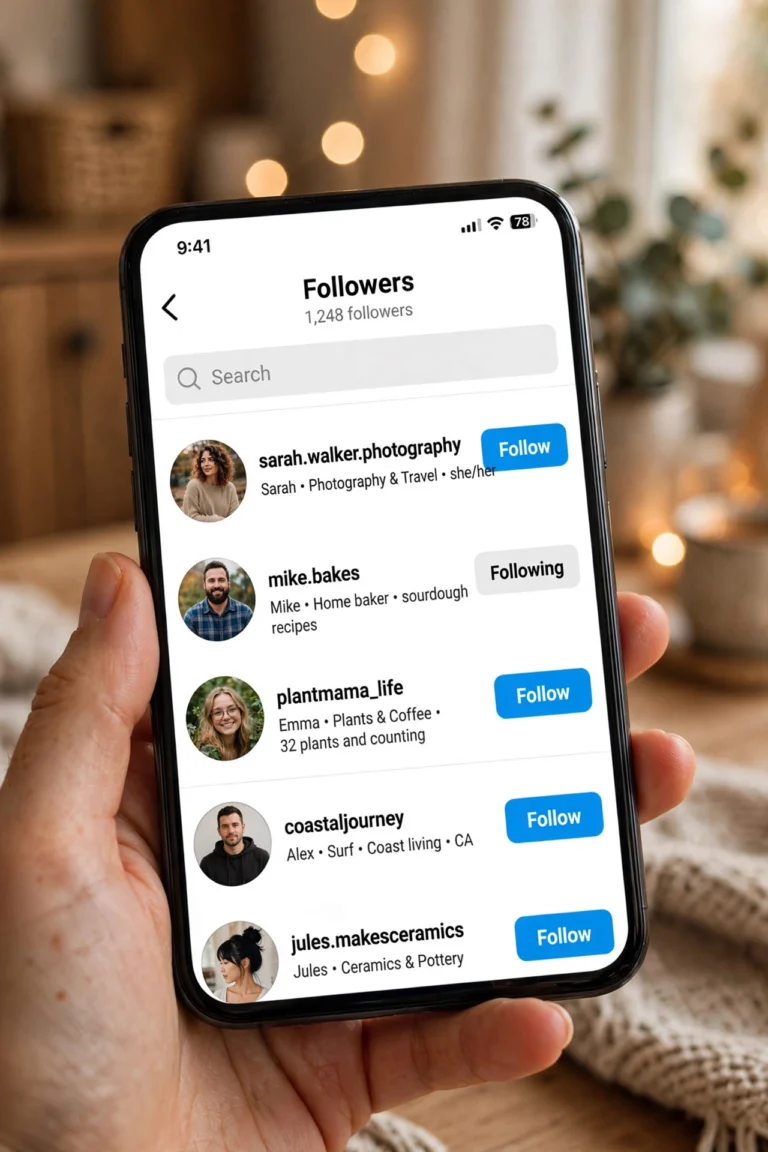
To follow someone, open their profile and tap the blue Follow button. Their posts and Stories then appear in your feed. Tap Following on their profile to unfollow, mute, or turn their notifications on. Muting hides their posts without unfollowing, which is useful when you want a quieter feed without awkwardness. If your goal is growing your own follower count rather than just browsing, the tactics in a guide on how to increase instagram followers build directly on these same engagement habits: consistent posting, real comments, and showing up in the right niche communities.
Using Explore and search
The Explore page, behind the magnifying glass icon, shows photos and Reels Instagram thinks you will like based on what you have watched, liked, and saved. Use the search bar at the top to find people by username, hashtags by topic, places by location, and audio by trending sounds. Searching a hashtag like #homedecor shows top posts, recent posts, and related Reels in one place, which is the fastest way to discover new accounts worth following in any interest.
Instagram Privacy Settings Every Beginner Should Know
Set these up in your first week and you avoid most of the headaches new users run into. Open your profile, tap the three lines in the top right, then Settings and privacy.
| Setting | Where to find it | What it does |
|---|---|---|
| Private account | Settings and privacy, then Account privacy | Only approved followers see your posts and Stories; new followers need your approval |
| Two-factor authentication | Accounts Center, then Password and security | Requires a code from an authenticator app at login, which stops most hacking attempts |
| Block | Any profile, three dots, then Block | Stops someone from seeing your profile or contacting you, with the option to block new accounts they create |
| Restrict | Any profile, three dots, then Restrict | Limits someone quietly: their comments only show to them and their messages go to requests |
| Hide Story | Settings and privacy, then Hide story and live | Chooses specific people who cannot see your Stories while everyone else still can |
| Hidden words | Settings and privacy, then Hidden words | Filters comments and message requests containing words or phrases you choose |
One privacy point beginners miss: anyone can view public Stories without following, and your viewer name appears in the viewer’s list on the poster’s screen. If you ever need to check a public Story without showing your name, tools exist for that purpose, such as an anonymous instagram viewer, which loads public Stories outside the app so your username never appears in the viewer list. And review your login activity every few months under Accounts Center, then Password and security, then Where you’re logged in, and log out any device you do not recognize.
Using Instagram on the Web
Instagram.com in a desktop browser covers the basics: browse your feed, watch Stories and Reels, send DMs, and post photos and videos. The layout is wider and typing long captions is easier on a keyboard. What the web version cannot do well is record Reels with effects, use most camera filters, or access some newer creative tools, which arrive on phones first. Most people treat the website as a companion for browsing and messaging and keep the phone app as the main tool for creating.
Instagram App vs InstaUp APK
The official Instagram app comes from the Play Store and the App Store with full Meta support and automatic updates. Some Android users also try modified versions such as InstaUp APK, which add extras like zooming profile pictures and downloading media directly. Here is an honest comparison so you know what each option means.
| Official Instagram app | InstaUp APK | |
|---|---|---|
| Source | Play Store or App Store | Third-party websites |
| Safety | Verified by Google or Apple | Not verified; scan the file before installing |
| Updates | Automatic | Manual download of each new version |
| Extra features | Standard feature set | Profile picture zoom, direct media download, extra privacy options |
| Account risk | None | Low but nonzero; use a secondary account if you experiment |
Beginners should start with the official app. It is the safest way to learn how to use Instagram, and everything in this guide works there. Modified apps are an option only once you understand the basics and accept the trade-offs.
Common Instagram Problems and Fixes
Almost every beginner hits at least one of these. The fixes are quick.
| Problem | Fix |
|---|---|
| Cannot log in | Use Forgot login details on the login screen; check that the email or phone number on the account is current |
| Feed is not loading | Check your internet connection, pull down to refresh, then restart the app; reinstall as a last step |
| Cannot upload a photo or Reel | Check the file is under the size limit, clear the app cache, and make sure the app has storage and camera permissions |
| Account temporarily locked | Wait 24 to 48 hours, verify with the code Instagram sends, and avoid rapid following or liking when you return |
| Did not receive the signup code | Wait five minutes, tap Resend, check spam folders for email codes, and confirm the number was typed correctly |
| Story views look wrong | Viewer counts update with a delay; check again after an hour before assuming a bug |
FAQs About How to Use Instagram
Is Instagram free to use?
Yes. Creating an account, posting photos, Reels, and Stories, messaging, and using basic Insights are all free. Paid extras include ads, Meta Verified, and subscriptions you might buy from creators, but none of them are needed to use the app normally.
How do you use Instagram as a beginner?
Create a free account, add a profile photo and bio, follow accounts in topics you enjoy, and start with one photo post. Then try a Story, watch Reels for ideas, and send your first DM. Doing each feature once teaches you more than reading about all of them.
Can you use Instagram without the app?
Yes, at instagram.com in any browser. You can browse, message, and post from the web, but recording Reels with effects and using camera filters works better in the phone app.
How many Instagram accounts can you have?
You can stay logged in to up to five accounts in the app and switch between them with one tap. You can create more, but you would manage the extras separately.
Why is my Instagram feed empty?
Your feed fills up only after you follow accounts. Search for friends, creators, or topics you enjoy, tap Follow on their profiles, and your home feed starts populating immediately.
How do you make your Instagram account private?
Go to your profile, tap the menu, open Settings and privacy, then Account privacy, and toggle on Private account. Only people you approve can then follow you and see your posts. Professional accounts must stay public.
Do you need a business account to post Reels?
No. Any account type can post Reels, Stories, and carousels. A professional account adds Insights, scheduling, and monetization tools on top, but it is not a requirement for creating content.
Can you schedule Instagram posts for free?
Yes. Professional accounts can schedule posts and Reels inside the Instagram app at no cost. On the caption screen, open Advanced settings and pick a date and time. Native scheduling does not cover every format, which is where third-party schedulers help, but for standard posts it works fine.
What is the difference between a Story and a post?
A post lives on your profile permanently unless you delete it. A Story disappears after 24 hours unless you save it to a Highlight. Posts suit your best content; Stories suit everyday updates.
Final Words
Getting comfortable with Instagram is mostly repetition. The first post feels slow, the first Reel feels clunky, and early numbers are humbling. That is normal. Set up your profile properly, post on a steady rhythm, use Stories for everyday moments, keep your privacy settings tight from day one, and engage genuinely with accounts you enjoy. The app rewards consistency more than perfection, and a month of regular use teaches you more than any guide can. Start with one photo today and build from there.