How to See Who Unfollowed You on Instagram (2026): 5 Methods That Actually Work
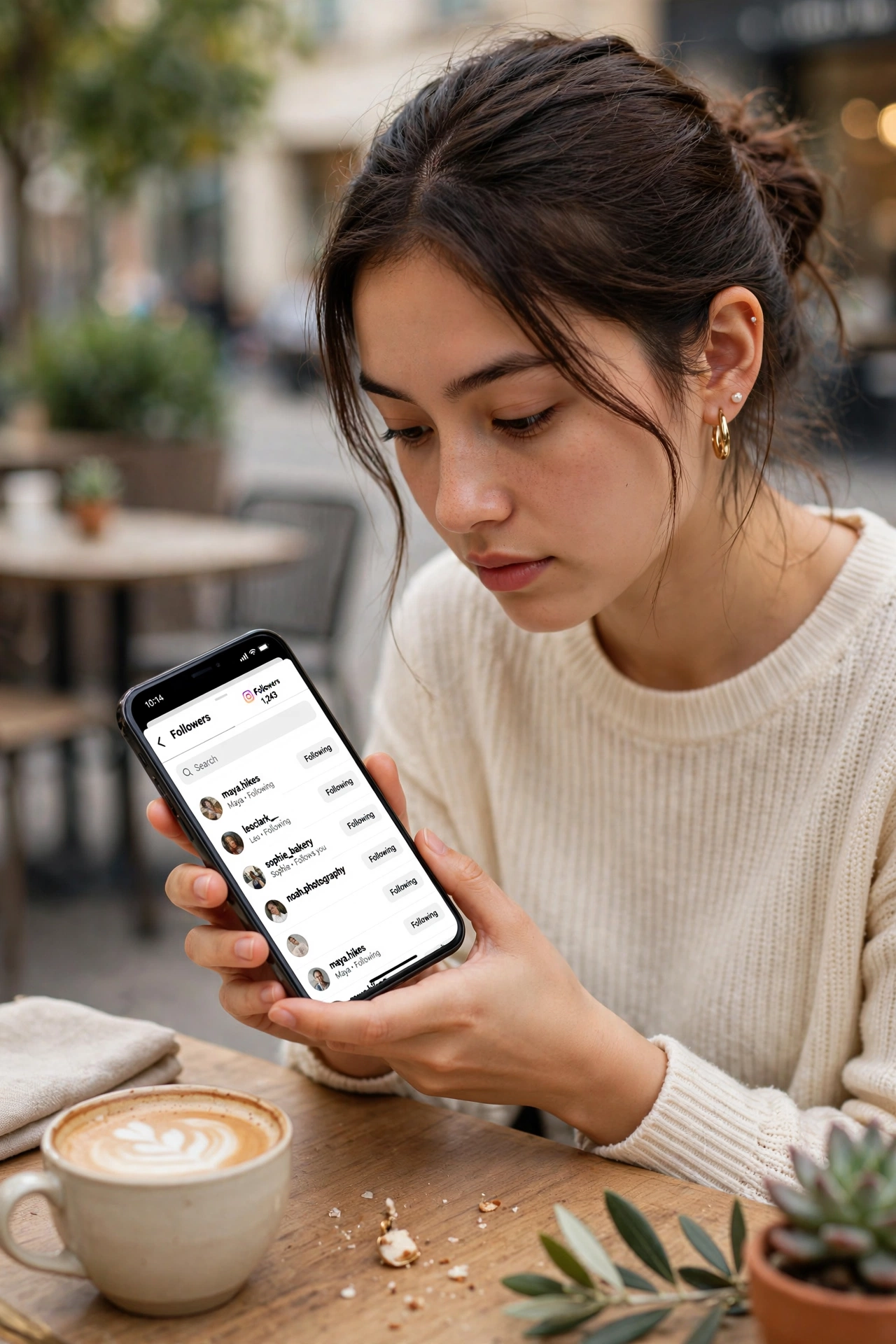
You open Instagram, glance at your follower count, and it has quietly dropped by 30 overnight. No notification, no list, no clue which accounts walked away. That sinking feeling is exactly why thousands of people search for how to see who unfollowed you on Instagram every single day. Here is the honest answer upfront: Instagram has never shipped a native unfollower list, and Meta shows no sign of adding one in 2026. But you are not stuck guessing. With a few manual checks inside the Instagram app, the official data export from Meta’s Accounts Center, and the unfollow counts in Instagram Insights, you can find out exactly who unfollowed you without handing your password to a shady third-party app.
The reason Instagram keeps this hidden is simple: Meta does not want the app to feel like a scoreboard of rejections. Still, every unfollow leaves traces. A name disappears from your Followers list, your Following list stops being mutual, and the count in Insights ticks down. Once you know where those traces live, they turn into actual names. This guide walks you through every reliable way to see who unfollowed you on Instagram in 2026, ranked from fastest to most thorough, and finishes with the third-party shortcut apps you should stay far away from.
Can Instagram Show You Who Unfollowed You? The Quick Answer
No. Instagram has no built-in “who unfollowed me” feature and never has. You will not get a push notification, an email, or an entry in your Activity tab when someone unfollows you. The name simply drops off your Followers list and the app moves on. That said, Instagram does give you every raw ingredient you need to figure it out yourself:
- Followers list: everyone who follows you right now, searchable by username
- Following list: everyone you follow, useful for spotting broken mutual follows
- Insights (business and creator accounts): exact follow and unfollow counts for any date range you pick, but no individual names
- Meta data export: a complete snapshot of your followers and following as JSON files, frozen at the moment you request it
Each method in this guide uses a different ingredient. A username search answers the question for one specific person. Comparing your Followers and Following lists catches unfollows across your whole account. The data export comparison gives you the full list of names. Pick the method that matches what you actually need, or combine two of them for the complete picture.
Method 1: Check If a Specific Person Unfollowed You (10 Seconds)
When you have one person in mind, maybe a friend, a client, or a collaborator whose engagement suddenly stopped, this is the fastest check there is. It takes about ten seconds and needs nothing except the Instagram app.
- Open Instagram and go to your own profile
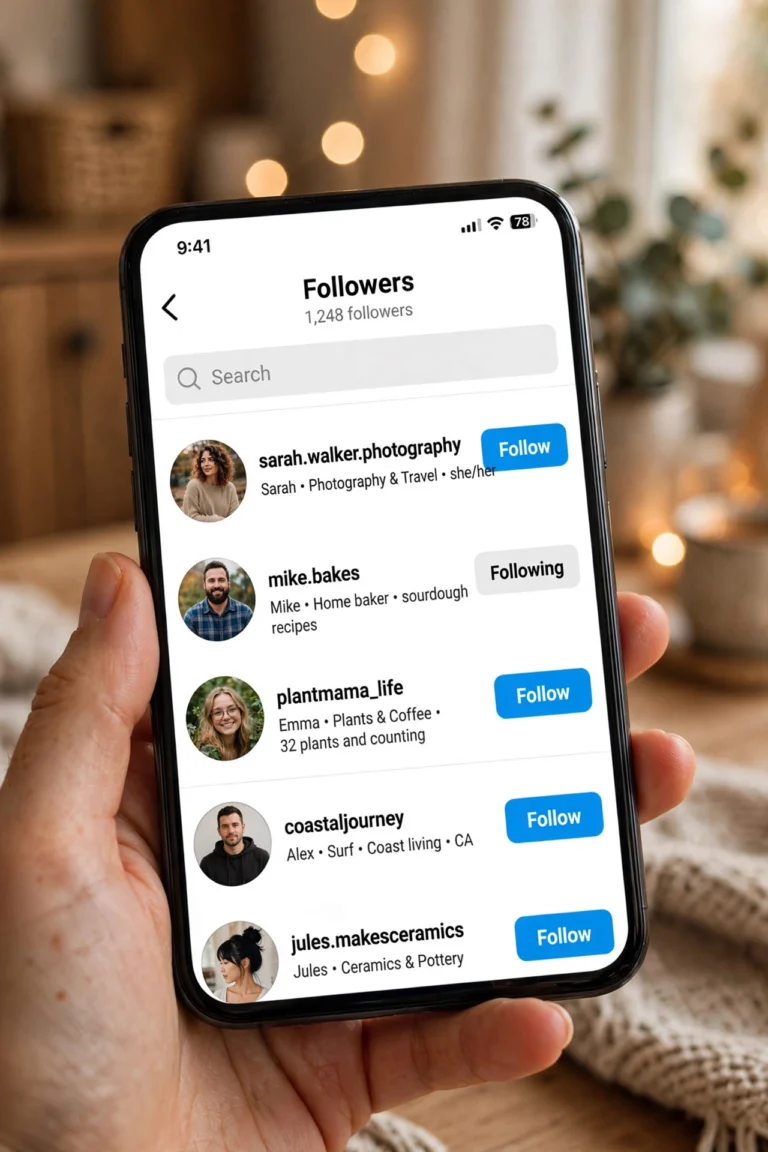
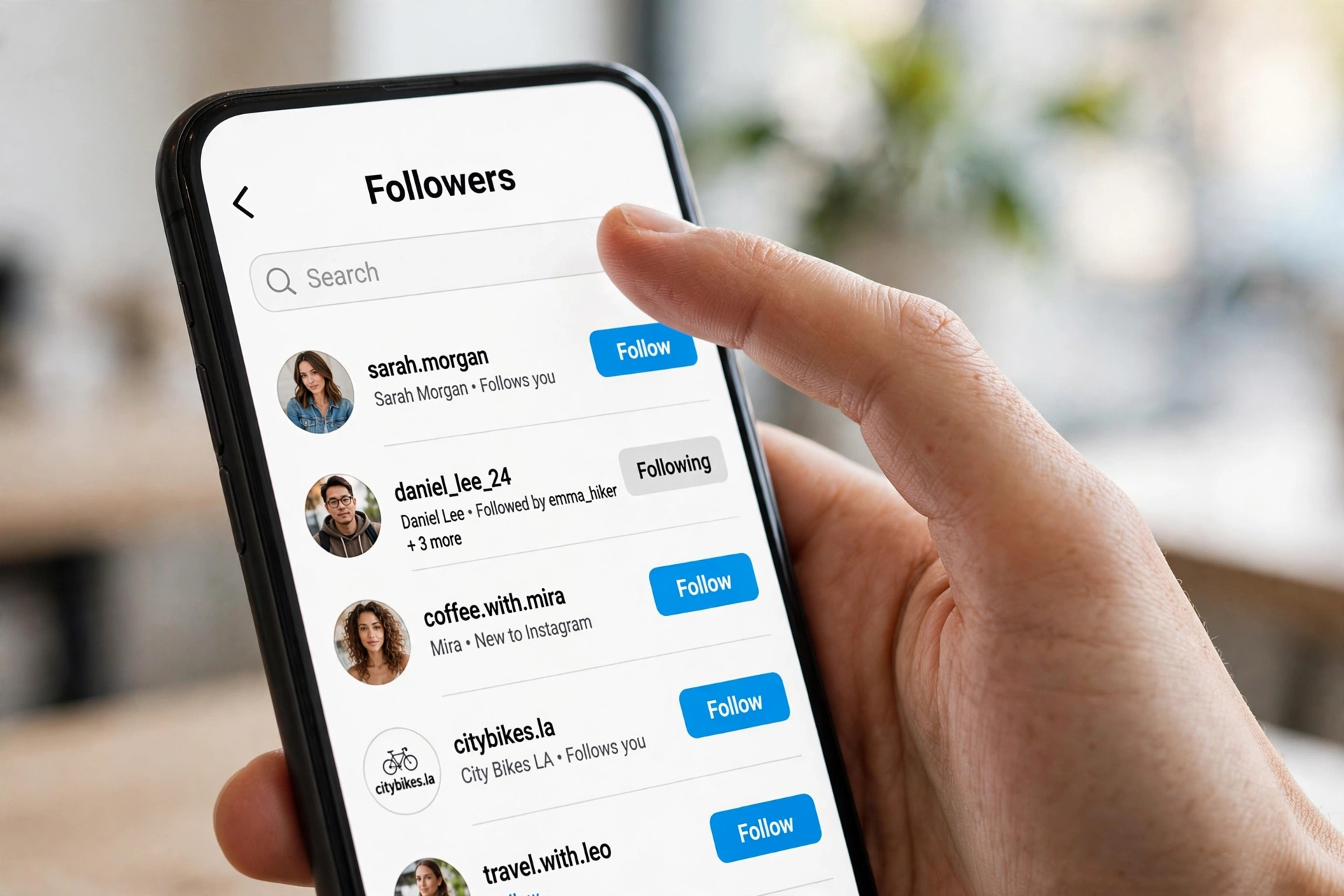
- Tap Followers to open your full followers list
- Type their username into the search bar at the top
- If they appear, they are still following you. If the search comes back empty, they unfollowed you, blocked you, or their account no longer exists
There is a second confirmation that takes just as long. Open that person’s profile directly and look at the button. If it says Follow where it used to say Following, they dropped you. If it says Follow Back, they are still following you and you are the one who unfollowed them at some point. That distinction saves a lot of awkward assumptions.
One important caveat: an empty search result does not always mean an unfollow. If someone blocked you, they vanish from your Followers list too. The same happens if they deactivated or deleted their account. To tell the difference, try finding their profile from a logged-out browser or ask a mutual friend to check. If the profile is gone everywhere, it is a block or a deleted account, not an unfollow.
Method 2: Compare Your Followers and Following Lists
Method 1 only works when you already suspect someone. When your count dropped and you have no idea who left, you need a full-account comparison. The simplest version uses nothing but the two lists Instagram already shows you.
Open your profile and tap Following. Scroll through the accounts you follow and watch for the ones that do not follow you back. On a mutual relationship, that absence is new information: if you remember following each other and the follow-back is now gone, that person almost certainly unfollowed you. This manual scan works well for accounts under a few thousand followers. Beyond that, scrolling becomes impractical and you will want Method 4 instead.
A practical habit that makes this method far more powerful: take a screenshot of your Followers list at the start of every month, or note down the usernames of the 10 to 20 accounts that matter most to you, such as clients, collaborators, and top commenters. At the end of the month, run the same check and compare. You will catch unfollows while the timing is still fresh, which matters because the next step is figuring out why they left, and that trail goes cold fast.
For a dedicated tool that automates the comparison instead of doing it by eye, an instagram unfollow checker can snapshot your lists and highlight exactly which names disappeared between two checks. Just make sure any tool you use never asks for your Instagram password, a rule we will come back to in the apps section below.
Method 3: See Unfollow Counts in Instagram Insights
If you run a business or creator account, Instagram quietly hands you an unfollow counter. It will not tell you who left, but it tells you exactly how many left and when, which is often the more useful half of the answer.
- Open Instagram and go to your profile
- Tap Insights (or open the Professional dashboard and tap Total followers)
- Choose your time range: last 7 days, 14 days, 30 days, or a custom window
- Instagram splits the number into Follows and Unfollows for that period
This is where the method earns its keep. Say you normally lose about 5 followers a day and suddenly see 60 unfollows on a single Tuesday. Open your posting history and look at what went live on Monday and Tuesday. There is almost always a reason: a heavy promo streak, an off-topic Reel, a sudden format change, or a controversial story. The count tells you when to investigate, and your content calendar tells you what to investigate. No third-party tool needed.
Still on a personal account? Switching to a creator or business account is free and takes about 30 seconds: Settings, then Account type and tools, then Switch account type. You keep all your posts, followers, and messages. The only visible change is access to Insights and a category label on your profile, which you can hide.
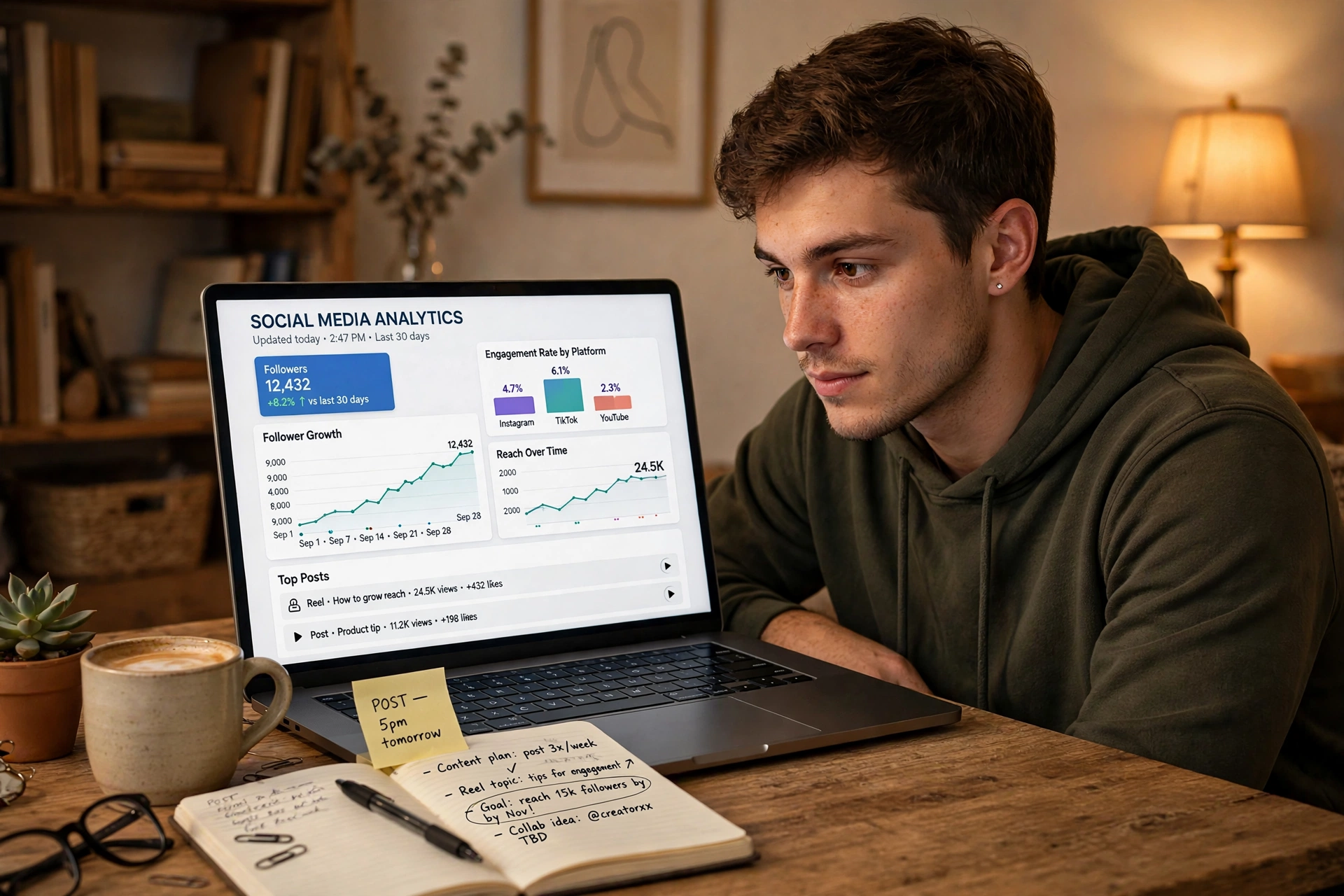
One honest limitation: Insights shows net movement, not individual names. If you need the actual usernames behind a spike, pair this method with the data export in Method 4. Use Insights to spot when people left, then use the export comparison to learn who. Together they beat any paid tracker on accuracy. If comparing accounts side by side is part of your routine, a proper compare instagram followers workflow makes the numbers far easier to read, and a lightweight instagram follower tracker setup keeps the history without manual screenshots.
Method 4: Export Your Instagram Data and Compare Two Files (Most Reliable)
This is the gold standard. Meta lets you download your complete follower and following lists through the Accounts Center. Request the export once, request it again a few weeks later, and compare the two files. Every username in the first file that is missing from the second unfollowed you or deleted their account. It is free, official, and your data never leaves your own device.
Step 1: Request your Instagram data
On mobile: open Instagram, tap the menu icon at the top right, and open Accounts Center. On desktop: open instagram.com, click More at the bottom left, open Settings, then Accounts Center. From there the path is the same on both:
- Tap Your information and permissions
- Tap Download your information (it may also be labeled Export your information)
- Tap Download or transfer information and select your Instagram account
- Choose Some of your information, then tick Followers and following under Connections
- Set the date range to All time and the format to JSON
- Tap Start export and confirm your password
Instagram emails you a download link. Small accounts usually get it within minutes. Large accounts can wait hours, and in rare cases up to a couple of days. Download it promptly because the link expires after a few days.
Step 2: Find the follower files inside the ZIP
Unzip the download and look for a folder named followers_and_following or connections. Inside you will find followers_1.json and following.json, both with timestamps. If you have never opened a JSON file, it is just a structured text file. You can open it in Notepad, or drop it straight into Google Sheets or Excel, which will parse the usernames into rows.
Step 3: Compare two exports to find who unfollowed you
- Keep the followers file from your older export somewhere safe
- Request a fresh export a few weeks later and open its followers file
- Paste both username lists into a spreadsheet, one list per column
- Use duplicate detection, VLOOKUP, or a free text-diff tool to spot the gaps
- Every username in the old list that is missing from the new one is an unfollow (or a deleted account)
Hate spreadsheets? Paste both lists into a free list-comparison tool and the differences show up in seconds. A few web tools can also read the JSON file directly. Whatever you choose, verify one thing first: it must not ask for your Instagram password and must process the file on your own device. The whole point of this method is that it is the safe alternative to password-hungry apps.
All Methods Compared at a Glance
| Method | Speed | Shows names | Cost |
|---|---|---|---|
| Search a username in Followers | About 10 seconds | One person only | Free |
| Compare Followers vs Following | 15 to 30 minutes | Yes | Free |
| Instagram Insights counts | About 5 minutes | No, counts only | Free |
| Data export comparison | 1 to 2 days including export wait | Yes, full list | Free |
| Third-party unfollower apps | Instant | Sometimes | Free to risky |
Method 5: Third-Party Unfollower Apps (What Is Safe, What Is Not)
Type “who unfollowed me” into any app store and you will drown in results. Most of them promise a complete unfollower list with one tap. Here is the uncomfortable truth: Instagram’s official API does not support real-time unfollow alerts, so any app claiming instant notifications is either scraping your data against Instagram’s rules or lying about what it can see.
That does not mean every third-party tool is dangerous. There are two categories worth knowing about. First, analytics tools that connect through Instagram’s official API using proper login permissions, such as Metricool. These show follower gains and losses over time in a clean dashboard. They are low risk because they never ask for your password, but they show net changes, not the names of who left. Second, no-login web tools that snapshot public profiles on a schedule and flag changes. You type in a username and that is it. They only work on public profiles, they cannot catch unfollows from before your first scan, and accuracy gets shaky on very large follower lists.
Everything else deserves heavy skepticism. Walk away from any app that shows these red flags:
- It asks for your actual Instagram password instead of logging you in through Meta’s official OAuth screen
- It performs automated actions on your account, like mass unfollow, bulk follow, or ghost-follower cleanup
- It stores your credentials or shares your data with unknown third parties
- It promises real-time unfollow alerts, which Instagram’s API simply does not support
- It has almost no reviews, or its reviews are full of “my account got locked” complaints
Instagram’s Terms of Use explicitly prohibit collecting information through automated means without permission, and accounts caught scraping can be restricted or suspended. A clean unfollower report is never worth losing an account you spent years building. If a tool wants more access than Instagram officially hands out, skip it. And if you are tempted by bulk actions, read up on mass unfollow instagram limits first, because aggressive unfollowing is one of the fastest ways to trigger an action block.
Why People Unfollow (And What to Do About It)
Finding the names is only half the job. The useful question is why they left, because the answer usually points straight at your content. After auditing hundreds of accounts, the same four patterns show up again and again.
- Content mismatch: someone followed you for travel photos and you pivoted to crypto threads. They are not angry, they are just no longer the audience.
- Promo overload: three sales posts in a row will cost you more followers than a month of silence. Drops almost always cluster around heavy selling streaks.
- Inactivity: accounts that go quiet for months get pruned when people clean up their Following lists.
- Format fatigue: sudden shifts, like a photo account turning into all talking-head Reels, push out followers who came for the old format.
Not every unfollow is a loss worth chasing. A follower from your old niche leaving after a deliberate rebrand is making room for someone who wants what you offer now. But if the names leaving are your ideal audience, treat it as a content signal: post less promotion and more of what originally earned the follow. Creators serious about reversing the trend usually start with learning how to increase instagram followers the sustainable way, then refresh their profile with stronger classy captions for insta that give new visitors a reason to stay.
FAQs About Seeing Who Unfollowed You on Instagram
Does Instagram notify you when someone unfollows you?
No. Instagram has never sent unfollow notifications. You will not get a push alert, an email, or anything in your Activity tab. The only signals are a lower follower count and a name missing from your Followers list.
Can you see who unfollowed you on Instagram without an app?
Yes. Search their username in your Followers list for a single-person check, compare your Followers and Following lists for a full-account scan, check unfollow counts in Insights on a business or creator account, or compare two Meta data exports for the complete list of names. All four methods are free and need no third-party app.
Will unfollower tracker apps get my Instagram account banned?
It depends on the app. Tools using Instagram’s official API with proper permissions are generally fine. Apps that demand your password, scrape data, or run automated actions violate Instagram’s Terms of Use and can trigger anything from reduced reach to a full suspension. When in doubt, do not grant access.
Why did my Instagram follower count drop suddenly?
Three usual suspects: a wave of real unfollows after a controversial or off-topic post, Instagram removing bot and spam accounts in a purge, or people deactivating their accounts. Check Insights for the exact day of the drop, then match it against what you posted that day.
Can I see who unfollowed me if my account is private?
Yes, all four manual methods work on private accounts because they use your own lists and your own data export. No-login web snapshot tools will not work for private profiles, since they can only monitor public accounts.
How often should I check for unfollowers?
For most creators, a monthly check is plenty. Export your data once a month, compare it against the previous export, and review the timing of any spikes in Insights. Checking daily turns follower counts into anxiety without giving you better information.
iPhone vs Android: Is There Any Difference?
Short answer: no. Every method in this guide works identically on iPhone and Android because they all use the same Instagram app features or the same Meta Accounts Center on the web. The username search, the Followers and Following comparison, and Insights behave the same on both platforms. The only step where the path looks slightly different is the data export: on iPhone and Android you reach the Accounts Center through the in-app menu, while on desktop you reach it through the More menu on instagram.com. The export options themselves, including the Followers and following tick box and the JSON format, are identical everywhere. So whichever phone you use, pick the method above that fits your situation and follow the same steps.
Final Word
Instagram will probably never give you a native unfollower list, and honestly, you do not need one. A ten-second username search answers the one-person question, Insights tells you when the bleeding started, and two data exports a few weeks apart hand you every name that left. Start with the free manual methods, keep a monthly baseline so future comparisons take minutes instead of hours, and keep your password far away from any app that promises to do it all for you. The accounts worth keeping are built on content people want to stay for, not on surveillance of the ones who left.