
How to See Who Reposted Your Post on Instagram (2026): 5 Ways to Find Out
Your post blew up overnight. The share count says 342, your reach graph is spiking, and somewhere out there dozens of accounts are passing your content around. The frustrating part is that Instagram shows you the number but makes you hunt for the names. If you’re wondering how to see who reposted your post on Instagram, here is the good news: in 2026, the app actually gives you five working ways to find out, from official Repost button notifications to the View Story Reshares menu. Some methods hand you exact usernames, others only give you totals, and a few types of shares stay invisible by design. This guide walks through each one step by step, so you know exactly what works and what stays hidden.
What “Repost” Actually Means on Instagram in 2026
On Instagram, the words repost and share get used interchangeably, but the app treats them as different actions. Knowing the difference matters, because each type leaves a different trail.
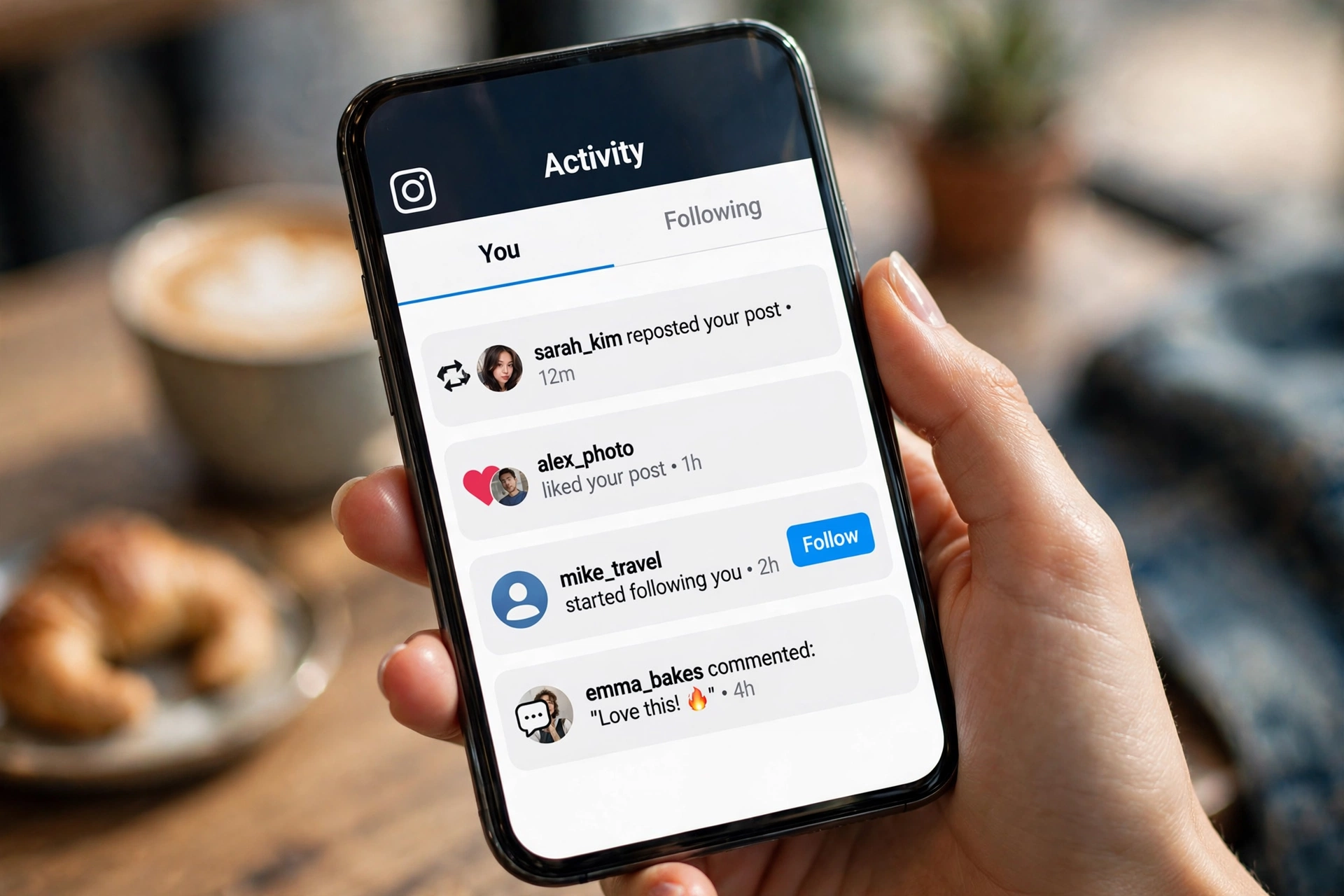
A repost happens when someone taps Instagram’s official Repost button, the two-arrow icon under a post or Reel. It works like a retweet: your content appears in the resharer’s own feed with a “reposted” label, and it also lands in a dedicated Reposts tab on their profile. You get a notification in your activity feed with their username. Note: the Repost button is still rolling out to some accounts in 2026, so you may not see it on every post yet.
A Story share is the classic paper-plane share: someone taps the share icon and adds your post to their Instagram Story. It is the most common way content spreads, and under the right conditions Instagram will show you exactly who did it.
A DM share is when someone sends your post to another user through direct messages. Instagram counts these in your total share number, but the sender’s identity stays completely private.
One rule runs across all three: your account must be public. The repost option does not appear on private accounts at all, not even for your followers.
How to See Who Reposted Your Post on Instagram: 5 Working Methods
Instagram never put all of this in one screen. Here are the five methods that actually work in 2026, starting with the easiest.
Method 1: Check Your Repost Notifications
The fastest way to catch a reposter is your activity feed. When someone taps the Repost button on your post or Reel, Instagram sends a real-time notification like “sarah_kim reposted your post,” with the resharer’s username and a timestamp.
To make sure you never miss one, turn on reshare notifications:
- Go to your profile and tap the three lines in the top right corner.
- Tap Settings and privacy, then Notifications.
- Tap Posts, stories and comments.
- Make sure Reshares of your posts and reels is switched on.
Once this is active, every public repost pings you the moment it happens. If you also track likes closely, an Instagram Likes Viewer pairs well with this, since likes and reposts spike together when a post takes off.
Method 2: Use “View Story Reshares” for Story Shares
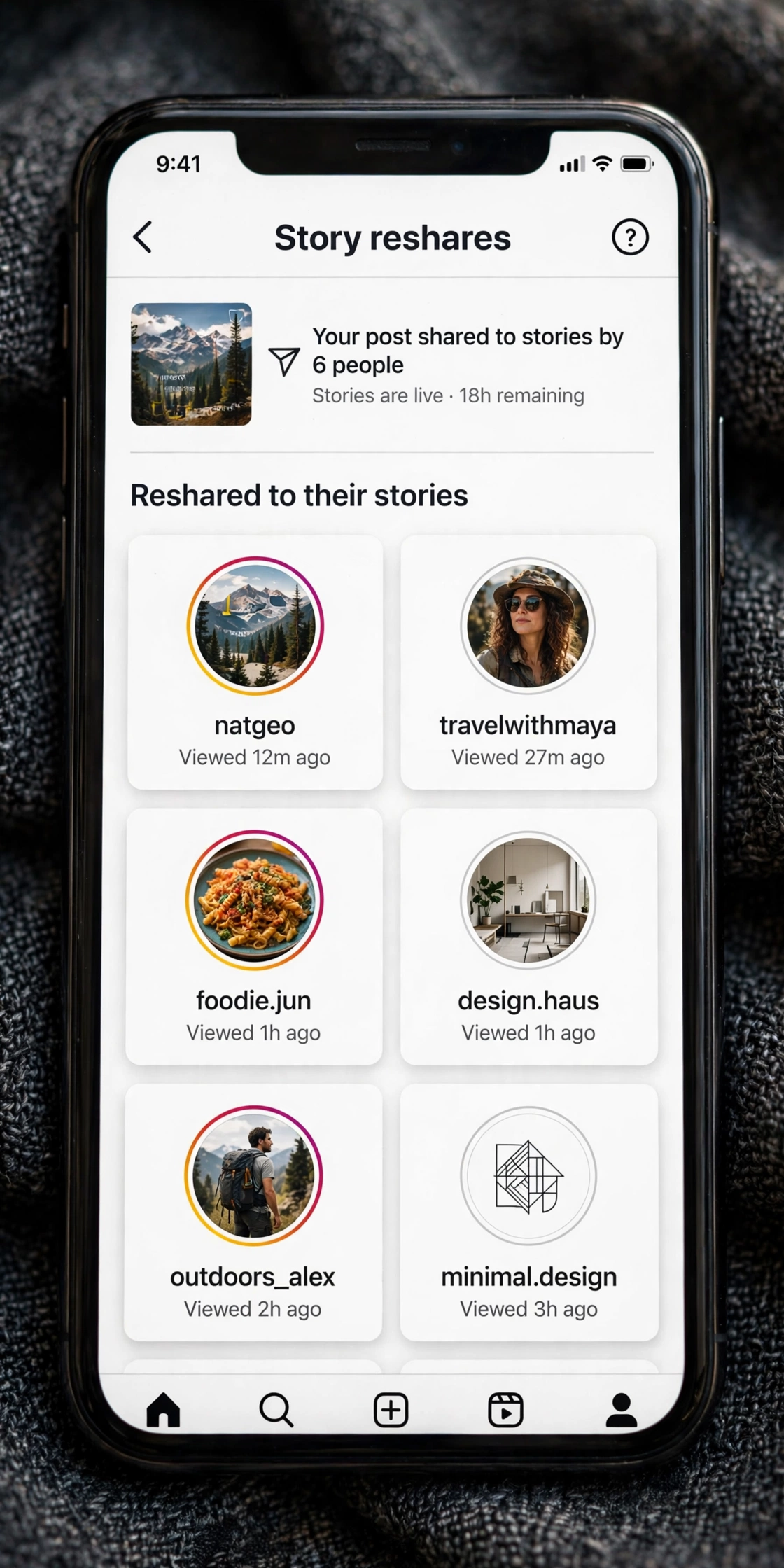
Story shares are the most common way posts spread. Instagram’s View Story Reshares tool shows you a grid of every public account that added your post to their Story.
Here is how to find it:
- Open Instagram and go to the post you want to check.
- Tap the three dots at the top right corner of the post.
- Tap View Story Reshares in the menu.
- You will see a grid of public accounts that shared your post, with usernames and how long ago they shared it.
- Tap any profile in the grid to jump straight to their Story and see your post sitting inside it.
Three limits apply. First, you only see public accounts; private-account sharers never appear. Second, the window is short: Story reshares vanish after 24 hours. Third, you need a Professional account (Creator or Business); personal accounts do not get this option. Switching is free in Settings, Account type and tools, Switch to professional account.
If View Story Reshares does not appear, no public account has shared your post yet, the Stories already expired, or you are on a personal account. An Instagram Unfollow Checker is also handy for noticing when followers quietly leave right after you publish, which tells you as much about a post as its share count.
Method 3: Check the Reposts Tab on Their Profile
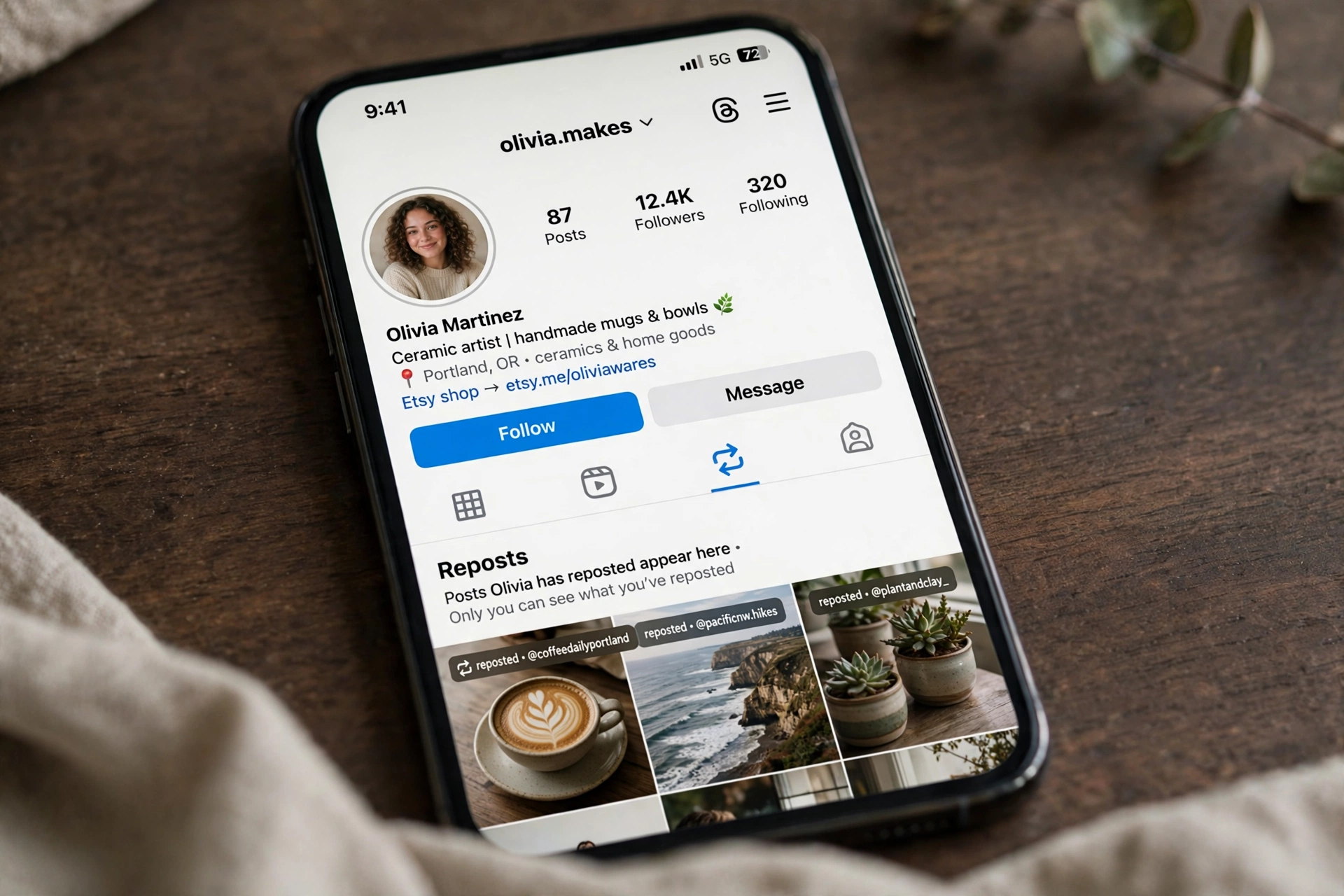
You do not always need Instagram to tell you. Every public repost lives in a dedicated Reposts tab on the resharer’s profile, marked by a two-arrow icon next to the grid and Reels tabs. Open any profile, tap it, and scroll through everything that person reposted.
This method is manual but surprisingly useful. If a brand reposted your photo and you never got a notification, check their profile directly and see your post in their Reposts tab. A page that keeps borrowing your content without tagging you cannot hide it from this tab.
The catch: you have to know whose profile to check. Pair this with Method 1. Notifications tell you who reposted, and the Reposts tab lets you verify it with your own eyes.
Method 4: Check Post Insights for Total Share Counts
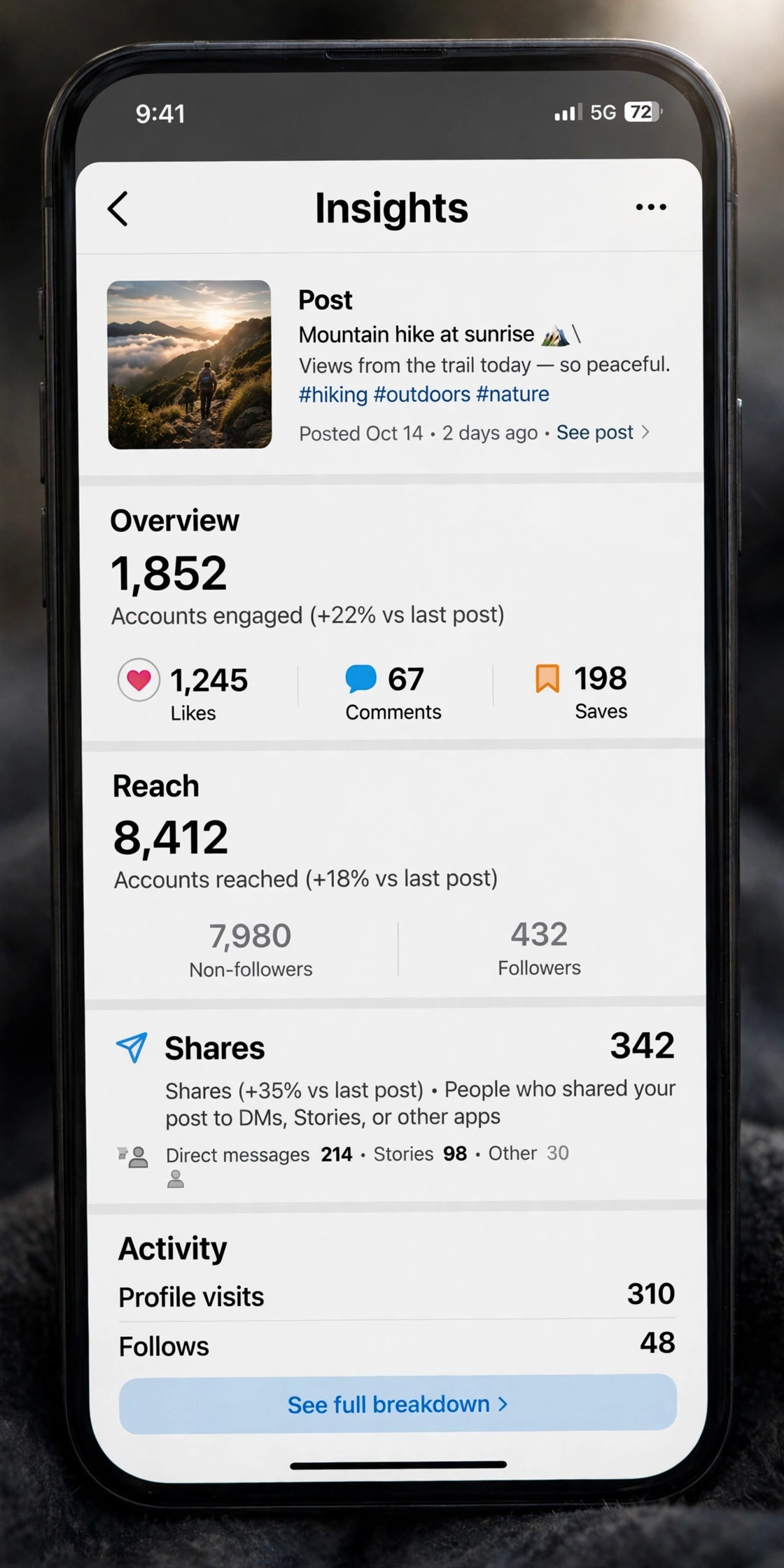
When usernames are not available, numbers still tell a story. On a Professional account, Post Insights shows the total number of times your post was shared.
- Go to the post on your profile.
- Tap View Insights below the post.
- Look for the Shares row, usually marked with a paper-plane icon.
The share count combines Story shares and DM shares into one number, with no usernames. Still, it is a strong growth signal: in 2026, shares carry more algorithmic weight than likes, and posts with climbing share counts get pushed into non-follower feeds and Explore.
Watch this number alongside your follower count. If shares spike and new followers arrive, an Instagram Follower Tracker shows you exactly when the growth started, so you can connect it to the post that caused it. And when a high share count brings you fresh reach, it pays to be ready: this guide on How to Increase Instagram Followers covers the free tactics that turn one viral post into lasting growth.
Method 5: Catch Sharers With Tag Notifications and a Caption Trick
When someone shares your post to their Story and tags your handle, Instagram sends an activity-feed alert: “username mentioned you in their story.” Tap it to land directly on their Story. It only fires when they tag you, and most reshares happen without a tag, so this catches a fraction of your sharers.
Tilt the odds with one caption line: “tag me if you share this.” People actually do it. For lines worth passing along, browse these Classy Captions for Insta ideas and pick one that fits your post. Every tag you earn is a username Instagram hands you.
What You Can and Cannot See: Quick Comparison
Here is every share type on Instagram in one place, with exactly what you get from each.
| What happened | Can you see who did it? | What you need |
|---|---|---|
| Someone reposted your post or Reel with the Repost button | Yes, username in your notification | Public account, reshare notifications on |
| Someone shared your post to their Story | Yes, in View Story Reshares | Public account plus Professional account, within 24 hours |
| Someone tagged you in a Story share | Yes, mention notification in activity feed | They tag your handle |
| Someone reposted you and you want proof | Yes, visible in their Reposts tab | You visit their profile |
| Total number of shares (Story plus DM) | Count only, no usernames | Professional account, Post Insights |
| Someone shared your post via DM | No, never visible | Not possible |
| A private account reshared your post | No, private accounts stay hidden | Not possible |
What Instagram Does NOT Show You
DM shares are permanently private. Instagram treats them like a private conversation: the share is added to your Insights total, but the sender’s identity is never revealed to you.
Private accounts stay hidden too. If a private account shares or reposts your post, the share count rises but their username never appears in View Story Reshares or your notifications.
Story reshares expire. After the 24-hour Story window closes, the username grid is gone for good, so check early.
Personal accounts get less data. Without a Creator or Business account, you lose View Story Reshares and detailed share counts entirely.
Screenshots and screen recordings leave no trace. Anyone can capture your post and re-upload it without Instagram knowing; your only option then is reverse image search plus checking the Reposts tab of suspected profiles. Tools like InstaUp APK also put extra Instagram utilities on your Android phone for checking stats and audience.
Warning: No Third-Party App Can Show You Who Reposted
Apps promising to reveal every sharer’s username cannot do it. Instagram exposes no share identities through any public API, so no app or website can pull usernames Instagram hides from you.
Apps that claim otherwise either show fake lists to keep you watching ads, or ask for your Instagram login to steal your account, spam your followers, or lock you out. A login screen inside a “tracker” app is the reddest of red flags.
If Instagram does not show it in notifications, View Story Reshares, the Reposts tab, or Insights, nobody else can either. Skip these apps entirely.
How to Stop People From Reposting Your Posts
Maybe you do not want more reposts at all. Instagram lets you shut the feature off.
To disable reposts: go to Settings and privacy, then Privacy, then Reels and remix. Turn off Allow reposts. The Repost button disappears from your content, and existing reposts are removed.
To limit Story sharing: go to Settings and privacy, then Privacy, then Story. Turn off Allow sharing to messages. This stops DM sends, the one channel you could never track.
For maximum control, go private. On a private account the repost option does not appear for anyone, followers included, and Story sharing is disabled entirely.
One honest limitation: nothing stops screenshots. Disabling reposts kills easy one-tap spreading, but for content you truly want to protect, think twice before posting it publicly.
Frequently Asked Questions
Can I see who reposted my Instagram post?
Yes, in several cases. The Repost button sends a notification with the username, View Story Reshares shows public Story sharers within 24 hours, and you can check anyone’s Reposts tab manually. DM and private-account sharers stay hidden.
Why can I not see the “View Story Reshares” option?
It only appears on Professional accounts, and only when a public account shared your post within the last 24 hours.
Does Instagram notify me when someone shares my post?
Yes, for two kinds. The Repost button triggers a username notification, and a tag in a Story share triggers a mention alert. Untagged shares and DMs trigger nothing.
Can I see who shared my post via DM?
No. DM shares are private by design. Instagram counts them in your share total but never reveals the sender, and no third-party app can change that.
How do I turn off reposts on my posts?
Go to Settings and privacy, Privacy, Reels and remix, and switch off Allow reposts. For Story sharing, go to Privacy, Story, and disable Allow sharing to messages.
Will the Repost button appear for everyone?
The Repost button is still rolling out to some accounts in 2026, so keep your app updated if you do not see it yet. It only appears on public accounts.
How can I see who reposted my post for free?
If you want to know how to see who reposted your post on Instagram without paying for an app, stick to the free built-in tools: repost notifications, View Story Reshares on a Professional account, and the Reposts tab on any public profile. No paid tracker is needed, and most paid ones cannot show you more anyway.
Final Word
You do not need a tracker app. Between repost notifications, View Story Reshares, the Reposts tab, and Post Insights, Instagram gives you every tool that actually exists; everything else is private by design or a scam. Turn on reshare notifications, switch to a professional account, and check share counts regularly. Bookmark this guide so the next time you wonder how to see who reposted your post on Instagram, you can jump straight to the method that fits.



One Comment