
Instagram Photo Downloader: Save HD Photos & Carousels Free (2026)
You see a photo on Instagram that you want to keep, a travel shot, a recipe step, a product you plan to buy, or a picture a friend posted from your trip together. You tap around the post looking for a save button, and there is nothing to tap. Instagram lets you bookmark a post inside the app, but it never gives you the actual photo file, so the moment you lose signal, the account goes private, or the post gets deleted, the image is gone for good. An Instagram photo downloader solves this exact gap: you copy the public post link, paste it into the downloader, and save the original JPEG file in full HD quality to your phone or computer, with no login, no app install, and no watermark. This guide shows you how an Instagram photo downloader works, how to save single photos and full carousels on iPhone, Android, and PC, what resolution you actually get, and when downloading a photo is safe and legal.
What Is an Instagram Photo Downloader?
An Instagram photo downloader is a free online tool that saves the photo file from a public Instagram post to your device. You give it the link of the post, and it fetches the exact JPEG image that Instagram stores on its own servers, then hands you a download button. The file you get is the same clean image Instagram shows in the feed, with no username tag, no watermark, and no app interface baked into it.
Most photo downloaders work the same way. They only handle public posts, because a public post link is enough to find the image file. They never ask for your Instagram password, and they never ask you to log in to your account. If a site that claims to download Instagram photos asks for your login details, close it at once, because a real downloader has no use for your password.
A photo downloader is built for still images: single photo posts and carousel posts. If the post is a video clip or a Reel, you need a different tool, because video files use a different format. An instagram video downloader handles Reels and video posts the same way this tool handles photos, with the file saved as MP4 instead of JPEG. Stories disappear after 24 hours and live in a different part of Instagram, so they need their own saver as well.
Why Instagram Has No Download Button for Photos
Instagram never added a download button for photos, and the reason is simple: the platform wants you to stay inside the app. When you save a post with the bookmark icon, Instagram keeps the post on its own servers and shows it to you only while you are logged in. That keeps your attention, your scrolling, and your ad views inside Instagram. A real download button would let the photo leave the app, and Instagram has no business reason to offer that.
There is also a creator-protection reason. Every photo on Instagram belongs to the person who posted it. If Instagram gave everyone a one-tap download button, re-uploading other people’s photos would become effortless, and creators would lose control of their work. By keeping photos inside the app, Instagram makes casual copying harder, even though it cannot stop it completely.
That leaves users with a real problem. People save Instagram photos for honest reasons every day: designers collect reference images for mood boards, travellers keep hotel and restaurant photos for a trip plan, cooks save recipe steps, shoppers save product photos to compare prices later, and friends save memories from a shared trip. The bookmark feature does none of this well, because a bookmark is not a file. You cannot print it, edit it, attach it to an email, or open it without internet. An Instagram photo downloader fills the gap Instagram left open, and it does so without touching your account at all.
How to Download Instagram Photos in 3 Steps
Downloading an Instagram photo takes less than a minute once you know the steps, and the process is the same on every device. You do not need an account on the downloader site, and you do not need to install anything.
- Copy the post link. Open the Instagram photo post, tap the share icon (the paper plane) or the three dots menu, and choose Copy Link. On a computer, copy the URL straight from the browser address bar. The link looks like instagram.com/p/ followed by a short code.
- Paste the link into the downloader. Open an Instagram photo downloader in your browser, paste the link into the box at the top of the page, and tap Download. The tool reads the public post and shows you a preview of the photo, or every slide if the post is a carousel.
- Save the JPEG file. Tap the download button under the preview. On a phone, the file goes to your Downloads folder, and you can move it to Photos from there. On a computer, it lands in your Downloads folder as a JPEG you can open, print, or edit right away.
That is the whole process for a single photo. Carousels work the same way, with one difference: the downloader shows every slide in the post, and you can save one slide, several slides, or the full set. The next sections walk through the exact steps on iPhone, Android, and PC, because each device saves the file in a slightly different place.
How to Download Instagram Photos on iPhone
On iPhone, the whole job happens in Safari or Chrome, and the photo ends up in your Files app first, then in Photos. Start by opening Instagram, finding the public photo post, and tapping the share icon under the photo. Choose Copy Link, then switch to Safari and open your Instagram photo downloader. Paste the link, tap Download, and wait for the preview to appear. Tap the download button under the photo, and Safari will ask whether to download the file. Choose Download, then tap the download arrow in the address bar and open the file in the Files app. From there, tap the share button and choose Save Image, and the photo appears in your Photos library like any picture you took yourself.
Two iPhone details are worth knowing. First, Safari sometimes opens the JPEG in a viewer instead of downloading it. If that happens, long-press the image in the viewer and choose Save to Photos, or use the share sheet to save it. Second, older iPhones on slow connections can take a few seconds to show the preview, because the downloader is fetching the full-resolution file from Instagram, not a small thumbnail. Wait for the preview before tapping anything, or you may save a low-quality version by mistake.
Stories need a different tool, because a story link does not behave like a post link. An instagram story downloader is built for the 24-hour story format, while the photo downloader here is built for permanent feed posts and carousels. Mixing the two up is the most common reason a download fails on iPhone.
How to Download Instagram Photos on Android
Android is the simplest device for saving Instagram photos, because Chrome handles downloads cleanly. Open the Instagram app, tap the share icon or the three dots on the photo post, and choose Copy Link. Open Chrome, go to your Instagram photo downloader, paste the link, and tap Download. The preview appears in a few seconds. Tap the download button, and Chrome saves the JPEG straight to your Downloads folder. Most gallery apps pick the new file up within seconds, so you will find the photo in your gallery without moving it by hand.
If the photo does not appear in your gallery, open the Files app, go to Downloads, and tap the file once to open it. Some Android phones hide the Downloads folder from the gallery until the media scanner runs, and opening the file once fixes that. Also check that Chrome has storage permission if the download never starts. The permission lives in your phone settings under Apps, then Chrome, then Permissions, and a missing permission is the most common reason a download silently fails on Android.
Android users should also watch out for fake downloader apps in the Play Store. Many of them demand your Instagram login or show a full-screen ad before every download, and some bundle extra software you never asked for. A browser-based Instagram photo downloader avoids all of that, because it runs in Chrome, asks for nothing, and leaves no app on your phone when you are done.
How to Download Instagram Photos on PC or Mac
On a computer, the process is the fastest of all, because you can copy the link from the address bar and save the file with one click. Open the Instagram photo post in your browser, copy the URL from the address bar, and paste it into your Instagram photo downloader. When the preview appears, click the download button and the JPEG saves to your Downloads folder. From there you can rename it, move it into a project folder, open it in an editor, or print it.
A PC also makes it easy to check the real quality of the file you saved. Right-click the downloaded JPEG, open Properties on Windows or Get Info on Mac, and look at the dimensions. A normal Instagram feed photo is 1080 pixels wide, and newer uploads can be 1440 pixels wide. If the file you saved is much smaller than that, something went wrong, and you should try the link again rather than keep a low-quality copy.
The computer workflow is also the best choice when you need many photos at once, for example every slide of a long carousel or photos from several posts for a mood board. You can open several tabs, paste one link per tab, and save each file in turn without juggling apps on a small phone screen.
| Device | Browser | Steps | Where the file lands | Login needed |
|---|---|---|---|---|
| iPhone | Safari or Chrome | Copy link, paste, download, save to Photos | Files, then Photos | No |
| Android | Chrome | Copy link, paste, download | Downloads folder and gallery | No |
| PC or Mac | Any browser | Copy URL, paste, download | Downloads folder | No |
The table above sums up the whole workflow. Every device uses the same three steps, and the only difference is where the finished JPEG ends up. No device needs an Instagram login, and no device needs a paid app.
How to Download All Photos From an Instagram Carousel
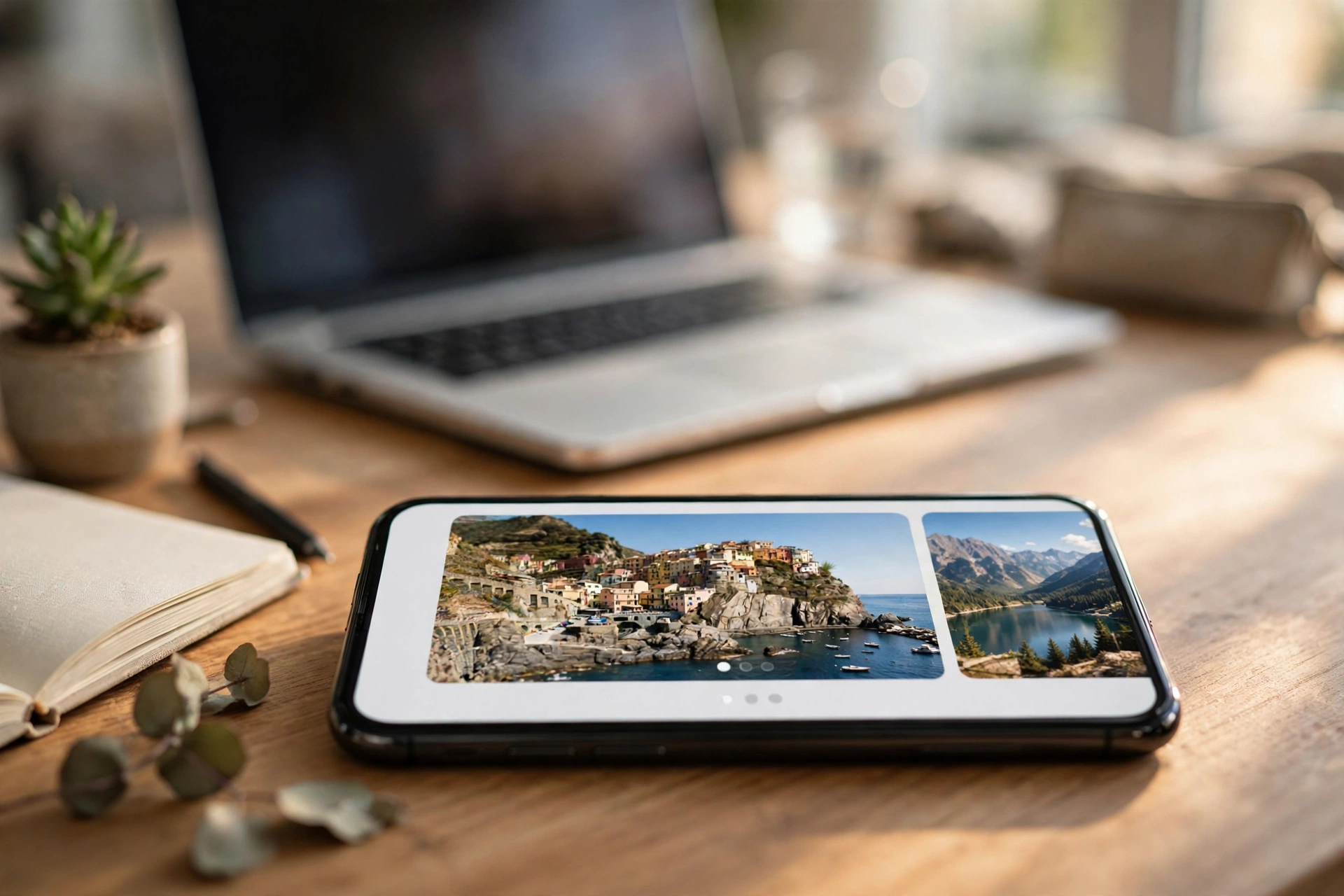
A carousel is the swipeable album format on Instagram: one post that holds up to 20 photos, or a mix of photos and video clips. The cover photo is only the first slide, and the rest of the images stay hidden until you swipe. A plain screenshot only captures the slide on your screen, so saving a carousel properly needs a downloader that reads every slide in the post.
The steps are the same as for a single photo. Copy the link of the carousel post, paste it into your Instagram photo downloader, and wait for the preview. Instead of one image, the preview shows every slide as its own card, each with its own download button, plus a Download All option on most tools. You can save the full set in one go, or pick only the slides you need, which is handy when a carousel mixes useful slides with ones you do not want.
Carousels are where downloaders prove their value. Recipe posts spread the steps across ten slides, product posts show every angle and colour, travel posts pack a whole trip into one album, and before-and-after posts put the change across several frames. Saving only the cover photo loses most of the content. Saving every slide gives you the full post as separate JPEG files you can keep, print, or sort into folders.
Watch out for mixed carousels, where some slides are photos and others are video clips. A photo downloader saves the image slides as JPEG files and either skips the video slides or hands them to a video tool. If a slide is missing from your download, check whether that slide was a video clip. An instagram reel downloader covers the video side of the same job, and most downloader sites link the two tools together for exactly this reason.
| Content type | Output format | Max quality | Login needed |
|---|---|---|---|
| Single public photo | JPEG | Full resolution as uploaded | No |
| Carousel slide | JPEG per slide | Full resolution per slide | No |
| Full carousel (up to 20 slides) | JPEG per slide | Full resolution per slide | No |
| Mixed photo and video carousel | JPEG plus MP4 | Full resolution per slide | No |
| Private account photo | Not supported | Not applicable | Not applicable |
What Quality Do You Get? Instagram Photo Resolution Explained
The photo you download is exactly as good as the file Instagram stores, and no downloader can improve on that. Instagram compresses every photo at upload and caps how wide it will ever serve a feed image. For years the cap was 1080 pixels wide: square posts at 1080 by 1080, portrait posts at 1080 by 1350. Newer uploads can reach 1440 pixels wide, with portrait posts at 1440 by 1800. A downloader fetches the stored file as it is, so a 1440-pixel upload downloads at 1440 pixels, and a 1080-pixel upload downloads at 1080 pixels.
That is why a downloaded photo always beats a screenshot. A screenshot is limited by your screen: your phone captures the pixels it can display, plus the caption, the like button, the comment bar, and every other interface element drawn over the image. A download skips all of that and gives you the clean source file, with no interface in the frame and no screen-level compression on top of Instagram’s own compression.
There are two honest limits to know. First, no downloader can upscale a low-resolution original. If someone uploaded a small, blurry photo in 2019, the stored file is small and blurry, and the download will match it exactly. Any tool that promises 4K quality from any Instagram photo is making a promise Instagram’s own servers cannot keep. Second, Instagram sometimes serves a smaller preview to the feed and keeps the larger file behind the post link. A downloader that reads the post link gets the larger file, which is another reason to paste the link rather than screenshot the feed.
Creators who track which of their photos perform best should also check their numbers after saving. Instagram insights show reach, saves, and shares per post, so you can see which photos your audience actually keeps, then download the winners in full quality for reuse in a portfolio, a pitch deck, or a printed lookbook.
Instagram Photo Downloader vs Screenshot vs App
There are three ways to keep an Instagram photo, and they are not equal. A screenshot is the fastest, but it is also the worst: low resolution, cropped edges, interface elements in the frame, and different quality on every device. A downloader app can work, but it usually wants storage permissions, shows ads, and sometimes asks for your Instagram login, which is a red flag. A browser-based Instagram photo downloader is the middle path that wins on quality and safety: full-resolution JPEG, no watermark, no login, nothing to install, and the same result on every device.
| Method | Best for | Quality | Login needed | Tradeoff |
|---|---|---|---|---|
| Instagram photo downloader | Public photos and all carousel slides | Full resolution JPEG, no watermark | No | |
| Screenshot | Quick capture of what is on screen | Low, limited by screen, UI included | No | |
| Downloader app | Frequent saving on one phone | Full resolution in good apps | Sometimes | Install, ads, permissions, login risk |
For a one-off save, the browser downloader is the clear choice. For someone who saves photos every day, a trusted app can be convenient, but only if it never asks for an Instagram password. The screenshot stays useful for one case only: capturing a photo together with its caption and comments as a record of the post itself, where the interface is part of what you want to keep.
Is It Safe and Legal to Download Instagram Photos?
Downloading an Instagram photo with a browser-based downloader is safe when the tool asks for nothing but a public link. It never sees your password, never touches your account, and never installs software, so there is nothing on your device for it to harm. The danger signs are easy to spot: a downloader that asks you to log in to Instagram, a page that demands you install an app or browser extension first, or a site covered in pop-ups that push you toward a different download. Any of those means the site is not a plain downloader, and you should close it and use another one.
Legality is a separate question, and it depends on what you do with the photo after you save it. The photo still belongs to the person who posted it. Saving a public photo for your own offline viewing, for a personal mood board, or as a reference for your own work is generally low-risk, because you are not publishing it or making money from it. Re-uploading someone else’s photo as your own, using it in an ad, selling it, or removing the creator’s credit is a different matter, and it can break copyright rules. Instagram’s own copyright guidance says you should only post content you created yourself, and the platform’s terms forbid collecting content in an automated way without permission.
There are fair-use style exceptions for commentary, criticism, news reporting, and teaching in many countries, but those are judged case by case, and they do not cover re-posting a photo to grow your own account. The safe rule is simple: download for personal use freely, and ask the creator before you publish their photo anywhere. Most creators say yes when you ask and credit them, and a short message costs less than a copyright complaint. If you do repost with permission, write your own words with it rather than copying the original text, and good instagram captions written in your own voice make the repost feel like yours instead of a copy. Creators who plan their feed around reposted inspiration can also keep their grid consistent with ready-made instagram templates for quotes, announcements, and photo sets.
One more legal note: private photos are off limits. A downloader that only works on public posts is respecting that boundary by design. Any tool that claims it can download photos from a private account is either lying or asking you to hand over login details, and both are reasons to walk away.
Troubleshooting: When an Instagram Photo Download Fails
Most failed downloads come from a small list of causes, and each one has a simple fix. Work through them in order before switching tools.
The link does not work. Check that you copied a post link, not a profile link or a story link. A post link looks like instagram.com/p/ followed by a short code. A profile link like instagram.com/username points at a whole account, and a downloader built for posts cannot read it. Copy the link again from the share menu of the exact photo post.
The post is private, deleted, or restricted. If the account went private, the post was deleted, or the post is age-restricted, no public downloader can fetch it. The tool will usually report the post as private or not found. There is no setting that fixes this, because the file is no longer public.
The downloaded photo looks small or blurry. The original upload was probably low resolution, and the downloader returned the stored file exactly as Instagram keeps it. Try the same link once more to rule out a preview glitch, then accept the file as it is. Do not trust a tool that claims it can sharpen or upscale the photo to 4K, because Instagram does not store a sharper version to fetch.
A carousel slide is missing. The missing slide is usually a video clip, not a photo. Photo downloaders save image slides as JPEG and leave video slides for a video tool. Check the post again and count how many slides are photos versus videos.
The download button does nothing. An ad blocker or a strict browser setting can block the download pop-up. Try the same link in a private window with extensions off, or try a different browser. On iPhone, remember that Safari may open the JPEG in a viewer instead of downloading it, and you need to long-press the image to save it.
The preview never loads. Wait ten seconds and refresh the page. Downloaders fetch the file from Instagram in real time, and a slow connection or a busy moment on Instagram’s side can delay the preview. If it still fails after a refresh, the post may have been removed since you copied the link.
Frequently Asked Questions
Can I download Instagram photos without logging in?
Yes. A proper Instagram photo downloader works from the public post link alone, with no Instagram login, no account on the downloader site, and no app install. If a downloader asks for your Instagram password, close it, because a real downloader never needs it.
Can I download all photos from a carousel post at once?
Yes. Paste the carousel post link, and the downloader shows every slide as its own preview card, each with a download button, plus a Download All option on most tools. Each slide saves as a separate JPEG at full resolution.
What format are downloaded Instagram photos?
JPEG, the same format Instagram itself serves. It opens on every phone, computer, and design tool without conversion, and it is small enough to store easily while keeping the full quality Instagram holds.
How good is the quality of a downloaded Instagram photo?
As good as the file Instagram stores. Normal feed photos are 1080 pixels wide, and newer uploads can reach 1440 pixels wide. The download matches the stored file exactly, with no watermark and no extra compression, which is far better than a screenshot.
Can I download photos from a private Instagram account?
No. Public downloaders only work on public posts, because a private post is visible only to approved followers. Any tool that claims to download private photos is either lying or trying to get your login details.
Is downloading Instagram photos free?
Yes, the browser-based downloaders covered in this guide are free. They earn money from ads on their own pages, not from charging you per photo. You should never pay for a basic photo download, and you should never enter payment details on a downloader site.
Will the person know I downloaded their photo?
No. Instagram does not notify the poster when someone downloads a public photo, and a browser downloader leaves no trace on the post. Likes, comments, and shares are visible, but a download is not. That is also why crediting the creator matters if you ever publish the photo anywhere.
Conclusion
Instagram will not give you a save button, but that does not mean your favourite photos have to stay locked inside the app. An Instagram photo downloader takes the public post link and hands back the original JPEG in full quality, whether it is a single photo or every slide of a 20-image carousel, and it does all of it without a login, an install, or a watermark. Copy the link, paste it, save the file, and keep the photos that matter to you in your own folders, where a deleted post or a dead connection can never take them away. Just remember the one rule that keeps the whole thing honest: download for yourself freely, and ask the creator before you publish their work anywhere else.
Sources: Instagram Help Center guidance on copyright on Instagram and fair use (help.instagram.com), and Instagram Terms of Use (help.instagram.com).

2 Comments