
How to Sign Up for Instagram: Create a New Account on App, Web, and Facebook
Millions of people try to join Instagram every month and get stuck on the very first screen, because the sign up form asks for a code that never arrives, rejects a username they love, or throws a vague error with no clear fix. Creating an account takes about two minutes once you know the right route, and this guide covers every working method: the Instagram app on iPhone and Android, the sign up form on instagram.com, and the faster Facebook option, plus the exact fixes for the errors that block most new users. You only need an email address or a phone number you can access, a username, a password, and your real date of birth.
What You Need Before You Sign Up for Instagram
Have three things ready before you tap the first button. First, an email address or mobile number that only you can access. Instagram sends a six digit confirmation code to it, and it becomes your recovery route if you ever forget your password, so never use a borrowed inbox or a number you are about to change. Second, a username idea, with two backups in mind, because usernames work on a first come, first served basis. Third, your real date of birth, which Instagram checks against the minimum age rule of 13.
It also helps to decide what kind of account you want. A personal account suits most people who simply want to share photos with friends and family. A business or creator account adds analytics, contact buttons, and promotion tools, and you can switch to one later without creating a second account. Your password should be one you have not used anywhere else, and your username must follow the rules: letters, numbers, periods, and underscores only, between 1 and 30 characters.
Instagram Sign Up Methods Compared
There are three ways to create an Instagram account, and they all produce the same kind of account. The difference is speed, convenience, and how your login connects to your other Meta accounts.
| Sign up method | What you need | Best for | Time needed |
|---|---|---|---|
| Instagram app (iPhone or Android) | Phone, email or mobile number | Most people, full features from day one | About 2 minutes |
| Instagram website on a computer | Browser, email or mobile number | Signing up on a laptop or when the app will not install | About 2 minutes |
| Facebook account | An existing Facebook login | Fastest setup, name and photo filled in automatically | About 1 minute |
Whichever method you choose, the steps are the same at their core: enter your contact details, confirm the code, create a password, enter your birthday, add your name, and pick a username. The app route is the one Instagram itself recommends.
How to Sign Up for Instagram on iPhone
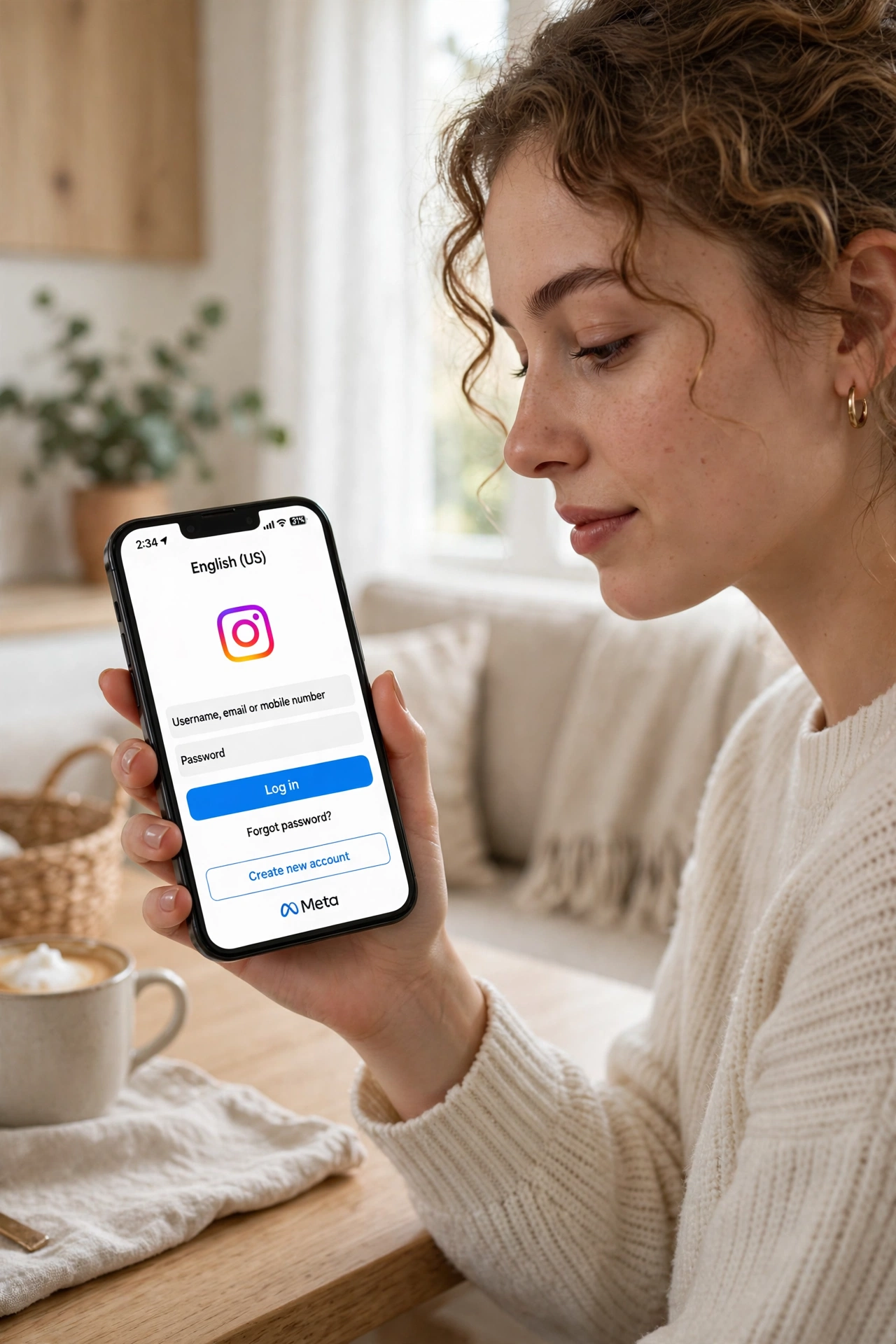
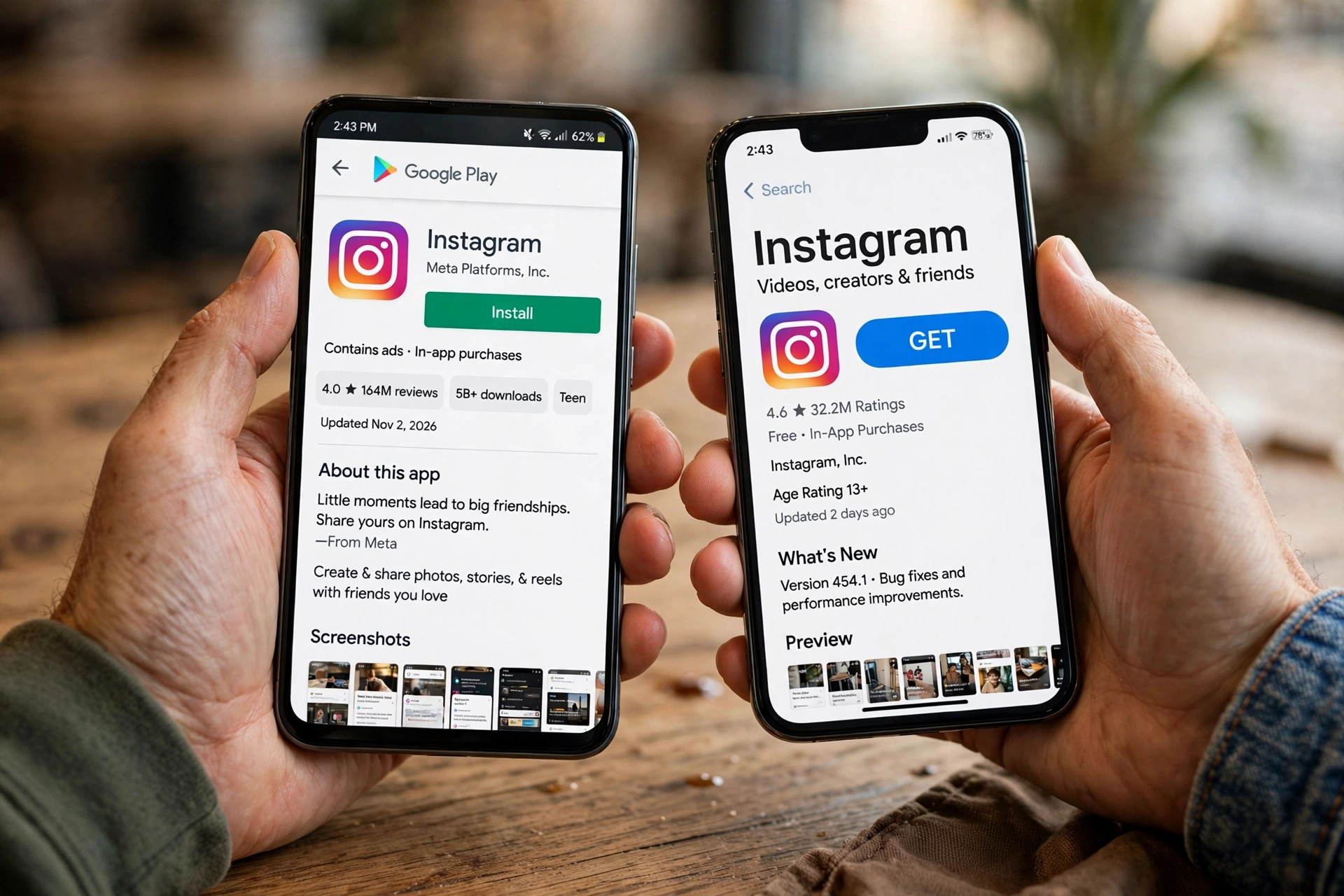
Download the official Instagram app from the App Store and check that it is published by Instagram, Inc., so you do not end up with a copycat app. Open the app and tap Create new account at the bottom of the login screen. If an existing Facebook or Instagram account is already logged in on the phone, tap Create new account again to start fresh.
- Enter your email address or mobile number, then tap Next. Instagram sends a six digit confirmation code to it.
- Type the confirmation code, then tap Next. If the code does not arrive, check your spam folder or tap resend.
- Create a password with at least eight characters, mixing uppercase letters, numbers, and symbols, then tap Next.
- Enter your real birthday, then tap Next. Instagram uses this to confirm you meet the minimum age of 13.
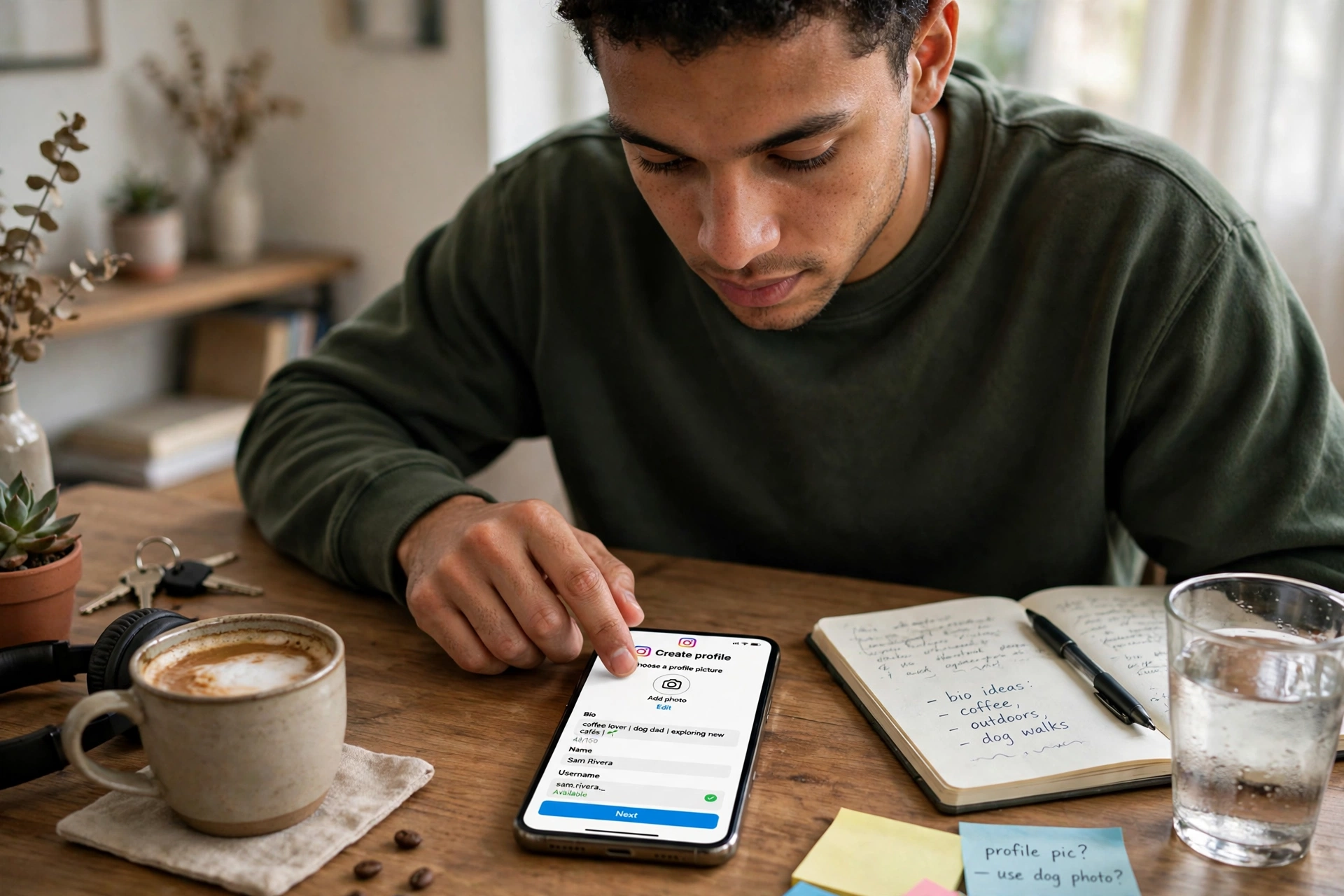
- Add your full name, then tap Next, and choose a username. Instagram will tell you at once if the name is taken.
- Read the terms and tap I agree, then add a profile picture or tap Skip and add one later.
If you signed up with an email address, the code can land in the spam or promotions folder, and Apple Mail sometimes delays it by a minute or two. Wait, check every folder, and only then ask for a new code. Requesting code after code too quickly can make Instagram pause new attempts, which looks like a fault when it is really a safety limit.
How to Sign Up for Instagram on Android
The Android flow is almost identical to the iPhone flow. Open the Google Play Store, search for Instagram, and install the official app published by Instagram, Inc. Open it and tap Create new account, then follow the same sequence: email or mobile number, confirmation code, password, birthday, name, username, and the terms agreement. A text message code usually arrives within seconds on Android, and the phone can often fill it in automatically.
If your Android phone already has a Facebook account logged in, Instagram may show a Continue as option with your Facebook name on it. That is the Facebook assisted sign up route, covered below. If you would rather use an email address or phone number, tap Create new account on the first screen, or choose Continue without Facebook. This choice decides whether your new account is linked to Facebook in Accounts Center, so pause for ten seconds before tapping.
How to Sign Up for Instagram on Desktop or Web
You do not need a phone at all to create an Instagram account. Signing up through instagram on web works from any computer or mobile browser, and the account works exactly like one made in the app. Go to instagram.com and click Create new account near the bottom of the login page, or go directly to instagram.com/accounts/emailsignup.
- Fill in your mobile number or email address first, because Instagram uses it to send your confirmation code.
- Create a strong password you have not used on any other website or app.
- Enter your full name and pick a username. Instagram checks availability the moment you type it.
- Enter your birthday using the month, day, and year fields, then click Sign up.
- Check your email or phone for the confirmation code, enter it, and your account is active.
The web route is the best fallback when the app refuses to install, when your phone storage is full, or when you prefer typing on a full keyboard. Posting photos is easier from a phone camera, but browsing, commenting, messaging, and managing your account all work fine in a browser. If the web form keeps failing, try a different browser, such as Chrome, Firefox, or Safari.
Instagram Sign Up With Email vs Phone Number
Both routes lead to the same account, but the difference shows up months later, when you change phones or forget a password. A phone number is faster at sign up, because the code arrives by text within seconds. An email address is more permanent, because people change phone numbers far more often than their main email, and email makes recovery simpler. If you have a stable email address you check daily, use that. If your email is unreliable, use your phone number, and add an email address later in settings so you always have two ways back in.
Two limits matter here. One email address can be linked to up to five Instagram accounts, so if you already used the same email for several profiles, use a different address for the new one. Also use contact details that only you can access. If someone helped you sign up with their email or number, they will receive your password reset links and verification codes. Type the address slowly and double check it before tapping Next, because one wrong letter sends your code to a stranger.
How to Sign Up for Instagram With Facebook
If you already have a Facebook account, this is the fastest route. Open the Instagram app or go to instagram.com and choose Log in with Facebook, or tap Continue as your name if the app already recognises your Facebook login. Instagram pulls your name and profile picture from Facebook and creates the account once you choose a username and agree to the terms. You still pick your own username, and you can change the imported photo later.
The trade off is that the two accounts become linked in Accounts Center, and the new Instagram account uses the same login information as Facebook. A Facebook password change or a deactivated Facebook account can therefore affect your Instagram login. Before you finish, set a separate password and add your own email address to the Instagram account, so you can always log in directly. To use email or a phone number instead, choose Continue without Facebook.
Choosing a Username and Password for Instagram
Keep your username short, easy to spell, and close to your real name or brand name. If your name is taken, add a period, an underscore, or a number rather than random characters. A username like sarah.johnson is easy to say and type, while sarah_johnson_1998_xx is not. Never put a web address in your username, because Instagram terms do not allow a domain name or URL in a handle without prior written consent. You can change your username later in Edit profile, but Instagram locks your old username for 14 days, so nobody can claim it during that window.
Use a password of at least eight characters, mixing uppercase letters, lowercase letters, numbers, and symbols, and never reuse a password from another site. If one website leaks your password, every account sharing it becomes an easy target. A password manager removes the need to memorise it, and turning on two factor authentication once the account is live means a stolen password alone is never enough to get in.
Instagram Sign Up Age Requirement
Instagram requires every user to be at least 13 years old, or the minimum legal age in their country, and the app checks your date of birth during registration. If you enter a birthday under 13, the app will not let you finish, and there is no way around that check. Always enter your own real birthday, even if the account is for a business, a pet, or a brand. Your birthday is never shown on your profile, even if the account is public.
Accounts for people under 18 are private by default, so only people you approve can see posts and message you. Teens also face extra limits on messaging, live video, and story replies, and those limits lift automatically at 18. If you typed your birthday wrong and got blocked, Instagram lets you appeal with an ID, but the review can take up to 30 days, so enter the date correctly the first time.
Common Instagram Sign Up Errors and How to Fix Them
Most failed sign ups come from a short list of problems, and nearly all have a simple fix. Work through the error you actually see, rather than deleting the app or starting over. If none of the fixes below work, the instagram help center has the official steps for each error message.
Instagram Says “Couldn’t Create Account” or “Something Went Wrong”
This vague error usually means a temporary block, not a problem with your details. Close the app completely and open it again, then retry once. If it still fails, switch from Wi-Fi to mobile data, or the other way around. Updating the app to the latest version fixes many of these errors, and if the app keeps failing, try the web sign up at instagram.com instead. Wait an hour before trying again if you already attempted several times in a row, because repeated rapid attempts can trigger a short cool down.
Email or Phone Number Already in Use
First double check what you typed, because a single typo is the most common cause. If the details are correct, you probably created an account with them before and forgot about it, so try logging in instead, or use the Forgot password link. One email can only be linked to five Instagram accounts, so use a different email address if you have hit that limit. If you received a Welcome to Instagram email for an account you never created, open it, tap Let us know at the bottom, and ask for your address to be removed.
Verification Code Never Arrives
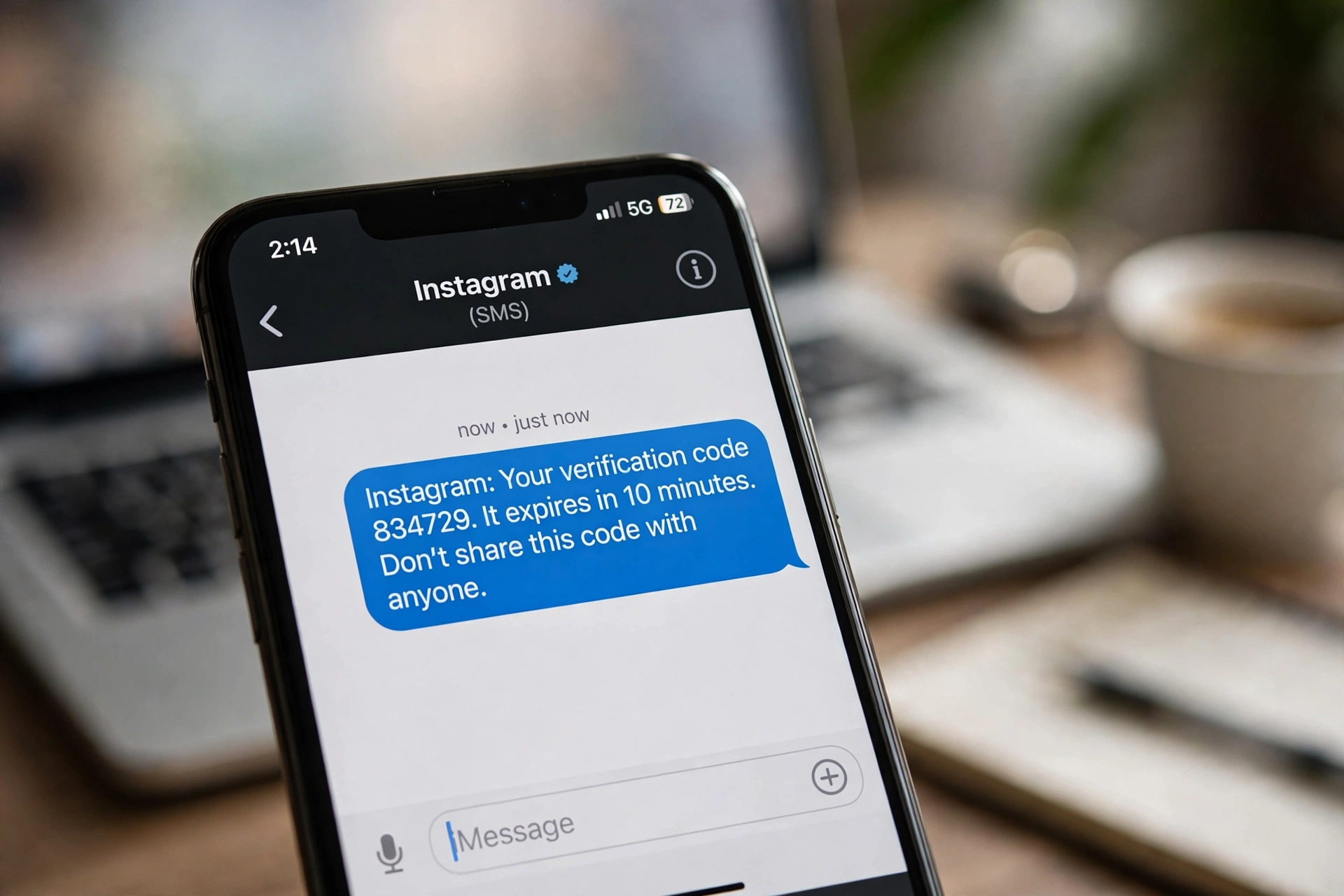
A missing code is almost always a delivery problem. For email sign ups, check the spam, junk, and promotions folders. For phone sign ups, check the number includes the correct country code, then tap resend once and wait a full two minutes. Asking for code after code in quick succession can pause new attempts. If the code still does not arrive after two tries, switch to the other method.
Username Taken or Not Allowed
Usernames are first come, first served and cannot be reserved, so if yours is taken, Instagram will say so at once and suggest free alternatives. Add a period, an underscore, or a number to create a version that is still recognisable. Usernames can only contain letters, numbers, periods, and underscores, so remove any other character, including hyphens and spaces. If the account using your ideal name looks inactive, you still cannot claim it, so pick the closest available version and move on.
Instagram Says You Are Not Old Enough
This message appears when the birthday you entered is under 13. If the date was a typing mistake, tap Appeal at the bottom of the message, follow the instructions, and submit a valid ID. The review can take up to 30 days, and Instagram restores the account if it finds a mistake. Do not create a second account with a false birthday to get around the block, because that can lead to both accounts being removed.
How to Create a Second Instagram Account
Many people want two accounts, one personal and one for a business, a hobby, or a brand. Open the app, go to your profile, tap your profile name at the top, then tap Add Instagram account and choose Create new account. Enter a profile name, add an email address or phone number, and finish the same short flow. You can add the new account to Accounts Center, or tap Create password instead to give it its own password. Instagram lets you stay logged in to up to 10 accounts at once and switch between them by tapping your username.
Check which account is active before posting. It is easy to publish a business photo to a personal account, or like a post with the wrong profile, so glance at the username at the top of the screen every time. Each account keeps its own followers, posts, and settings, and notifications can be managed separately.
How to Create a Business Instagram Account
You do not need a separate sign up to run a business on Instagram. Create a normal account first, then convert it. Open your profile, tap the menu, go to Settings and activity, and under For professionals choose Account type and tools. Tap Switch to professional account, pick a category, then choose Business or Creator and tap Next. Professional accounts are public, so a private business profile will switch to public, and connecting a Facebook Page is optional but useful if you plan to run ads.
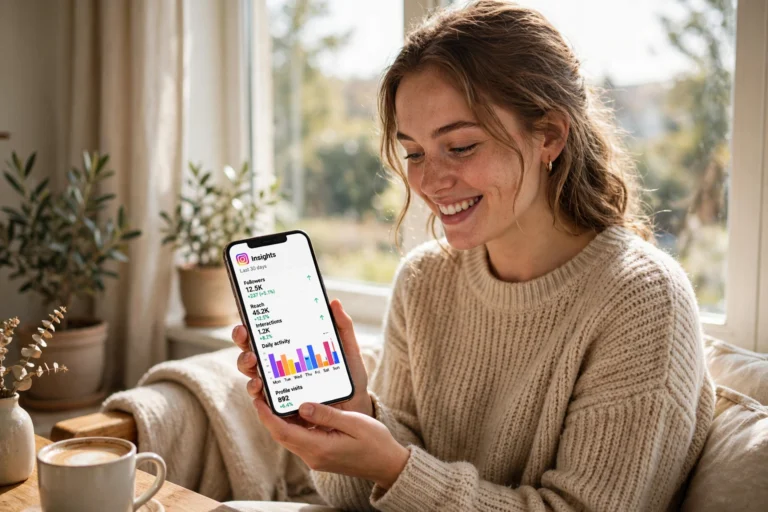
A professional account unlocks Instagram Insights, which shows data about your followers, reach, and engagement, plus contact buttons and the ability to promote posts. If you later decide the business features are not for you, switch back to a personal account in the same menu, though you will lose access to analytics.
What to Do After You Sign Up for Instagram
Once the code is accepted, your account is live. Add a clear profile picture, a photo of your face for a personal account or your logo for a business one, and write a short bio in the 150 characters Instagram gives you. Say who you are and what people can expect, and add one link to your website or shop if you have one. Accounts with a photo and a bio look far more trustworthy than empty profiles and attract fewer spam flags.
New users often wonder how to see who views your instagram profile, and the honest answer is that Instagram does not offer a built in list of profile visitors, so any app promising one should be treated with suspicion. What Instagram does show is who views your stories and reels. Once your profile is set up, our guide to instagram likes free explains legitimate ways to earn more engagement, and our overview of instagram plus explains what the modified app is and what to watch out for before installing anything unofficial.
Instagram Sign Up Safety Tips
A new account is most vulnerable in its first week, because it has no recovery history yet. Turn on two factor authentication first, in Settings, under Accounts Center, then Password and security. With it on, logging in from a new device needs a code from your phone or authenticator app, so a stolen password alone is useless. Then check your login activity in the same menu and log out any device you do not recognise.
- Never share your password or verification code with anyone. Real Instagram support never asks for them.
- Only enter login details on instagram.com or in the official app. Fake login pages are the most common way new accounts get stolen.
- Keep the email and phone number on your account current, so password resets always reach you.
- Do not use third party apps that promise to show profile visitors or give free followers.
- If you get a login alert for a device you do not own, change your password at once and log out all sessions.
Instagram Sign Up FAQs
Is Instagram sign up free?
Yes. Creating an account costs nothing, and posting, messaging, stories, and reels are all free. Instagram earns money from ads, so you will see sponsored posts in your feed, but there is no charge to sign up.
Can I create an Instagram account without an email address?
Yes. You can sign up with a mobile number instead, and Instagram will text your code to that number. You can also sign up with Facebook, which does not ask for an email at all, though adding one later is still wise for recovery.
Can I create an Instagram account without a phone number?
Yes. An email address is enough, and Instagram will send the code to your inbox. This suits anyone who does not want to attach a mobile number, or who changes numbers often.
How many Instagram accounts can I have?
Instagram lets you stay logged in to up to 10 accounts at once, and one email address can be linked to up to five accounts. Personal plus business combinations are common.
Can I change my Instagram username after signing up?
Yes. Go to your profile, tap Edit profile, and enter a new username. Instagram locks your old username for 14 days, so no one else can claim it during that window.
Why does Instagram keep saying my email is already used?
The email or phone number is already attached to an existing account, or to the maximum of five accounts. Check for typos first, then try logging in, or reset the password for the old account.
Conclusion
Instagram sign up is a two minute job when you pick the right route and have your details ready: install the app or open instagram.com, enter an email or phone number you can access, confirm the code, create a strong password, enter your real birthday, and choose a username you will still like in a year. If an error appears, match it to the fix in this guide before starting over. Set up your profile, switch on two factor authentication, and your new account is ready to grow.




2 Comments