
Instagram Templates: Free Post, Story, Reel and Carousel Templates to Use in 2026
Designing every Instagram post from scratch eats hours that most creators and small businesses simply do not have. A single feed post can take 30 to 45 minutes to design, and a week of consistent posting can swallow an entire working day. Instagram templates fix this problem directly. They are ready-made, pre-sized layouts for posts, Stories, Reels and carousels that you customize with your own photos, text and brand colors in minutes. Tools like Canva, Adobe Express, Figma and Instagram itself now offer thousands of free Instagram templates, so a polished feed no longer needs a designer or a budget.
This guide covers everything you need to know about Instagram templates: what they are, the types worth using, where to find the best free Instagram templates, how to use them step by step, and how to build your own branded set. You will also find the correct sizes for every format and the mistakes that make templates look cheap instead of professional.
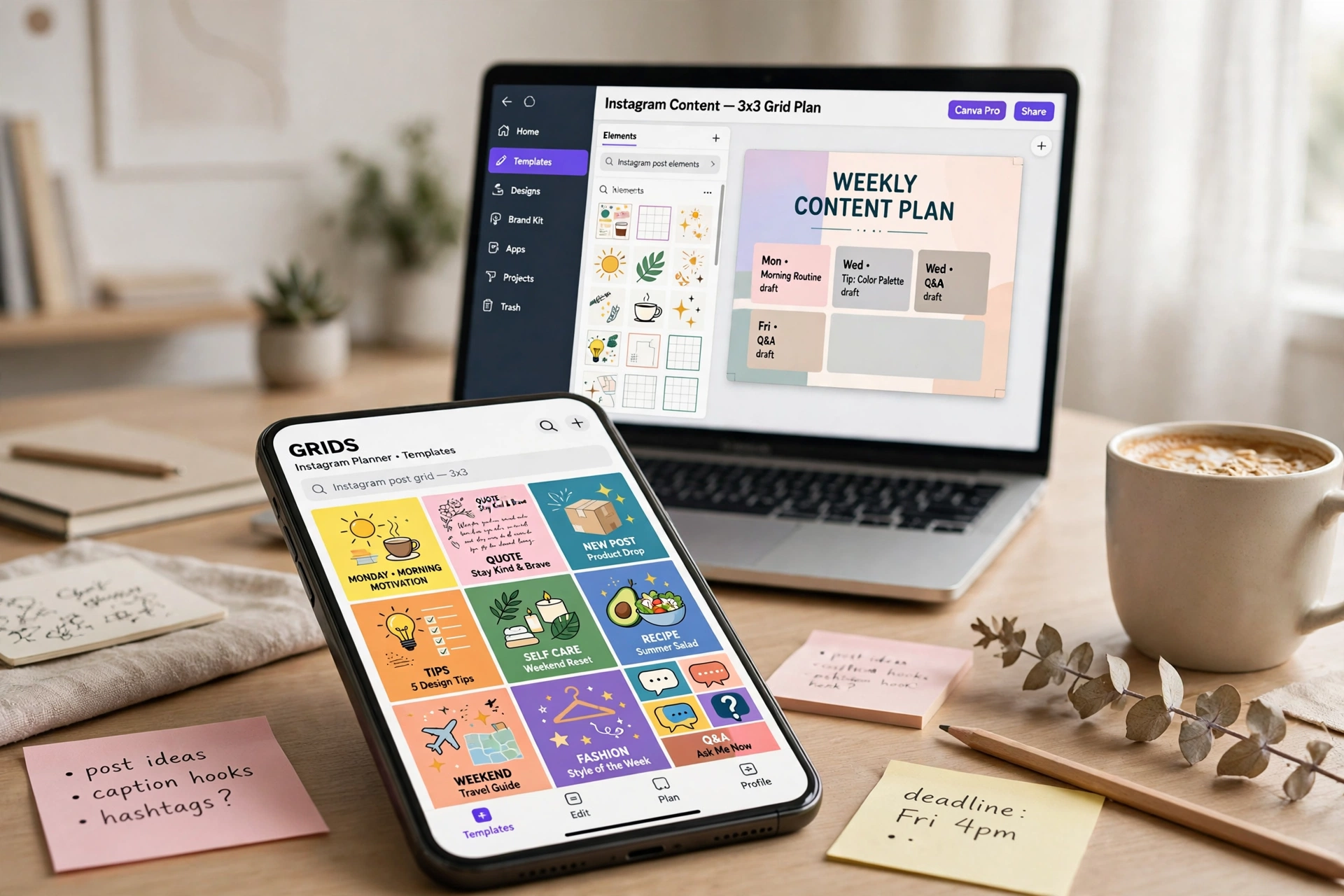
What Are Instagram Templates?
An Instagram template is a pre-designed layout made for a specific Instagram format. It already has the right dimensions, a placeholder for your photo or video, text boxes for your caption or headline, and a color scheme that holds the design together. You open the template, replace the placeholder content with your own, and post. The design work is already done.
Instagram templates come in two main forms. Custom templates are files you download or build in tools like Canva, Adobe Express or Figma. You keep them as reusable master files and duplicate them every time you post. Native templates live inside the Instagram app itself. Instagram built-in reel templates let you copy the music and clip timing of an existing Reel, while the Add Yours sticker in the Stories camera gives you interactive story templates that followers can join and respond to.
The real value of Instagram templates is consistency. When your posts share the same fonts, colors and layout, followers start recognizing your content before they even read your username. Brands like Slack and Calm built their whole Instagram identity on this idea: a small set of repeatable layouts, used every day, until the look itself becomes the brand.
Types of Instagram Templates
Not every template serves the same job. Before you download anything, decide which format you actually post most often, then build your library around that format first.
Instagram Post Templates
Post templates are square or portrait layouts for your main feed. They work best for quotes, announcements, tips, product launches and testimonials. A good post template has one clear focal point, a short headline and enough empty space that the design does not feel crowded. Feed posts stay on your profile forever, so these templates shape how new visitors judge your account in the first few seconds.
Instagram Story Templates
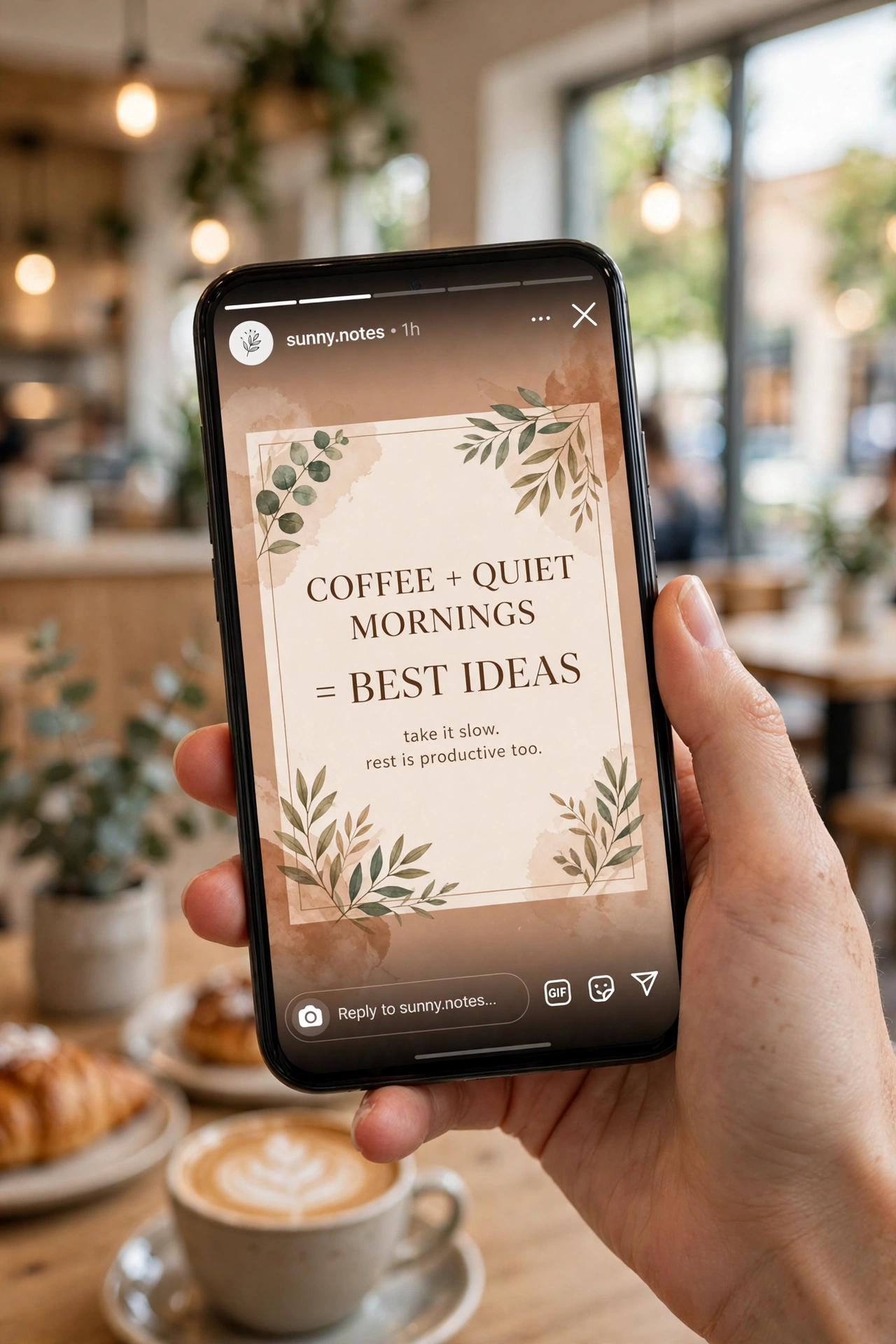
Story templates are vertical layouts sized 1080 by 1920 pixels. They cover announcements, polls, questions, countdowns, product spotlights and behind-the-scenes updates. Because Stories disappear after 24 hours, story templates are built for speed: you fill them in, post, and move on. Keep five to seven master story layouts and rotate them instead of collecting twenty you never use.
Instagram Reels Templates
Reel templates are different from static designs. They are video frameworks with set clip lengths, transitions and music timing. Instagram offers these natively: find a Reel you like, tap Use Template, and the app matches your clips to the original timing and audio. Third-party apps like CapCut also offer reel templates, but the in-app option is the fastest way to follow a trending format without editing experience.

Instagram Carousel Templates
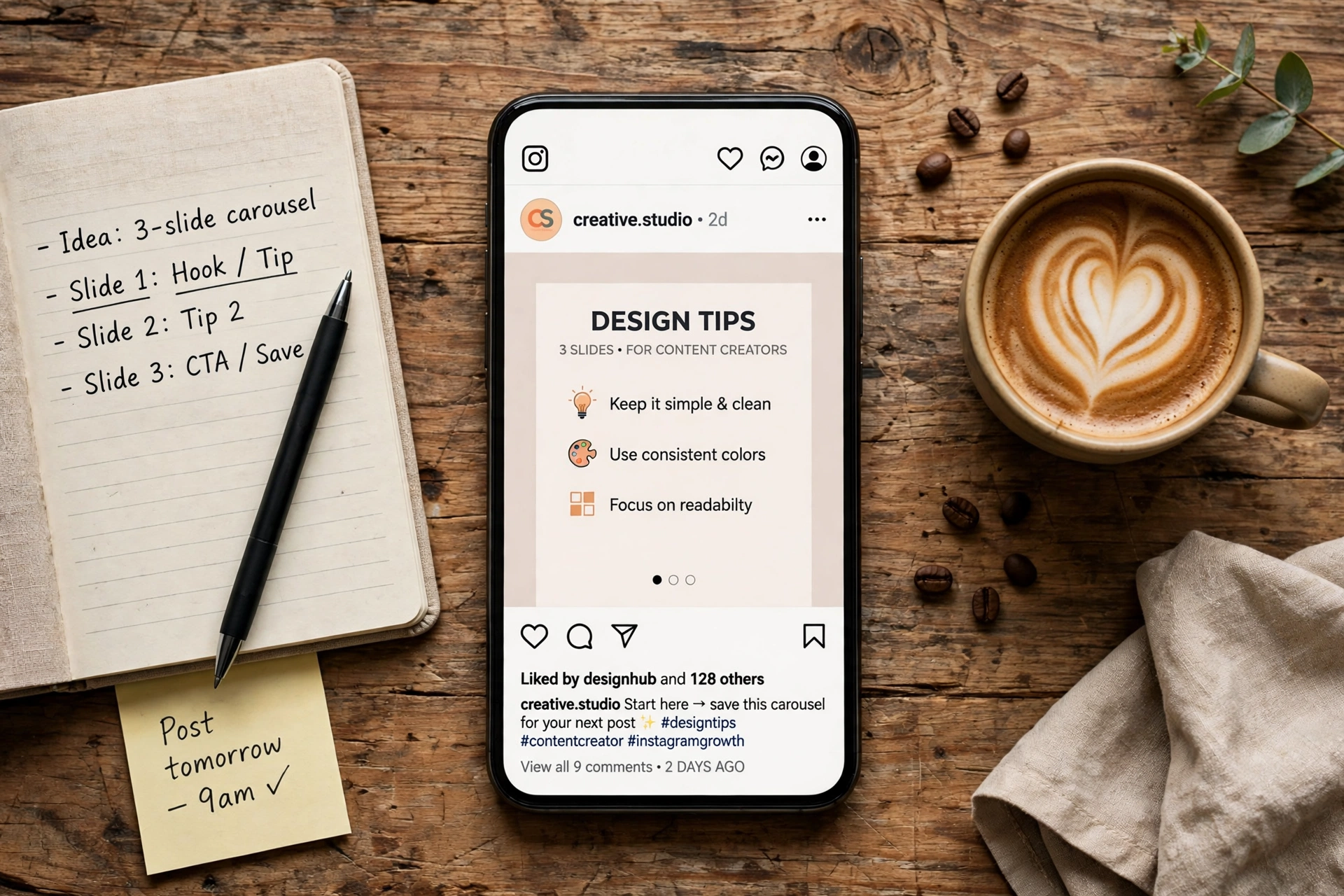
Carousel templates are multi-slide layouts that let you share a tutorial, a list or a before-and-after in one post. Carousel posts generate around three times more engagement than single-image posts on average, because every swipe is another interaction. A strong carousel template keeps the same header style and page numbers across all slides so readers know to keep swiping.
Instagram Reel Cover Templates
A Reel cover is the still image people see on your profile grid before they tap play. Instagram picks a random frame by default, and that frame is often blurry or awkward. A cover template gives every Reel a clean, on-brand thumbnail with a readable title, so your grid looks intentional instead of accidental.
Instagram Collage Templates
Collage templates combine several photos into one post or Story. They work well for outfit roundups, event recaps, mood boards and product collections. The best collage layouts leave even spacing between images and avoid cramming more than four or five photos into one frame.
Instagram Ad Templates
Ad templates are layouts built for paid promotion, with space for a clear offer, a product image and a call to action. They follow the same sizes as regular posts and Stories, but the design is simpler and the message is shorter, because an ad has about two seconds to stop a scroll.
Instagram Giveaway Templates
Giveaway templates are mostly text-based layouts that list the prize, the entry rules and the deadline. They save you from rewriting the same rules every time you run a contest. Remember that Instagram has its own rules for promotions and giveaways, so always include the entry requirements and the closing date in the template itself.
Where to Find Free Instagram Templates
You do not need to pay for good templates. These five sources cover every format, and all of them have genuinely usable free tiers.
1. Canva
Canva has the largest free Instagram template library of any tool. Its Instagram post page offers more than 20,000 story designs alone, plus templates for posts, carousels, Reels covers and ads. You search by category, pick a layout, swap in your brand colors and photos, and download it as a JPEG or MP4. Canva also works inside scheduling tools, so you can design and schedule without switching apps. The free plan covers most templates; a small number carry a Pro badge.
2. Adobe Express
Adobe Express offers fewer free templates than Canva, but the output quality at the free tier is cleaner, with sharper colors and better typography defaults. It is the better pick if your brand uses specific color profiles or you want print-quality results. Adobe Express also includes quick actions for resizing a design from a post to a Story in one click.
3. Figma
Figma is the right choice if you want to build templates from scratch or work with a team. The Figma community section has a growing collection of free Instagram story and post layouts shared by other designers. You can duplicate a community file, change the fonts and colors to your brand, and share the working file with your team in real time. Figma gives you the most design control of the three tools.
4. Instagram Native Templates
Instagram itself offers two free template systems. Reel templates live inside the Reels editor: tap Use Template on any Reel that allows it, and your clips snap to the original timing and music. Story templates live under the Add Yours sticker in the Stories camera. Browse trending prompts and templates, join a chain, or start your own. These native templates cost nothing and need no extra app.
5. Unfold
Unfold is a mobile app from Squarespace built for Stories and posts. It offers minimal, editorial-style templates that suit fashion, travel and lifestyle accounts. The free tier includes a solid starter set, and the app is designed for editing on your phone, so you can build a Story on the go.
How to Use Instagram Templates: Step by Step
Using a template takes five minutes once you know the flow. Here is the process for each main format.
How to Use a Post Template in Canva
Open Canva and search for Instagram Post. Pick a template that matches your message, then click on the text and type your own headline. Replace the placeholder photo by dragging your own image into the frame. Change the colors to your brand palette using the color picker. Download the design as a JPG, open Instagram, and post it like any normal photo.
How to Use a Story Template
Open your design tool and choose the Instagram Story size, 1080 by 1920 pixels. Select a story template, add your text and image, and export it as a JPG or PNG. Open Instagram, swipe to the Stories camera, upload the file from your gallery, add a poll, link or question sticker if you want interaction, and share. If you use Instagram native templates instead, open the Stories camera, swipe up to open the media picker, tap Add Yours, pick a trending template, fill it in and share.
How to Use a Reel Template
Find a Reel with a format you like and tap Use Template. Instagram opens the editor with the original clip lengths and music already set. Add your own video clips in order, adjust the timing if a clip runs long, add text overlays, and post. Your Reel keeps the pacing of the original while showing your own content. This is the fastest way to ride a trending format, and it works even if you have never edited video before.
How to Create Your Own Instagram Templates
Downloaded templates are a starting point, but a custom set built around your brand will always look better than a layout thousands of other accounts are also using. Building your own takes 30 to 45 minutes if your brand assets are ready.
Start by setting the canvas size for the format you post most. For Stories, use 1080 by 1920 pixels at a 9:16 ratio. For feed posts, use 1080 by 1080 pixels for square or 1080 by 1350 pixels for portrait. Every major design tool has a preset for these sizes.
Next, apply your brand foundation before placing any content. Set your brand color as the background and set your heading and body fonts. This becomes the base layer every version of the template inherits. Then define your layout zones: a top area for the headline, a middle zone for the main image or text, and a bottom strip for your logo or call to action. Sketch this out first so you are not rearranging the layout after the design is half done.
Once the layout is set, save the blank version as your master file. Every time you need a new post, duplicate the master and fill it in. Never edit the blank version directly. Build five to seven masters that cover your main content types: announcement, product spotlight, testimonial, educational tip, engagement prompt and behind the scenes. Fewer templates used consistently build more recognition than a large library you rotate unpredictably.
Best Instagram Templates for Different Accounts
The right template depends on what you post and who you post for. A business account needs different layouts from a personal creator account.
For businesses, the highest-value templates are product spotlights, customer testimonials, sale announcements and educational tips. A product spotlight template pairs a clean product photo with one short benefit line and space for a link sticker. A testimonial template puts a customer quote in your brand font on a plain background, which feels more trustworthy than a polished ad.
For creators and influencers, quote templates, carousel tutorials and Reel covers matter most. A quote template with a consistent background becomes instantly recognizable in the feed. A carousel tutorial template with numbered slides turns one idea into a swipeable mini-guide that followers save and share.
For personal accounts, story templates for polls, questions and photo dumps get the most use. Keep them simple: a clean background, one question, and your own photos. Over-designed personal templates feel like ads and get skipped.
For e-commerce stores, combine a product template with a sale or countdown template. The product template sells the item, the countdown template creates urgency, and the link sticker sends traffic straight to the product page. Pair this with Instagram Insights to see which template style drives the most profile visits and link taps, then double down on the winner.
Instagram Template Sizes
Using the wrong size is the most common template mistake. A square design stretched into a Story gets cropped, and a Story design squeezed into a feed post loses its edges. These are the correct sizes for every format.
| Format | Size (pixels) | Aspect Ratio |
|---|---|---|
| Instagram post (square) | 1080 x 1080 | 1:1 |
| Instagram post (portrait) | 1080 x 1350 | 4:5 |
| Instagram post (landscape) | 1080 x 566 | 1.91:1 |
| Instagram Story | 1080 x 1920 | 9:16 |
| Instagram Reel | 1080 x 1920 | 9:16 |
| Instagram Reel cover | 1080 x 1920 | 9:16 |
| Instagram carousel | 1080 x 1080 or 1080 x 1350 | 1:1 or 4:5 |
| Instagram profile picture | 320 x 320 | 1:1 |
Keep important text and faces away from the edges. Instagram crops the top and bottom of Stories under the username bar and the reply field, so leave a safe margin of about 250 pixels at the top and bottom of every Story template.
Tips to Make Instagram Templates Work for You
A template only helps if it still looks like you. These habits keep your feed consistent without looking copied.
First, customize the four brand elements on every template: colors, typography, logo placement and image style. Swap the default font for yours before anything else, because a stock font with your logo dropped on top still looks like a stock layout. Put your logo in the same corner at the same size on every template so followers learn where to look.
Second, limit yourself to two fonts and three colors across your whole template library. More than that, and your feed starts looking random instead of branded. Third, write shorter text on templates than you think you need. A headline of five to eight words reads instantly on a phone; a paragraph does not.
Fourth, keep your image style consistent. If your photos are bright and airy, do not mix in dark, moody template backgrounds. The visual treatment of your photography should match the template, or the combination will feel slightly off even if viewers cannot explain why.
Fifth, plan your templates around content pillars instead of random ideas. If you post tips, product updates and testimonials, build one master template for each pillar. When you sit down to post, you pick the pillar, duplicate its master, and fill it in. This is how consistent accounts post daily without burning out.
Finally, check your results. If you want to grow your audience alongside better design, the free methods in our Instagram Likes Free guide pair well with a consistent template system, because good design brings the tap and good content earns the follow. And if a template feature ever stops working or behaves strangely, the Instagram Help Center explains the current behavior of native templates, stickers and the Reels editor.
Mistakes to Avoid With Instagram Templates
The biggest mistake is using a template exactly as downloaded, with the stock photo, stock text and stock colors still in place. Thousands of accounts use the same popular Canva layouts. If you change nothing, your post is invisible in a feed full of identical designs. Change at least the colors, the font and the photo before you post.
The second mistake is overcrowding. A template with five text boxes, three stickers, a logo, a hashtag block and a call to action has no focal point. Remove one element at a time until the design breathes. White space is not wasted space; it is what makes the important part readable.
The third mistake is ignoring the format. A landscape photo forced into a square template gets cropped, and a Story template reused as a feed post loses its top and bottom. Always start from the correct size for the format you are posting.
The fourth mistake is using low-resolution downloads. Export your designs at the full 1080-pixel width. A blurry template makes your whole account look careless, no matter how good the layout is.
The fifth mistake is forgetting the call to action. A template without a next step wastes the attention it earned. Add one clear action: swipe, save, comment, tap the link, or follow. One action per post is enough.
How to Save Instagram Templates for Later Use
Finding a great template is only half the job. Saving it properly means you can reuse it in seconds next time. In Canva, save your finished design as a template by clicking Share, then Template link, and store that link in a folder with your other brand assets. In Figma, publish your master file to your team library so everyone pulls from the same approved version.
Inside Instagram, save Reel templates you like by tapping the three dots on the Reel and choosing Save, or tap Use Template and save it as a draft. For Story templates, screenshot a layout you like or save the Add Yours template to your own Story, then add it to a Highlight so it stays visible after 24 hours. Keep a simple spreadsheet or notes file listing each template, its format and its link, so your whole library stays one search away instead of scattered across apps.
Instagram Templates FAQs
Are Instagram templates free?
Yes, most of them. Instagram native reel templates and Add Yours story templates are completely free inside the app. Canva, Adobe Express and Figma all offer large free template libraries, and Unfold includes a free starter set. Paid options exist, but you can run a professional-looking feed without spending anything.
What is the correct size for an Instagram Story template?
Instagram Story templates should be 1080 by 1920 pixels at a 9:16 aspect ratio. Canva, Adobe Express and Figma each have a preset labeled Instagram Story, so you do not need to set the dimensions manually.
Can I use Canva templates directly on Instagram?
Yes. After customizing a template in Canva, download it as a JPEG for posts and Stories or an MP4 for Reels, then upload it to Instagram from your gallery. The design keeps its fonts, colors and layout exactly as you built it.
Do Instagram templates expire?
Custom templates saved in Canva or Figma do not expire. Instagram native Add Yours prompts cycle in and out based on trends, but the sticker feature itself stays available. Reel templates stay available as long as the original creator allows their Reel to be used as a template.
How many templates should I have?
Five to seven master templates cover almost every account. Build one for each content type you post regularly: announcement, product spotlight, testimonial, tip, engagement prompt and behind the scenes. Fewer templates used consistently build more recognition than twenty templates you rotate randomly.
Can templates hurt my reach?
No, templates themselves do not hurt reach. What hurts reach is posting identical-looking content that nobody saves or shares. A template is only a layout. If the content inside it is useful, original and relevant, the algorithm treats it like any other post. Use Instagram Insights to track which template styles earn the most saves and shares, and keep the winners.
Conclusion
Instagram templates are the fastest way to post consistently without designing from scratch every day. Pick one tool, Canva for the biggest free library or Instagram itself for native reel and story templates, and build five to seven master layouts around your brand colors, fonts and logo. Use the correct size for each format, keep your text short, and change at least the colors, font and photo on every template you download. The design investment is a one-time cost. The consistency it produces keeps compounding every time you post.
If you are setting up a new account to go with your new template system, our Instagram Sign Up guide walks through creating an account in about two minutes, and Instagram Plus explains the new subscription options Meta added in 2026. For creators who also manage their presence from a computer, Instagram On Web covers posting and managing templates from a desktop browser. Start with one format you post most, build a single clean template for it today, and expand your library from there.



2 Comments