
Instagram Unfollow Checker: See Who Unfollowed You on Instagram Free (2026 Guide)
You open Instagram one morning and your follower count reads 1,240 instead of 1,248. Nobody told you who left, Instagram sent no notification, and there is no unfollower list hiding anywhere in the app. The fix is simpler than most people think: an Instagram unfollow checker comparison built from your own data export in the Accounts Center shows you exactly which accounts stopped following you, completely free and without handing your password to a third party app. This guide walks through every reliable method, from the manual one-person check to the two-export diff that catches real unfollows, plus the app store trackers you should stay away from.
Quick Answer
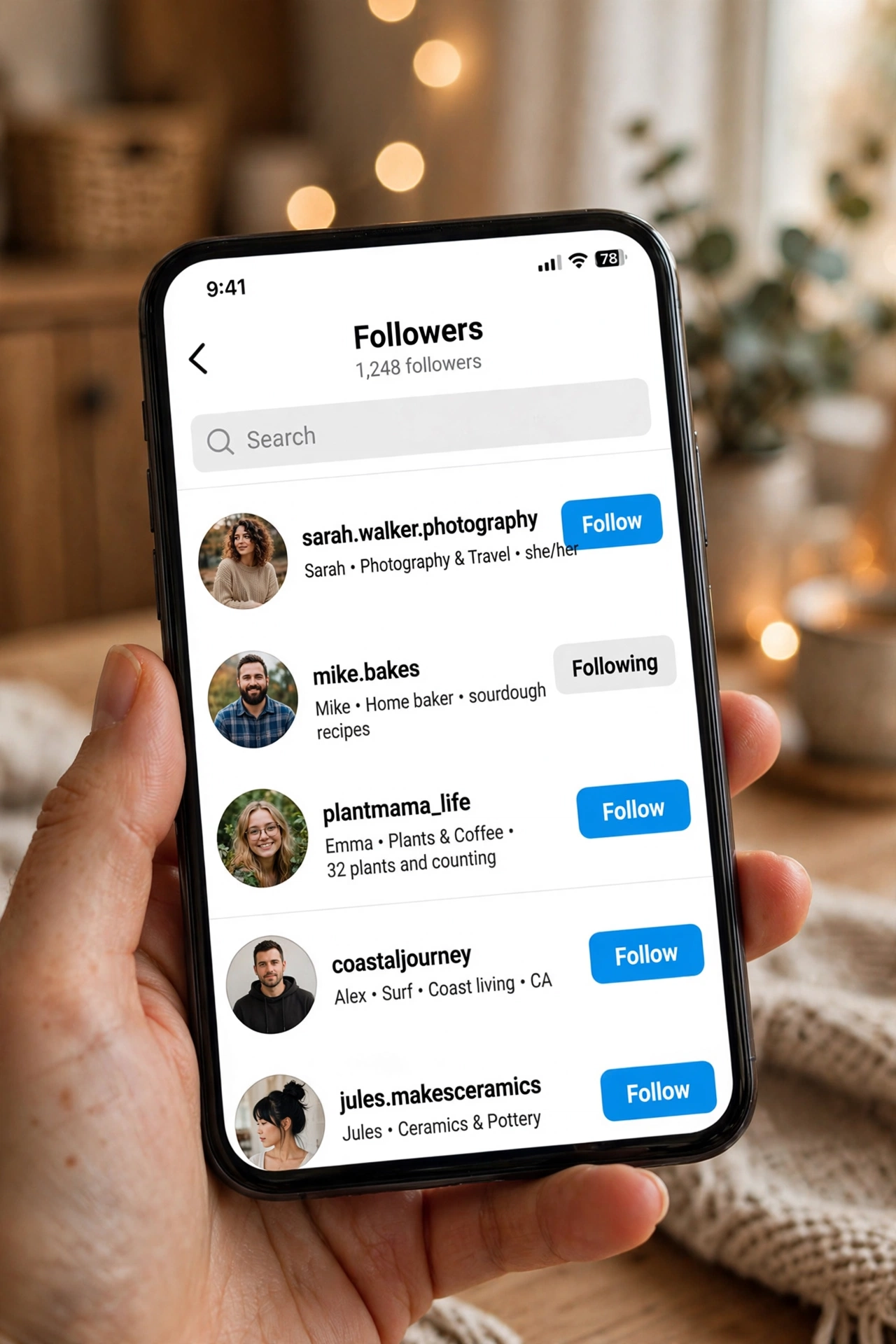
- Instagram has no built in who unfollowed me feature. There is no notification, no activity feed entry, and no settings screen that lists accounts that used to follow you.
- The only reliable method is comparison. Save a snapshot of your follower list (a screenshot or, better, the official Meta data export) and compare it against a newer snapshot. Names present in the first list and missing from the second are your unfollowers.
- The free data export is the safest tool. Request it from Accounts Center under Your information and permissions, choose Followers and following in JSON format, and process it in a browser based checker that never asks for your login.
- Signs someone unfollowed you: your follower count dropped without you removing anyone, a known username no longer appears in your followers list, and their profile button shows Follow instead of Following.
- Avoid login based tracker apps. Most demand your Instagram password, trigger bot detection, and can get your account locked or suspended.
- Feed disappearance is not proof. Stopped seeing their stories or posts usually means the algorithm deprioritized them, not that they unfollowed you.
Why Instagram Will Not Show You Unfollowers
Three design facts control everything about unfollow detection on Instagram.
- No notification exists. Instagram does not alert you when someone unfollows you, and it does not notify the other person when you unfollow them either. Unfollows are invisible by design.
- No history is stored for you to browse. Your followers list only shows who follows you right now. The moment someone leaves, nothing inside the app records that they were ever there.
- No official app can show the list. Instagram’s developer API exposes follower counts to business and creator accounts, not the names on the list. Any app that displays names gets them another way, which is exactly why most of them are risky.
That leaves comparison as the only honest route: your followers against your following, or today’s followers against an older snapshot of your followers. Those two comparisons answer two different questions. The first shows who does not follow you back right now. The second shows who actually unfollowed you between two dates. Mixing them up is the most common mistake people make with these tools.
The 4 Methods at a Glance
| By hand | One export | Two exports | Login apps | |
|---|---|---|---|---|
| Shows | Whether one account still follows you | Everyone who does not follow you back | Who unfollowed you between two dates | Unfollows from the day you connect |
| App to install | No | No, browser based | No, browser based | Usually yes |
| Password in a third party app | No | No | No | Yes, or a logged in session |
| Waiting time | None | Minutes to hours for the export | Two exports, weeks apart | None |
| Cost | Free | Free | Free | Often a subscription |
Method 1: Check One Specific Person by Hand
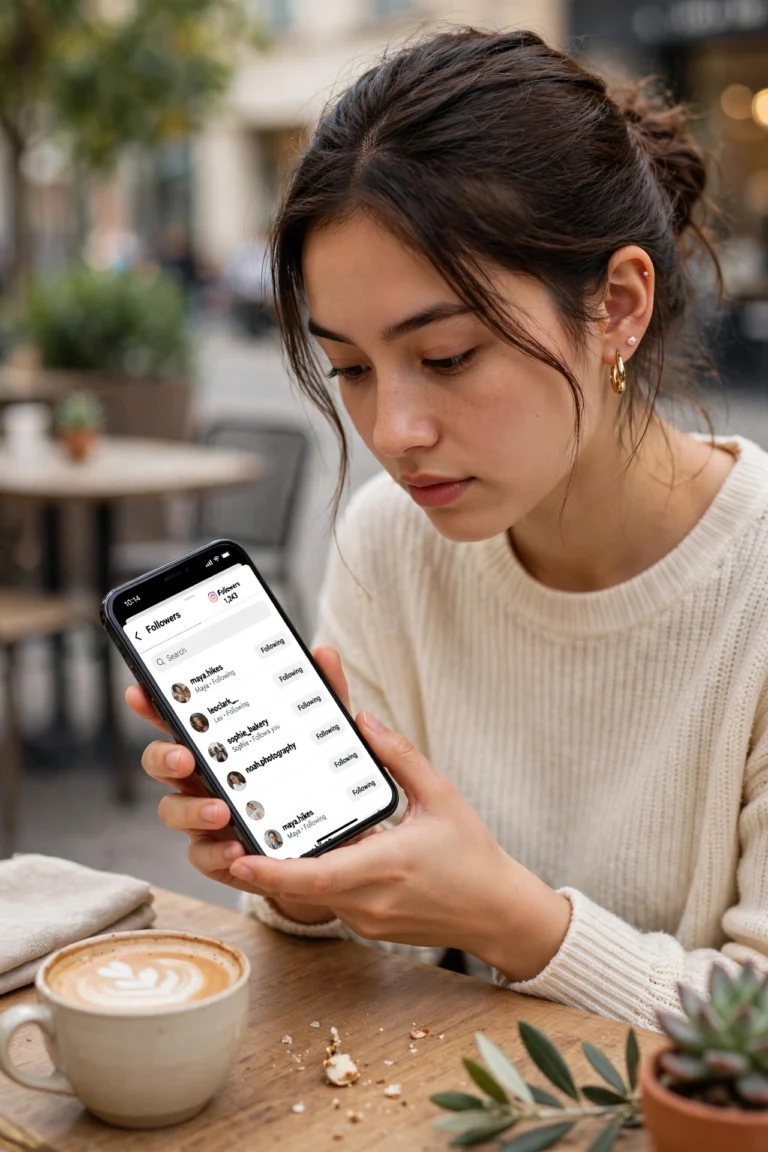
If you suspect one or two specific people, you need no tool at all. Open your profile and tap Followers, then type their username into the search field at the top. If they do not appear, they no longer follow you.
You can also verify from the other side. Open their profile, tap Following, and search for your own username. This works when their account is public or when you follow them. Keep one subtlety in mind: the Follow or Following button on a profile reflects your relationship to them, not theirs to you. The only sure test is whether your username appears in their followers list or theirs appears in yours.
A name missing from your followers has not necessarily unfollowed you. The account may have been deactivated, deleted, or its owner may have blocked you. If you cannot open the profile at all, one of those is more likely than a simple unfollow. Good for a handful of names, not good for scanning hundreds of followers.
Method 2: Your Instagram Data Export, One Download
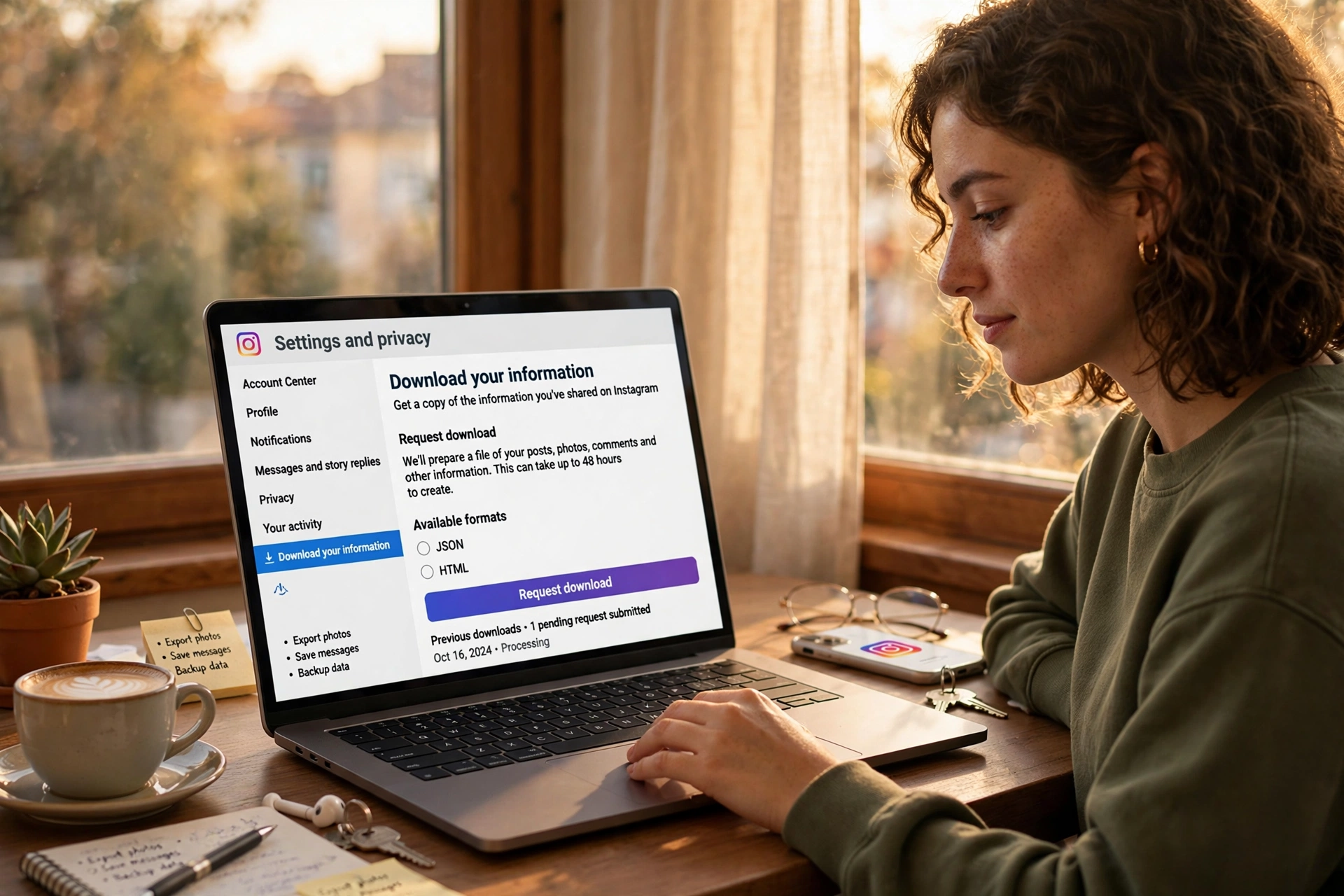
Instagram lets you download your own information, including complete followers and following lists, as a ZIP file. It is an official feature inside Accounts Center and involves no third party login. With one export you can see everyone who does not follow you back right now.
How to request the export on phone
- Tap your profile picture, then the menu icon, and open Settings and activity.
- Open Accounts Center at the top, then Your information and permissions.
- Tap Download your information, then Download or transfer information.
- Pick the Instagram account, choose Some of your information, and under Connections select Followers and following.
- Choose Download to device, set the date range to All time and the format to JSON, then create the export.
How to request the export on desktop
On instagram.com open Settings, then Accounts Center, then Your information and permissions, and follow the same flow: Download or transfer information, pick the account, Some of your information, Followers and following, Download to device, JSON, Create files. Meta emails you a download link when the archive is ready. For a followers only export it is often ready within minutes to a few hours, though Instagram’s help pages say it can take up to 30 days.
What to do with the ZIP file
Open the ZIP in a browser based Instagram unfollow checker that reads the file entirely inside your browser tab. Nothing is uploaded to a server and nothing is sent to Instagram. The Don’t follow you back tab lists every account you follow that is not on your followers list. One export is a single snapshot, so it shows who does not follow you back, not who unfollowed you. For actual unfollow history you need Method 3 below.
Method 3: Compare Two Exports Over Time
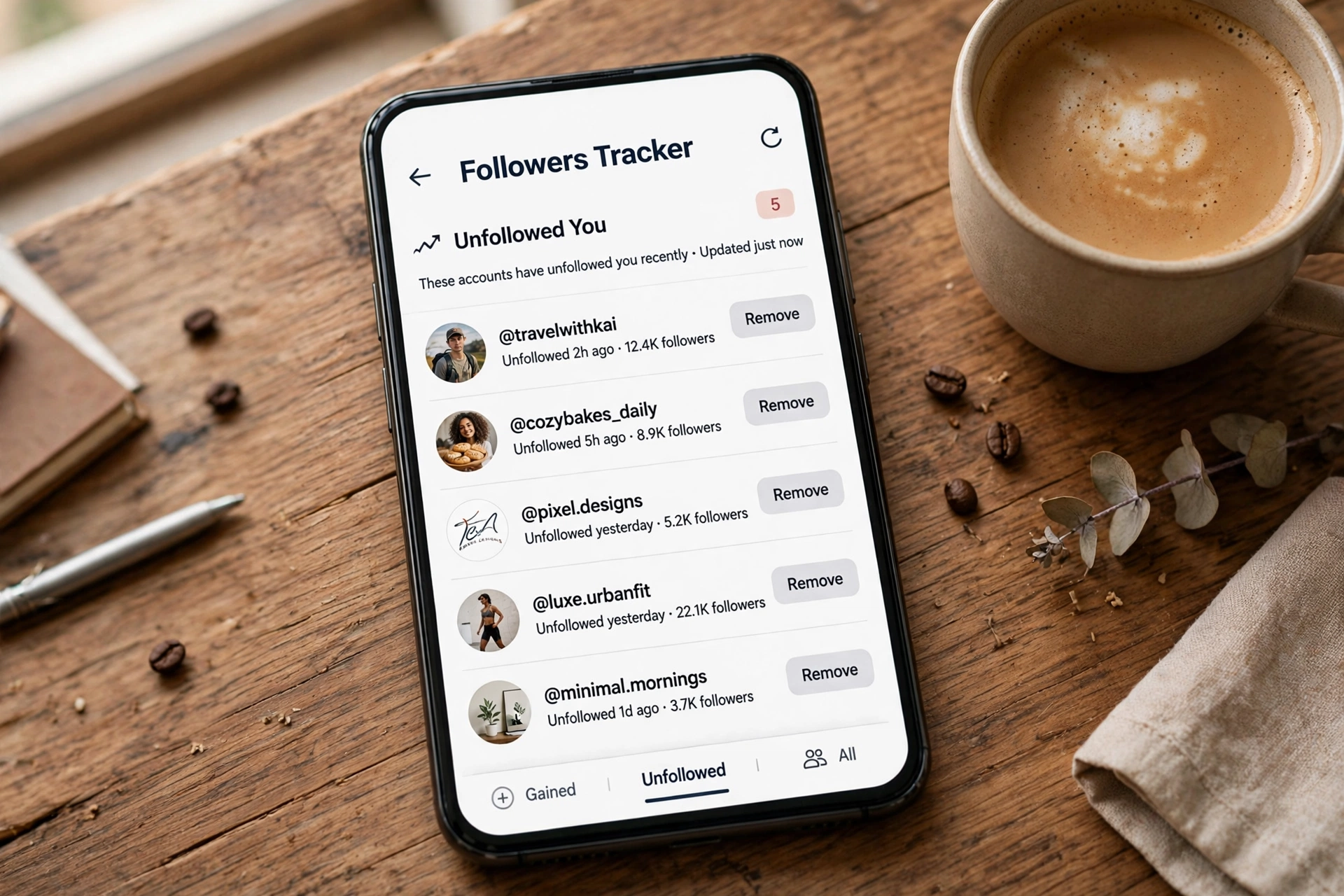
This is the only way to build a real list of people who unfollowed you without giving an app your login. If an account sat in your followers list in the first export and is missing from the second one, it left sometime in between.
How the two export comparison works
- Analyze your first export in a browser based tool with history saving enabled. Only the account names are stored, inside your browser’s own storage on that device.
- Request a new export a few weeks later the same way you did the first one.
- Open the new ZIP in the same browser. The results now include an Unfollowed you tab with accounts that were among your followers last time and are not anymore, plus a New followers tab.
The shorter the gap between the two exports, the more precisely you know when someone left. If you still have an older export sitting on your drive, analyze it first and the newer one second, because Instagram keeps no unfollower history before your first snapshot.
Comparing exports manually in a spreadsheet
Prefer full control over your data. Unzip both exports, rename the followers files by date (followers_2026-10-01.json and followers_2026-10-18.json), extract the usernames from each, and paste the two columns side by side in Google Sheets. A lookup formula like =IF(ISNA(MATCH(A2,B:B,0)),”UNFOLLOWED”,””) flags every account that was in the first list and not the second. Cross check the following.json files too, because username changes are the main source of false positives: someone who renamed their account shows up once under Unfollowed you under the old name and once under New followers under the new name.
A few caveats apply to every two export comparison. Accounts that were deactivated, deleted, or suspended also drop out of your followers, and no tool can tell that apart from a real unfollow, so open the profile before drawing conclusions. The saved history stays in that browser on that device. A private window, cleared site data, or a different device starts from zero. If your goal is closer to who left versus who never followed you back in the first place, start with our instagram follower tracker guide, which breaks down the two lists side by side.
Method 4: Third Party Unfollow Checker Apps
Search any app store for unfollow checker or unfollower tracker and you will find hundreds of apps promising a clean list of who unfollowed you, who does not follow you back, and ghost followers who never engage. The vast majority are a bad idea, for reasons that are specific and worth spelling out.
- They ask for your Instagram password. Instagram’s official API never exposes the unfollower list, so these apps log into your account as you. Your credentials then live on their servers.
- They get detected as bots. Instagram’s fraud systems track login IPs, device fingerprints, and activity patterns. A session from a data center IP running automated queries against your followers list is textbook bot behavior. Users regularly report account locks, forced password resets, temporary reach penalties, and in the worst cases permanent suspension.
- The data is often stale or faked. Even when an app works, its list is scraped on a schedule you do not control. A name shown as an unfollower may have unfollowed last week, may be a username change false positive, or may simply be invented to make the subscription feel worthwhile.
- Subscription traps are common. Many offer a free preview of three unfollowers, then charge weekly subscriptions that auto renew through app store billing, where they are harder to cancel than you expect.
- Browser extensions are no safer. An extension that reads your logged in Instagram session can do anything your account can do, including posting, sending DMs, or changing your password recovery settings. Treat them with the same suspicion.
The rule of thumb: if an app promises information that Instagram itself refuses to show you, it is either lying or breaking Instagram’s terms on your behalf, and your account is the collateral. We are deliberately not naming specific apps here because listing them only helps them. The official Meta data export described in Method 2 and Method 3 is the only safe, account preserving way to get this information, and it is free. For ongoing monitoring without risky logins, our compare instagram followers guide shows how to set up repeat snapshots you fully control.
Signs Someone Unfollowed You (and What They Do Not Prove)
Real signs that carry weight:
- Your follower count dropped and you did not remove anyone yourself.
- You search your followers list for a specific username and they are gone, even though you remember them being there.
- On their profile, the action button reads Follow (meaning you do not follow them) or Following, yet your username no longer appears in their followers list.
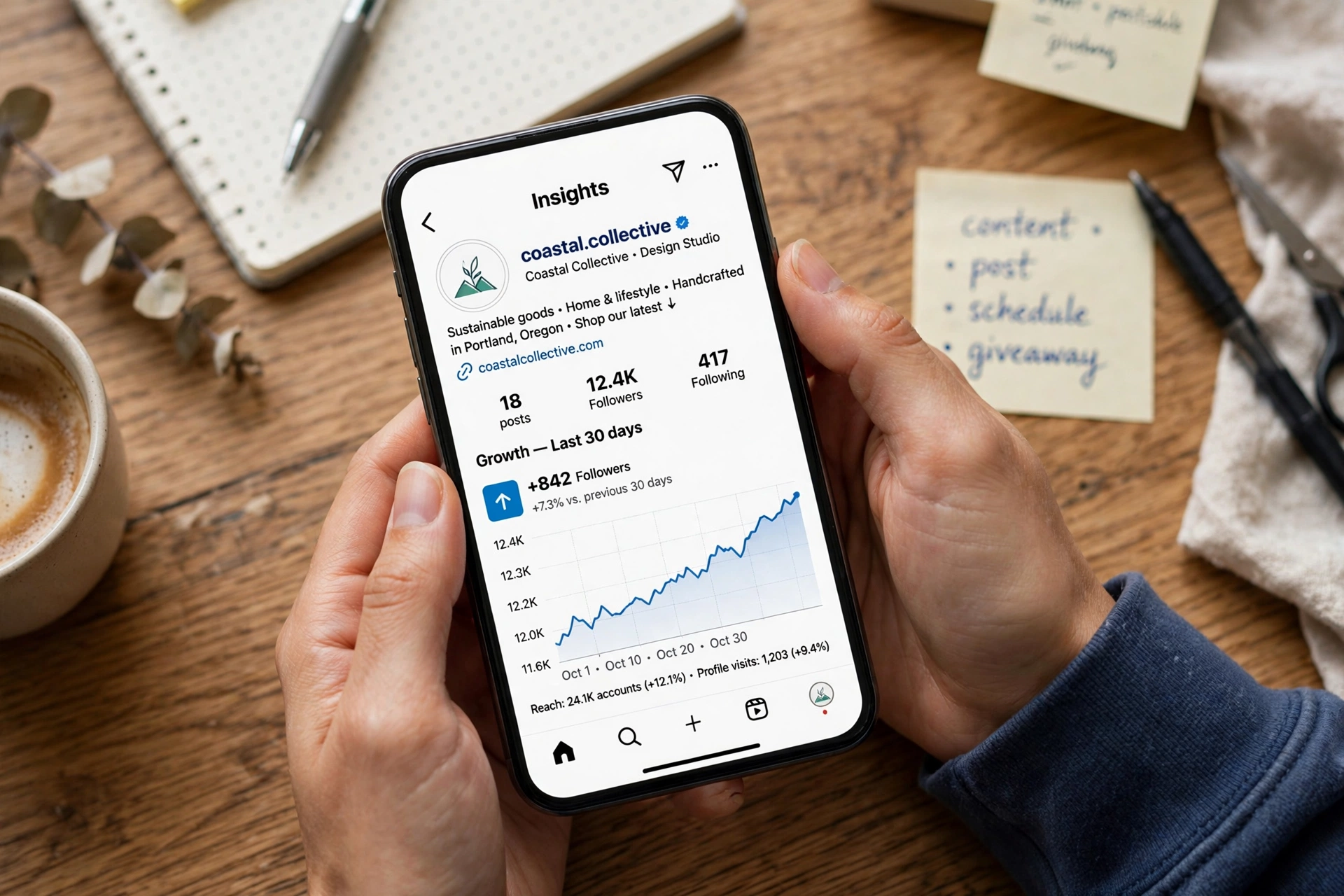
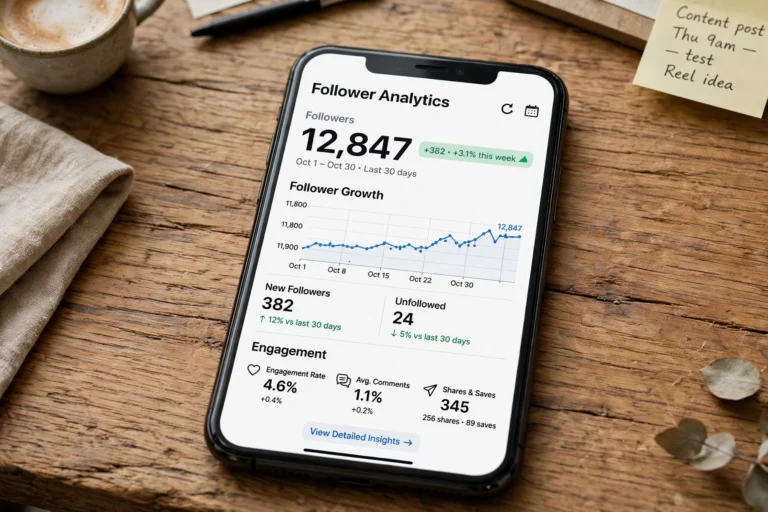
- Instagram’s own Insights shows a follower drop. Once you pass 100 followers, the Total followers insight includes growth and losses over up to 90 days. It shows counts only, never names, but it tells you how many names to expect from a two export comparison.
Things that feel like unfollow signs but prove nothing:
- You stopped seeing their stories near the top. The stories tray is algorithmic. Absence there is not a signal.
- They stopped liking your posts. People mute accounts, scroll past, or simply get busy. If likes are your concern, our instagram likes viewer guide explains exactly who liked each post.
- A DM thread has no read receipts for a while. They may have read receipts turned off, or they may just be ignoring the thread.
Unfollowed vs Blocked vs Deactivated vs Deleted
This comparison answers most of the confusion people run into, because a follower count drop of one can mean several different things.
| State | What you see on their profile | Your follower count |
|---|---|---|
| Unfollowed you | Normal profile, all posts visible, Follow or Following button as usual | Drops by 1 |
| Blocked you | User not found in search, or No Posts Yet if you open the URL | Drops by 1, the block also removes the follow on their side |
| Deactivated | User not found, the account is temporarily hidden for everyone | Drops by 1 |
| Restricted | Normal profile, you cannot tell from the outside | Unchanged, restrict does not unfollow |
| Deleted | User not found permanently, eventually the handle becomes available again | Drops by 1 |
The practical shortcut: if your follower count dropped by 1 and you can still open a normal, post filled profile of the suspected person, it is an unfollow. If the profile shows User not found or No Posts Yet, it is something else. Also note the export file named recently_unfollowed_profiles.json lists accounts you unfollowed, with dates, not people who unfollowed you. Do not mix the two up.
Setting Up Ongoing Unfollower Tracking
One comparison tells you who left this month. A tracking habit tells you who leaves every month, and that is where the real insight lives. You do not need a paid app for it, just a repeating calendar reminder and five minutes per cycle.
- Month one, day one: request your followers export from Accounts Center and analyze it in your chosen browser tool with history saving turned on. This becomes your baseline.
- Set a monthly reminder: pick a fixed date, for example the first Sunday of each month. On that day, request a fresh export and open it in the same browser where you analyzed the first one.
- Log the results in a simple note: write down the unfollower count and, if you want, the usernames. Over three or four cycles you will see your normal monthly churn rate, which for most personal accounts sits in the low single digits.
- Flag anomalies, not numbers: a month where your losses triple is worth investigating. Ask what changed: a controversial post, a posting gap, a niche shift, or a story that annoyed people. The count tells you something happened; the content calendar tells you what.
Keep the exports themselves in a dated folder on your device. If you ever switch browsers or clear site data, the old ZIP files become your backup baselines. One more habit worth building: export your following list too and compare it once a quarter. Accounts you follow that went inactive, deleted, or turned into spam are dead weight that drag your engagement rate down.
Common Mistakes People Make With Unfollow Checkers
Treating not following back as unfollowed
The biggest misunderstanding in this whole topic is the gap between does not follow me back and unfollowed me. The first group includes brands, celebrities, and accounts that never followed you in the first place. Only the two export comparison can name actual unfollowers, because only it has a before and after snapshot.
Checking immediately after a follower spike
If a reel went viral or a shoutout landed last week, your follower list is full of brand new accounts that were never stable. Comparing snapshots across a spike inflates your unfollower count with accounts that unfollowed within days of following. Wait two to three weeks after a spike before taking your next snapshot.
Ignoring username changes
Every comparison matches by username. When someone renames their account, the old name appears under Unfollowed you and the new name appears under New followers, even though nobody left. Before concluding anything about a specific name, open the old profile: if the profile now shows a different handle, it was a rename, not an unfollow.
Trusting the unfollowed count from apps with fake precision
Some free checker sites show exact sounding numbers from a single export or from just your username. Since a single snapshot cannot prove anyone unfollowed you, those numbers are guesses at best and invented at worst. If a tool can answer who unfollowed you without any historical data from you, it is not analyzing anything, it is performing.
Frequently Asked Questions
Does Instagram notify you when someone unfollows you?
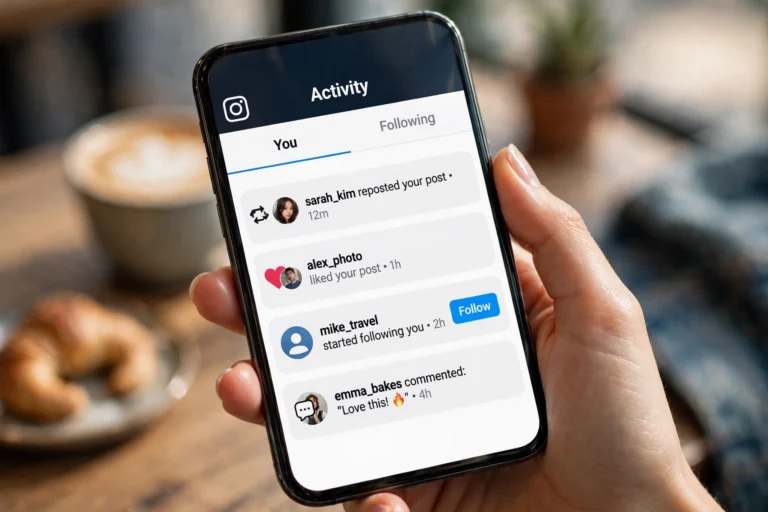
No. Instagram sends no push notification, no email, no in app alert, and nothing appears in your Activity feed. Unfollows are invisible by design, which is exactly why comparison methods exist.
How can I see who unfollowed me on Instagram for free?
Request your followers and following data export from Accounts Center in JSON format, open the ZIP in a browser based Instagram unfollow checker, and repeat the export a few weeks later in the same browser. The second analysis lists who unfollowed you in between. The whole process costs nothing.
Can I check who unfollowed me without an app?
Yes. Methods 1, 2, and 3 in this guide need no third party app at all. The data export is a built in Instagram feature, and the comparison tools are plain web pages that run inside your browser with no installation and no account creation.
Can I see who unfollowed me before I started checking?
No, not reliably. Instagram keeps no list of past unfollowers and the data export contains none. Every method, including paid apps, can only show changes after the first snapshot you take. An older export you already have can serve as that first snapshot.
Does this work if my account is private?
Yes. The export contains your full followers and following lists whether your account is public or private, because it is your own data. Tools that only ask for your username cannot check private accounts, since they only read public data.
Are Instagram unfollow checker apps safe?
Browser based checkers that read your export locally are safe because they never touch your account. Apps that ask for your Instagram login are not safe: they act as you on Instagram, store your session, and regularly trigger account locks, forced password resets, or suspension.
Why does my follower count keep dropping?
Some churn is normal. People clean up their following lists, deactivate accounts, or simply lose interest. Sharp drops right after a specific post usually point at that post as the trigger. A slow drift over weeks is ordinary churn. If you have a creator or business account, Instagram Insights shows the exact loss counts over the last 90 days so you can see whether the drop is a blip or a trend.
Will the person know I checked whether they unfollowed me?
No. Checking unfollowers is completely private. The person who unfollowed you receives no notification and has no way of knowing you looked, whether you used the export method or a browser based checker.
What to Do After You Find Your Unfollowers
Finding the list is only half the job. What you do with it decides whether the exercise was worth your time. Start by separating the names that matter from the ones that do not. Brands, public figures, and meme pages that never engaged with you are normal churn. People you actually know, collaborators, and past customers deserve a second look.
If the list is long and you want a cleanup, do not unfollow hundreds of accounts in one sitting. Instagram does not publish exact limits, but rapid unfollow bursts are a classic trigger for action blocks. Read our mass unfollow instagram guide first so your cleanup stays inside Instagram’s limits and your account stays safe.
Then turn the insight into growth. A smaller, engaged audience beats a bloated, silent one, and tools like InstaUp APK give you features the official app does not for managing your presence. For the longer game, our How to Increase Instagram Followers guide covers more than 20 free methods that attract followers who actually stay.
Conclusion
Instagram will not hand you an unfollower list, but it will hand you your data, and that is all an Instagram unfollow checker needs. For one suspicious name, use the manual search in your followers list. For the full picture without risking your account, request the JSON export from Accounts Center and compare two snapshots a few weeks apart. Skip the login based tracker apps entirely: they trade your account’s safety for convenience you can get for free. Take your first export today so your baseline starts now, and the next time your count drops, you will know exactly who walked out.
4 Comments