Instagram Reel Downloader: 10 Free Tools to Save Reels Without Watermark (2026)
A Reel disappears the moment you scroll past it. That recipe tutorial, the workout breakdown, a client’s product demo, or your own draft that took three hours to shoot: Instagram gives you a bookmark that lives inside the app and vanishes if the creator deletes the post. The fix is an Instagram Reel downloader, a free tool that turns a Reel link into a clean MP4 file on your phone or computer. This guide tests 10 working downloaders in 2026, from browser tools like SnapInsta, FastDL, and iGram that need no login, to Android and iPhone apps like Barosave and InSaver, and shows you exactly how to save Reels without a watermark on any device.
Every method below works with public Reels only. Private accounts stay off limits to every legitimate tool, and any site that claims otherwise is waving a red flag, not offering a feature.
How an Instagram Reel Downloader Actually Works
Instagram never built a universal download button. The app lets you save your own Reels to your device and lets creators enable downloads on theirs, but most Reels on your feed have no official save option. That gap is what a Reel downloader fills.
The mechanism is the same across almost every tool. When you open a public Reel, Instagram attaches a direct video file link to that post’s public data. A downloader reads that public link data, pulls the original MP4 file from Instagram’s servers, and hands it to your browser. No account access, no scraping of private content, no re-encoding. The file you get is the same file Instagram served, which means the quality depends entirely on what the creator uploaded. A Reel shot and uploaded at 1080p downloads at 1080p. A heavily compressed upload cannot be magically improved by any downloader, no matter what its homepage promises.
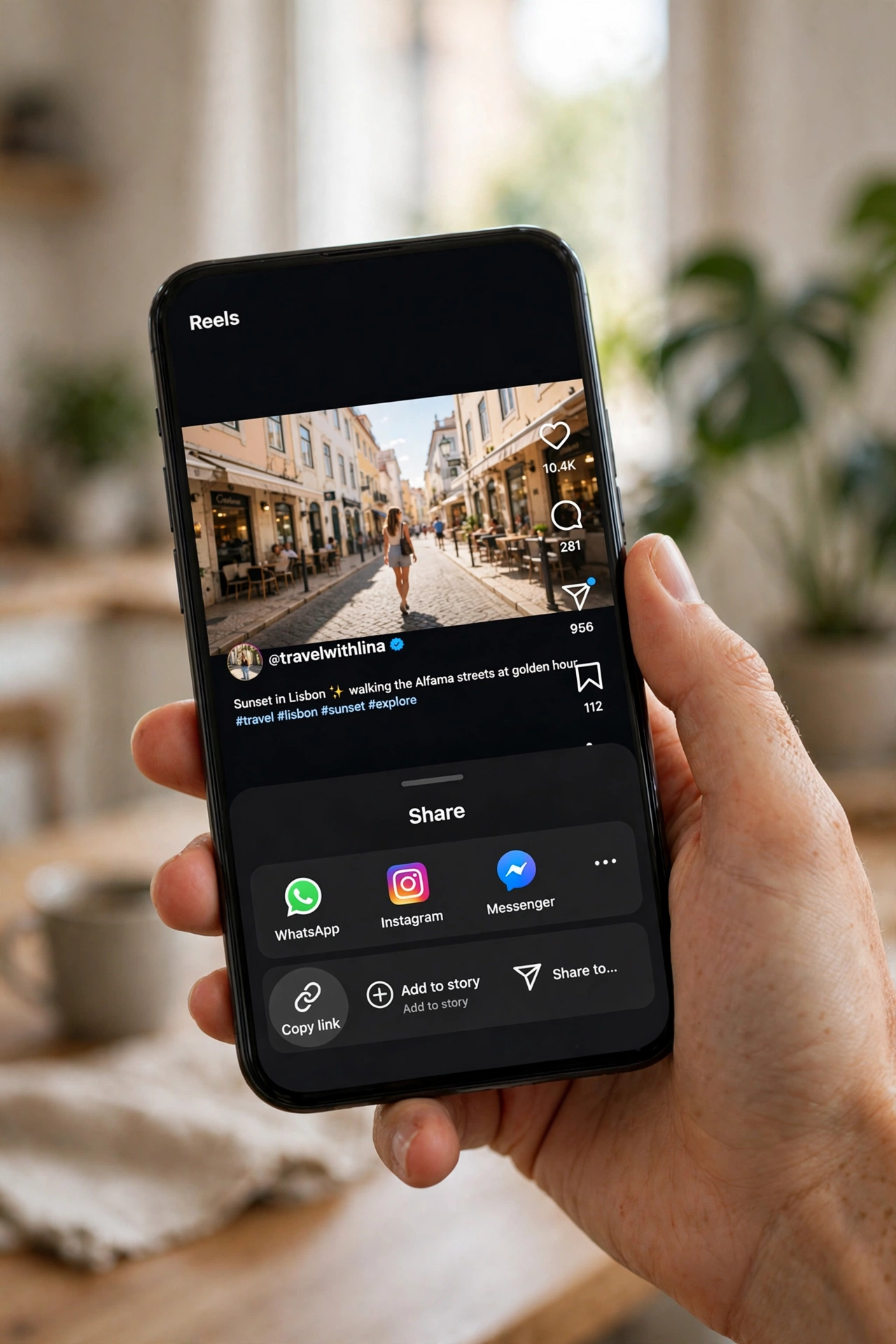
The entire workflow is three steps: copy the Reel link from the share menu or the three-dot icon, paste it into the downloader, and save the MP4. The difference between a good tool and a bad one is everything around those steps: fake download buttons, popup mazes, forced logins, and watermarks stamped onto your video. The tools below are ranked on exactly those points.
10 Best Free Instagram Reel Downloaders in 2026 (Quick List)
If you just want the shortlist, here it is. All ten are free, none asks for your Instagram password, and none adds a watermark to the video. Detailed reviews with steps for each tool follow the comparison table.
- SnapInsta: best overall browser tool, Reels plus Stories and IGTV
- FastDL: fastest one-off downloads, no limits, address-bar shortcut
- iGram: simplest interface, Reels and photos
- YouTubePrint: clean no-login tool covering Reels, Stories, and profile pictures
- GramFetch: privacy-focused, nothing stored on its servers
- DownloadGram: veteran tool, basic and reliable
- InDown: Reel, Story, and photo tabs in one page
- SaveIGReel: lightweight, HD quality, no account
- Barosave: best Android app for frequent downloads
- InSaver: best iPhone app for saving Reels to camera roll
Comparison Table: Every Tool Side by Side
| Tool | Type | Login Needed | Watermark | Batch Download | Best For |
|---|---|---|---|---|---|
| SnapInsta | Browser | No | None | No | All-round reliability |
| FastDL | Browser | No | None | No | Speed, unlimited saves |
| iGram | Browser | No | None | No | Simple interface |
| YouTubePrint | Browser | No | None | No | Multiple content types |
| GramFetch | Browser | No | None | No | Privacy, no logging |
| DownloadGram | Browser | No | Minimal, no-frills saves | ||
| InDown | Browser | No | None | No | Tabbed content types |
| SaveIGReel | Browser | No | None | No | Lightweight HD saves |
| Barosave | Android app | No | None | Yes | Frequent Android downloads |
| InSaver | iPhone/Android app | No | None | Yes | iPhone camera roll saves |
The 10 Best Instagram Reel Downloaders, Tested
1. SnapInsta: Best Overall Browser Tool
SnapInsta is the Instagram counterpart of SnapTik, and it has earned the top spot through sheer consistency. Paste a public Reel link, and it returns the original-quality MP4 in seconds. It also handles Stories, IGTV videos, and photos from the same box, which saves you from hunting down separate tools. Like every honest downloader, it works only with public accounts, and it never asks for your login. The tradeoff is the ad layout: free tools have to fund their servers somehow, and SnapInsta’s page carries banner ads around the real download button. As long as you click the genuine button (usually green or blue, below the video preview), the experience is smooth. On mobile it works in any browser, so iPhone users who cannot install dedicated downloader apps can rely on it entirely.
How to use it: Open the Reel in Instagram, tap the three-dot menu or the share icon, choose Copy Link. Open SnapInsta in your browser, paste the link into the box, press Download, then tap the quality option you want. The MP4 saves to your gallery or Downloads folder depending on your device.
2. FastDL: Fastest for One-Off Downloads
FastDL is the tool you bookmark when you want a link in and a video out with zero ceremony. It imposes no daily limits, asks for no login, and adds no watermark. One standout feature is its address-bar shortcut: you can type its short domain in front of an Instagram link and it pre-fills the download for you, which is genuinely faster than copy-pasting between apps. It handles carousels as well as single Reels, resolving the original file directly from Instagram’s servers so there is no quality loss. The interface is spartan, which is a plus: fewer decorative buttons means fewer chances of clicking a fake one. If you download Reels regularly for reference or editing, FastDL deserves the bookmark slot next to SnapInsta.
How to use it: Copy the Reel link from Instagram. Paste it on FastDL’s homepage and press the download button. Preview the video if you want to confirm it is the right one, then save the MP4 to your device.
3. iGram: Simplest Interface
iGram does two things, Reels and photos, and does them without clutter. The page is one input box, one button, and the result. There is no login, no account, and no watermark on the saved file. For beginners or anyone who finds the busier downloader sites confusing, this minimalism is the selling point. It follows the standard paste-a-link pattern for public content, and the download arrives as an MP4 at the source quality Instagram made available. It does not cover Stories or carousels as deeply as SnapInsta or YouTubePrint, so if you regularly save other content types, pair it with one of those. For pure Reel downloading, it is one of the least error-prone options on this list.
4. YouTubePrint: Clean Multi-Type Downloader
YouTubePrint is worth a spot because it treats Reels as one content type among several. Paste a link and it detects whether you gave it a Reel, a photo, a carousel, a Story, or a profile picture, then serves the right file. The page states plainly that it adds no watermark and requires no Instagram login, and in practice it delivers on both. It runs entirely in the browser on iPhone, Android, or desktop, which makes it a solid single bookmark for people who save more than just Reels. The three-step flow (copy the Reel URL from the share menu, paste it, save the MP4) is identical to the other browser tools, so there is no learning curve if you have used any of them before.
5. GramFetch: Best for Privacy
GramFetch stands out with an unusually honest privacy stance. Files are streamed from Instagram’s servers to your browser; the site states it does not keep copies, and pasted links are not stored or sold. It never asks for your Instagram password because it only reads what a logged-out visitor could already see. Feature-wise it covers Reels, feed videos, IGTV, photos, and carousels (carousels can come down as a ZIP of JPG and MP4 files). One genuinely useful trick: type its domain in front of any Instagram link in your address bar, and the link loads into the downloader automatically. If you care about where your pasted links end up, this is the tool to use. The interface is plain but functional, with a preview before you download.
6. DownloadGram: The Veteran Pick
DownloadGram has been around for years, which in the downloader world is a meaningful trust signal: fly-by-night sites come and go, but this one has kept working. The interface looks dated next to newer tools, but the core job, paste a link and get a file from a public post, still works reliably. It handles photos and videos, and does not ask for your Instagram login. Think of it as the backup tool: if your primary downloader is temporarily down or throwing errors (which happens to every third-party tool when Instagram changes something on its end), DownloadGram is a good second option to try. The dated design is actually a small safety advantage: there are fewer animated fake buttons competing with the real download link.
7. InDown: Tabbed Downloader for Reels, Stories, and Photos
InDown organizes its tools into tabs for Reels, Stories, photos, and more on a single page, which is handy if you save different content types through the day. The Reel flow is the familiar one: open the Reel, tap the three-dot icon, copy the link, switch to the Reels tab on InDown, paste the link, press Search, then hit the download button after the preview appears. It works on Android, iOS, and desktop browsers. The main downside is shared with most free web tools: the mobile page carries heavy ads that can make the experience annoying, and on a small screen it is easy to tap the wrong banner. Use an ad-conscious approach (scroll past the banners to the preview area) and it gets the job done without asking for your credentials or adding a watermark.
8. SaveIGReel: Lightweight and HD
SaveIGReel is a single-purpose page: download public Instagram Reels in HD without a watermark, no app, no account. The instructions on the page are the three steps you already know: copy the public Reel link from the app or browser, paste it into the box, click Download, and save the file. It fetches the video directly from Instagram’s servers and delivers the clean original file with no logo and no re-encoding. The page also states plainly that it does not store downloaded files and only supports public accounts, which is exactly the transparency you want to see. It is a good pick when you want the lightest possible tool and do not need extra content types.
9. Barosave: Best Android App
If you download Reels often on Android, a dedicated app beats opening a browser tab every time. Barosave is built for exactly that workflow: it watches your clipboard, so when you copy a Reel link in Instagram and open the app, the link is already there waiting. One tap downloads the video to your gallery. It supports batch downloads, which browser tools generally do not, so saving a series of Reels for a project is much faster. The tradeoff with every Android downloader app is ads and permission prompts, so install it only from the Google Play Store listing and review the permissions it requests. For heavy users on Android, the clipboard-detection workflow is worth more than any single browser tool’s polish. If you also keep modded Instagram clients on your phone, pairing a downloader app with something like Insta Thunder APK gives you extra saving and customization features in one setup.
10. InSaver: Best iPhone App
Apple’s App Store policies make dedicated Reel-downloading apps harder to keep alive on iOS than on Android, which is why browser tools usually get the recommendation for iPhone users. InSaver is the exception worth installing: it saves Reels and videos to your camera roll, keeps a secure in-app library so you can organize downloads, and avoids the browser-tab dance entirely. Like every legitimate tool here, it works with public content and does not need your Instagram password. Expect the usual free-app ads, and keep in mind that App Store availability can change, so if it ever disappears, fall back to SnapInsta or FastDL in Safari, which work just as well on iPhone.
Quick pick summary: use SnapInsta or FastDL for one-off saves on any device, GramFetch when privacy matters most, Barosave on Android or InSaver on iPhone if you download daily, and keep DownloadGram as your backup when a primary tool hiccups.
How to Download Instagram Reels on Android
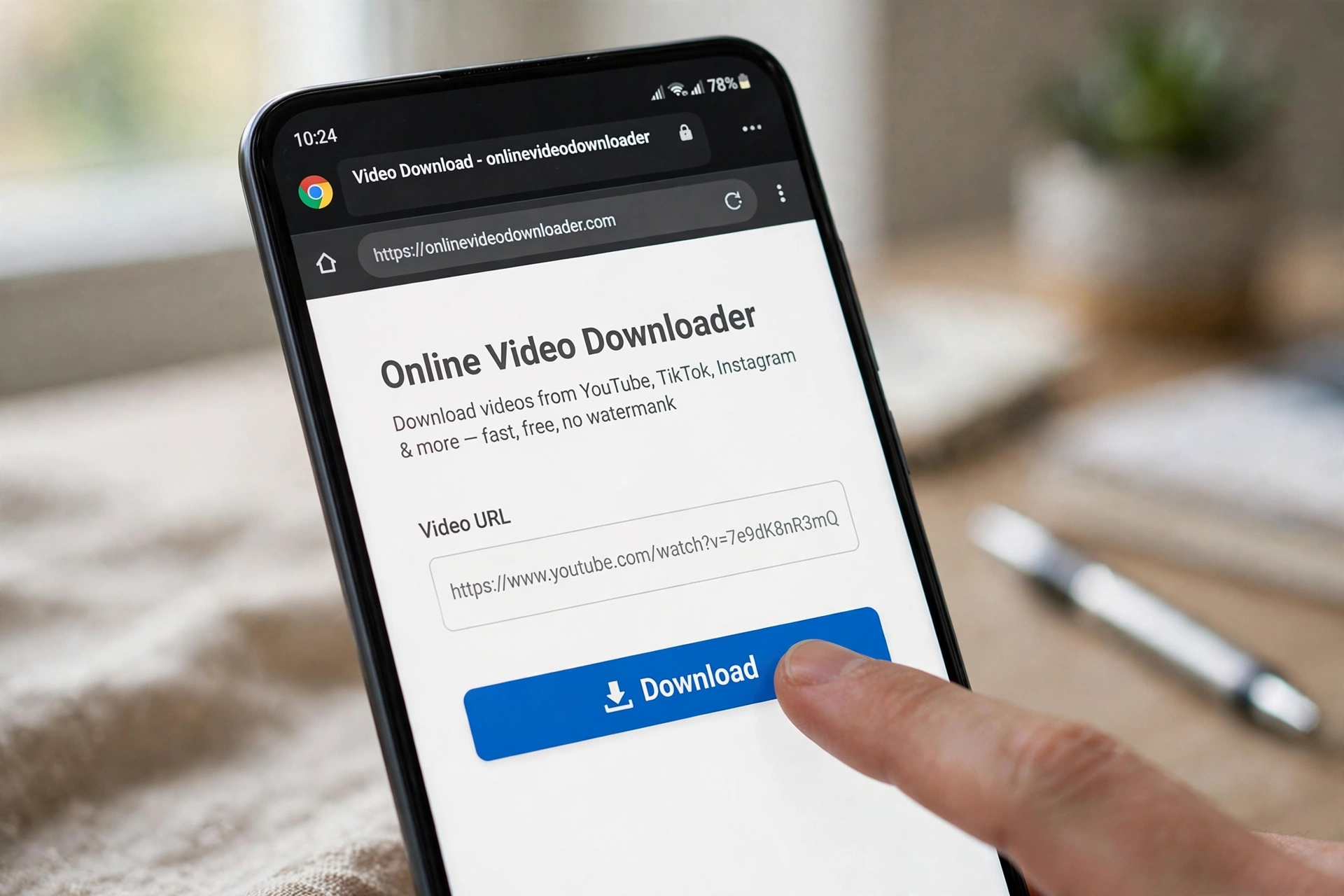
Android is the easiest platform for saving Reels. Downloads go straight to your gallery or Downloads folder in most cases, and you have both browser tools and dedicated apps to choose from. Here is the browser method, which works on any Android phone with no install.
- Open the Reel in the Instagram app. Tap the share icon (paper plane) on the Reel, then choose Copy link. You can also tap the three-dot menu and select Copy Link.
- Open your browser (Chrome works fine) and go to a downloader like SnapInsta or FastDL.
- Paste the copied link into the input box and tap Download.
- The tool will show a preview of the Reel. Tap the download or save button under it.
- The MP4 lands in your Downloads folder and usually appears in your Gallery automatically.
If the download does not start, the most common cause is a half-copied URL. Go back, copy the link again carefully, and retry. Also make sure your browser has storage permission if it asks; without it, the file cannot be written to your phone.
For frequent downloads, the app route is smoother. With Barosave installed, you copy the link in Instagram, open the app, and the link is already detected from your clipboard. One tap saves it. Android users who keep extra media apps on their phones can also store their growing collection in the cloud; TeraBox Mod APK gives you a large free cloud drive, which is a practical way to keep hundreds of saved Reels off your phone storage.
How to Download Instagram Reels on iPhone
iPhone needs one extra step because iOS is fussy about where downloads land. Follow this sequence and you will not lose the file.
- Open the Reel in the Instagram app. Tap the paper-plane share icon or the three dots, then Copy link.
- Open Safari and go to a browser downloader such as SnapInsta, FastDL, or iGram.
- Paste the link into the box and tap Download.
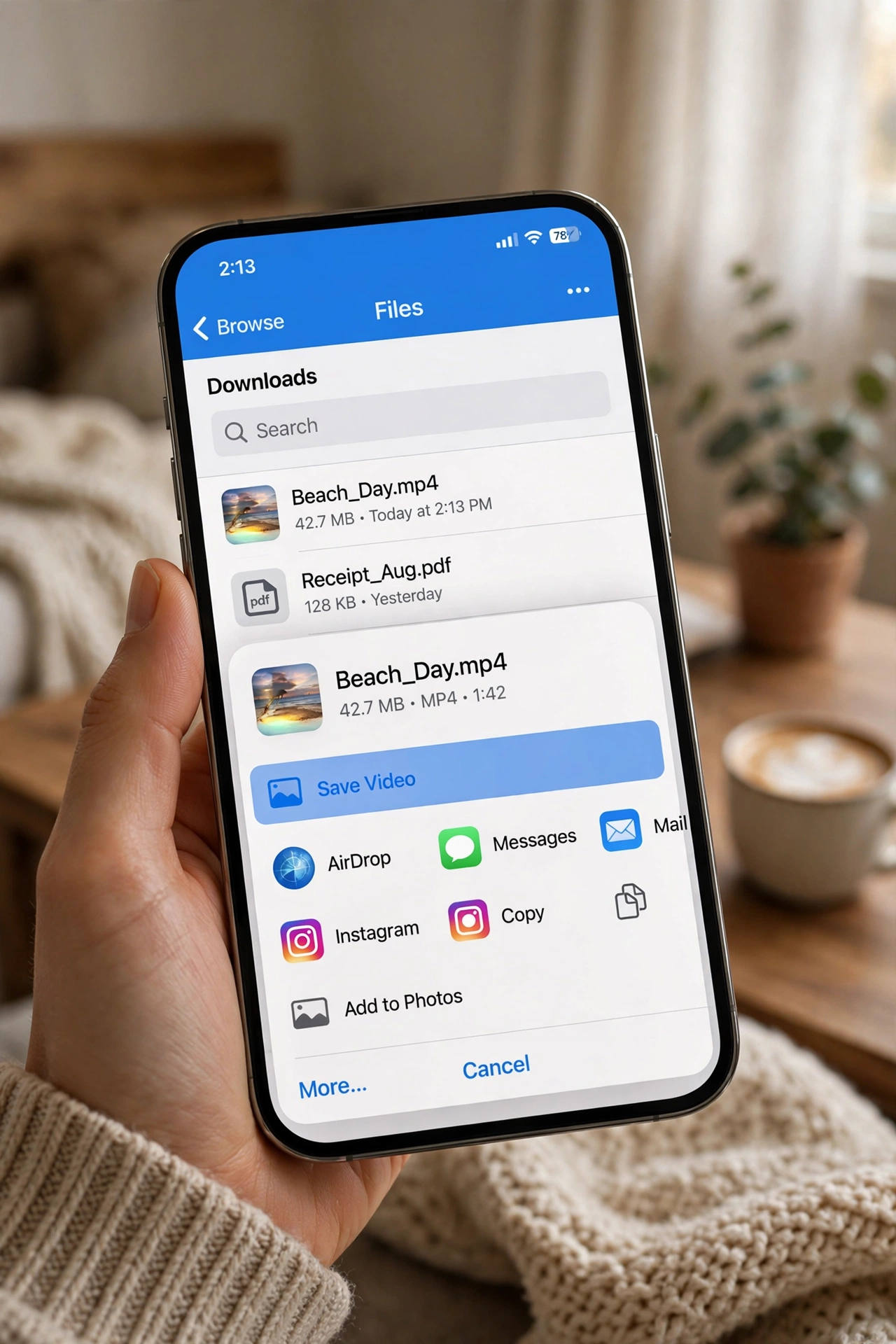
- Tap the save button on the preview. Safari will ask where to save it; choose Files (the file downloads as an MP4, not directly to Photos).
- Open the Files app, find the MP4, and use Share, then Save Video to move it into your camera roll.
The Files-first behavior trips up a lot of iPhone users who then think the download failed. It did not: the video is sitting in Files waiting for the Share step. If you download Reels regularly on iPhone, the InSaver app removes this friction entirely by saving straight to your camera roll and keeping a library of your downloads inside the app.
How to Download Instagram Reels on PC
Desktop is the most straightforward platform of all, and it is ideal when you are collecting Reels for editing or archiving.
- Open the Reel in your desktop browser and copy the URL from the address bar. You can also use Copy Link from the post’s three-dot menu.
- Open a downloader like FastDL or GramFetch in a new tab.
- Paste the link and click Download.
- Preview the video, then click the final save button. The MP4 goes to your browser’s Downloads folder.
On PC you can also use FastDL’s address-bar shortcut: type the tool’s short domain directly in front of the Instagram URL and the link loads into the downloader by itself. For bulk work on a computer, desktop tools like 4K Stogram download by username, hashtag, or location and save Stories and Highlights too, though that is a paid app and overkill for casual saving.
How to Download Your Own Reels Without Any Tool
You do not need a third-party downloader for Reels you created yourself. Instagram has a built-in path, with one catch: it only works if the creator (you, in this case) has downloads enabled.
- Published Reels: open your Reel, tap the three-dot icon, and select Save to your device. The video downloads to your gallery without a watermark.
- Unpublished drafts: open the draft from your profile’s Reel tab, tap Edit or Preview, and use the Save button at the top. This saves works-in-progress you never posted.
- Reels with downloads disabled: if the option is missing, the creator turned it off. You will need one of the third-party tools above, which only work on public Reels.
Creators who post regularly should save originals before uploading anyway: once a Reel is compressed by Instagram’s upload pipeline, you cannot recover the original quality from the app. Keep your master files on your phone or a cloud drive so you can re-edit or repost them later.
The Instagram Stories Trick (No App, No Website)
This is a neat workaround that uses Instagram against itself. It only works for Reels the creator allowed to be shared to Stories, which covers most public Reels.
- Open the Reel and tap the Send (paper plane) icon.
- Select Add Reel to your story.
- In the Story editor, pinch and zoom the preview so the Reel fills the full screen.
- Tap the three dots in the upper-right corner and select Save.
The video saves to your gallery inside the Instagram folder. The quality is slightly lower than a direct MP4 download because it goes through the Story rendering pipeline, but for quick offline viewing it is perfectly fine. If you want to view someone’s Stories privately before deciding what to save, Insta Navigation explains how to watch Instagram Stories anonymously.
Screen Recording: The Fallback That Always Works
When every tool fails on a particular Reel (deleted source links, temporary Instagram changes, or a flaky connection), your phone’s built-in screen recorder never depends on any third party.
On Android
- Open the Reel you want to save.
- Swipe down from the top of the screen and tap the Screen Recorder toggle in the Quick Settings panel.
- Tap the red dot to start recording, then play the Reel from the beginning.
- When it finishes, tap the stop square. The recording saves to your Screen Recorder folder in the gallery.
On iPhone
- Open the Reel.
- Open Control Center and press the Record button. If it is not visible, add it via Settings, then Control Center.
- A red band appears at the top while recording. Play the Reel.
- Tap the red band and choose Stop. The video lands in your Photos.
Screen recording is a last resort, not a first choice. The file is larger, the quality drops a generation, and you have to trim the start and end. Use it when downloaders are down, not as your daily method.
How to Download Only the Audio from a Reel (MP3)
Sometimes the video is irrelevant and you only want the sound: a trending audio you plan to use, a podcast clip, or a song you cannot name. Tools like Experts Tool and Expertsphp, covered in the tools list above, let you choose MP4 or MP3 output before downloading. Pick the MP3 option and you get just the audio track. This is the cleanest way to grab trending sounds for your own Reels without recording the screen and without pulling the full video file.
Can You Download Reels from Private Accounts?
No, and this is the point where you should be most careful. Instagram restricts private-account content to approved followers, and no legitimate downloader can bypass that. It is a technical limitation, not a missing feature. Any site or app that promises private-account downloads is either lying to get your clicks or phishing for your login credentials. Treat “download private Reels” claims as a scam pattern, not a selling point. If you can view the Reel while logged in as an approved follower, the honest options are the creator’s own download button (when enabled) or a screen recording for personal reference.
Safety Rules: How to Spot a Trustworthy Downloader
The downloader space attracts shady clones because the traffic is huge. Before you paste a single link into a new tool, run through this checklist. Every tool recommended in this guide passes all five points.
- No login prompt: downloading a public Reel never requires your Instagram username or password. A legitimate tool needs only the post’s link. If a site asks you to log in with Instagram, close the tab.
- HTTPS only: the address bar must show a padlock. Never paste links into a plain http:// page.
- No forced app install: browser-based tools carry less risk than apps requesting broad permissions. If a website insists you install something before downloading, leave.
- Clear privacy policy: the site should state what, if anything, it collects. GramFetch, for example, states it keeps no copies and stores no links.
- No “private account access” claims: as covered above, this is not a real capability. It is a red flag every time.
One more practical habit: learn what the real download button looks like on your chosen tool. Fake buttons are usually the brightest, most animated element on the page and often open new tabs. The genuine button sits below the video preview and says something plain like “Download” or “Save Video”. Once you know its position, you will stop clicking the wrong one.
Is It Legal to Download Instagram Reels?
The short answer: saving a public Reel for personal, offline viewing sits in a low-risk gray area that millions of people use daily. The hard lines appear when you reuse the content. Reposting someone else’s Reel as your own, using it in client work or ads, or claiming ownership is copyright infringement: the original creator keeps their rights even though the video was public. Always credit the creator when you repost, and get permission before using a downloaded Reel commercially.
Instagram’s own terms technically discourage scraping and bulk downloading, but in practice the platform enforces this against abusive bot networks, not against an individual saving a tutorial to watch on a flight. The realistic risk ranking is: personal offline viewing (negligible risk), reposting with credit (usually fine, but the creator can request removal), reposting without credit or commercial use (genuine legal exposure). Creators building a brand should treat downloaded Reels as reference material, not as content to re-upload. If growing your account is the goal, our guide on how to increase Instagram followers covers 20+ free strategies that do not depend on anyone else’s content. And when you do repost with permission, pairing the video with strong text helps: classy captions for Insta has 240+ caption ideas you can use right away.
Note: this section is general information, not legal advice. When in doubt about commercial use, ask the creator or a qualified professional.
Instagram Reel Downloader FAQs
Do Instagram Reel downloaders add a watermark?
Genuine downloaders save the original file, so no watermark should be added. The tools in this guide (SnapInsta, FastDL, iGram, and the rest) all deliver clean MP4s. Any marks already burned into the video by the creator, like on-screen captions or stickers, stay visible because they are part of the frames, but the tool itself adds nothing. If a downloader stamps its own logo on your video, switch to a cleaner alternative.
Do I need to log in to download Reels?
No. For public Reels, a legitimate downloader only needs the post’s link. Never enter your real Instagram username and password into any third-party downloader site or app, no matter what it promises: faster downloads, private-account access, or “verification”. That request is a phishing pattern, not a feature.
Why does my downloaded Reel have no sound?
First check whether the original Reel actually had sound and was not muted at upload. If the source had audio, the issue is usually a glitch in the tool or an interrupted download. Re-copy the link, try a different downloader from the list, and confirm the preview plays with sound before saving.
Where do downloaded Reels get saved on my phone?
On Android, the MP4 goes to your Downloads folder and usually shows up in the Gallery too. On iPhone, Safari saves it to the Files app first; open Files, find the video, and use Share then Save Video to move it to your camera roll. On a computer, check your browser’s Downloads folder.
Can I download Reels in HD quality?
Yes, up to whatever the creator uploaded. The downloader fetches the original file Instagram stores, so a Reel uploaded at 1080p downloads at 1080p. No tool can improve a video beyond its source quality, despite what some homepages claim.
Is there a limit on how many Reels I can download?
The tools in this guide are free with no stated daily caps. FastDL and DownloadGram are explicitly unlimited. If a site suddenly demands payment after a few downloads, it is a paywalled service, not a free tool; pick another one from the list.
What is the best Instagram Reel downloader for iPhone?
SnapInsta or FastDL in Safari for occasional saves, since they need no install and handle the Files-to-Photos step cleanly. For daily use, the InSaver app saves straight to your camera roll and keeps an organized in-app library.
Can I download a Reel I already saved with the bookmark icon?
Instagram’s bookmark only stores the post inside the app; it is not a file on your device, and it disappears if the creator deletes the post. To get an actual video file, copy the Reel’s link and run it through any downloader in this guide.
Final Verdict: Which Instagram Reel Downloader Should You Use?
For most people, the answer is simple: bookmark SnapInsta or FastDL, copy the Reel link, paste, and save. That covers every device, costs nothing, needs no login, and leaves no watermark. Choose GramFetch when privacy is your priority, Barosave on Android or InSaver on iPhone when you download every day, and keep DownloadGram as the backup for the day your primary tool throws an error. Whatever you pick, stick to the safety rules: no logins, no private-account promises, HTTPS always. Download for reference and offline viewing, credit creators when you repost, and your saved-Reels library will stay both useful and trouble-free.
Want more Instagram power tools? Start with InstaUp APK, the modded Instagram client with extra downloading and privacy features, and explore the rest of our guides to get the most out of every Reel, Story, and post you save.