IG Login: How to Login to Instagram on Mobile, Web & Desktop (2026 Guide)
Logging into Instagram should take seconds, yet the IG login trips up millions of people every month, from forgotten passwords and suspicious-login warnings to fake login pages everywhere. This 2026 guide walks you through every official way to sign in: the mobile app, any web browser, and the Windows desktop app, plus how to log in with Facebook, reset a forgotten password, and fix the most common login errors.
The only official IG login page is instagram.com/accounts/login. Always check the address bar before typing your password, real logins happen only on instagram.com.
How to Login to Instagram on the Mobile App
For most people, the Instagram app on iPhone or Android is the fastest route. The IG login steps are identical on both:
- Open the Instagram app on your phone.
- Enter your username, email address, or phone number.
- Type your password and tap Log in.
- Enter the two-factor verification code if Instagram asks for one.
- Choose Save login info only on your own private device.
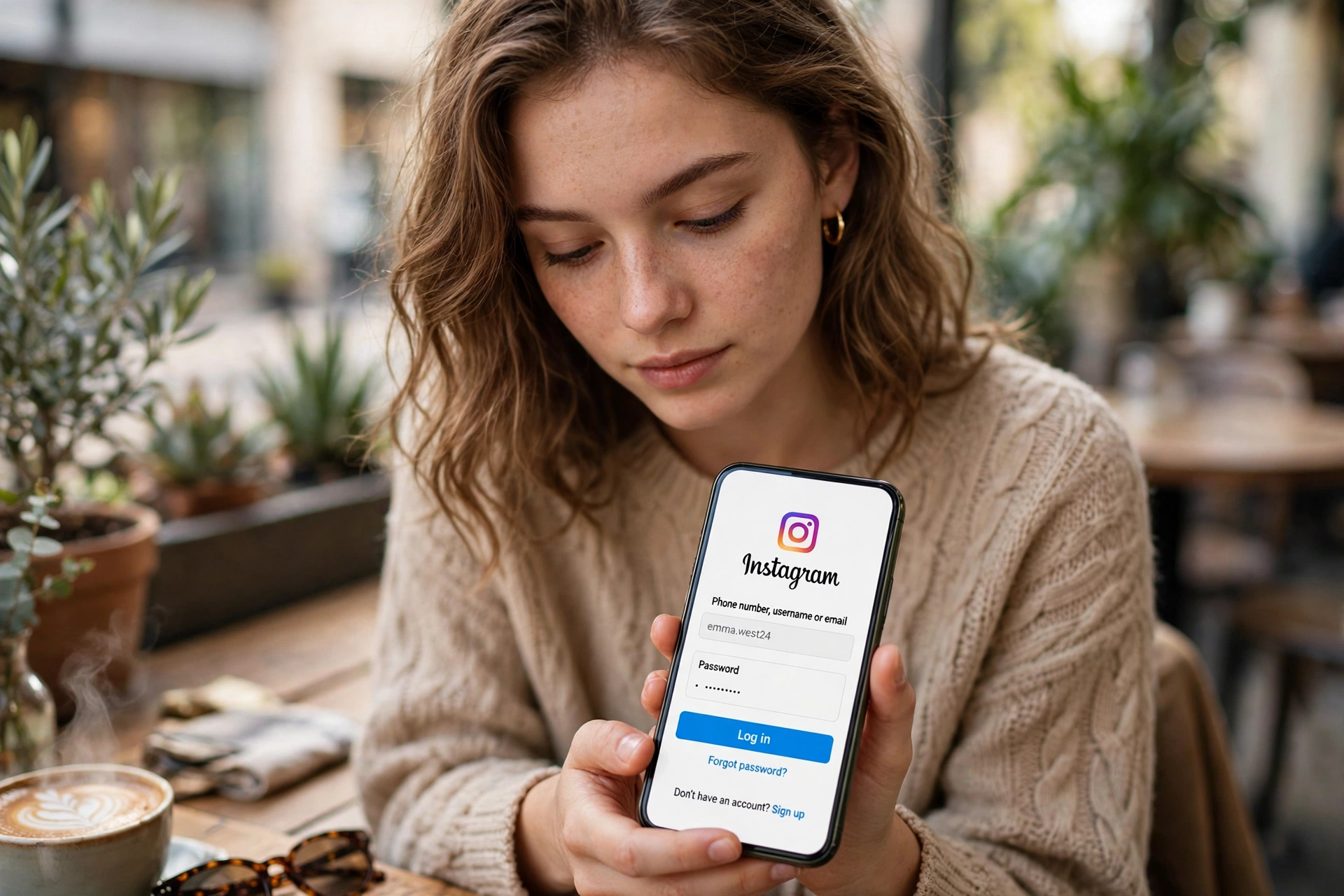
Before you start, make sure you have your login details handy. Here is what the IG login accepts and where to find each one:
| Credential | Where to Find It | Pro Tip |
|---|---|---|
| Username | Your profile page or Instagram’s welcome email | Usernames are not case-sensitive |
| Email address | The inbox you signed up with | Check the spam folder for Instagram emails |
| Phone number | The number linked in your account settings | It must be able to receive carrier SMS |
| Password | Your password manager | Passwords are case-sensitive |
| Two-factor code | Your authenticator app or SMS inbox | Keep your backup codes somewhere safe |
Signed in on the app? You are set for everyday scrolling, posting, and DMs. If you ever need a bigger screen, the web browser method below works without installing anything. Once you are signed in, an instagram follower tracker helps you see exactly who follows and unfollows your account over time.
How to Login to Instagram on a Web Browser
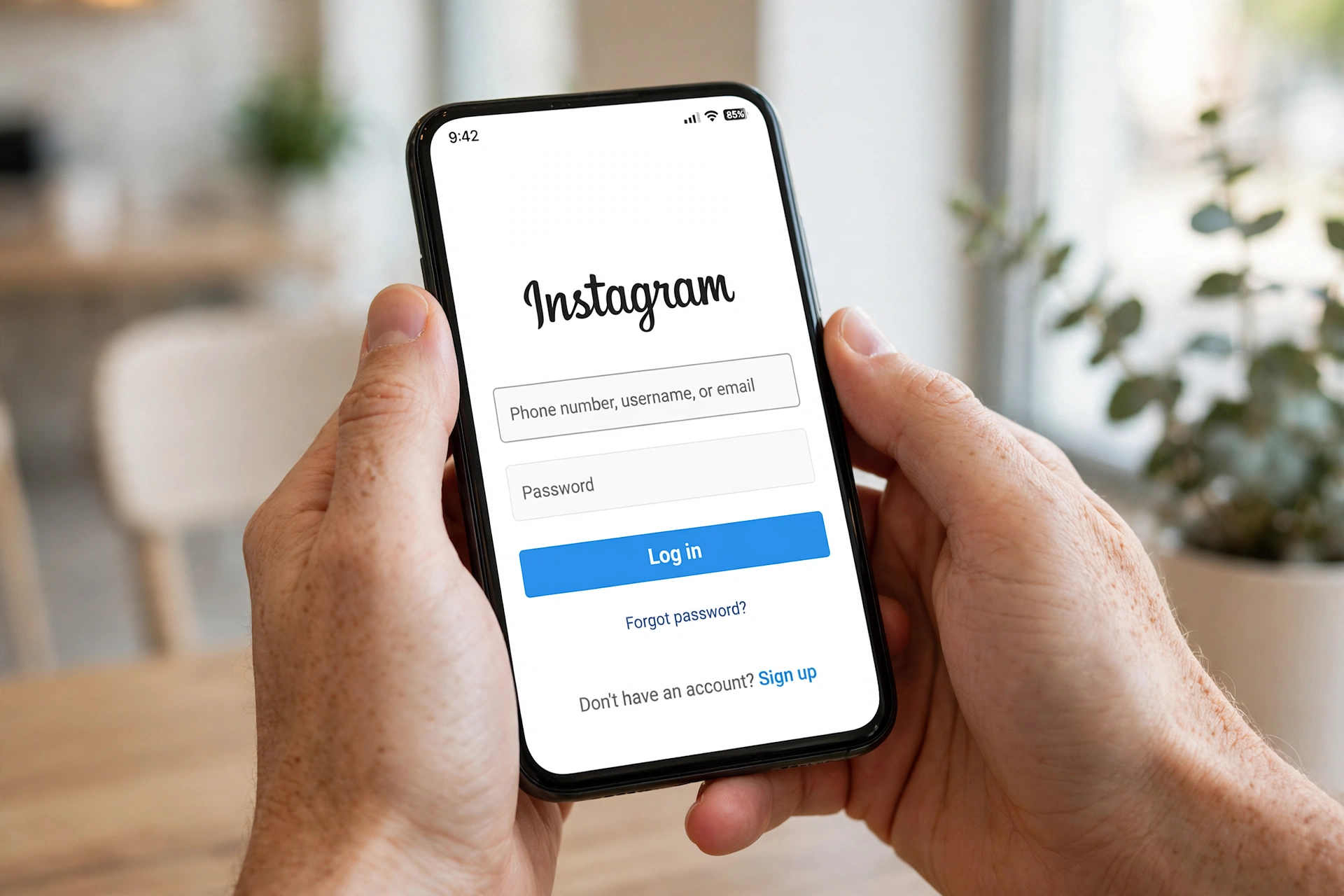
No phone nearby, or just prefer a bigger screen? The IG login works perfectly in any modern web browser, and you do not need the app installed at all. This method works on Windows PCs, Macs, Chromebooks, tablets, and even mobile browsers:
- Open Chrome, Safari, Firefox, or Edge and go to instagram.com/accounts/login.
- Enter your username, email address, or phone number in the first field.
- Type your password in the second field and click Log in.
- Complete the two-factor verification code if Instagram asks for one.
- Choose whether to save your login info. Say no on shared or public computers.
Here is how the three main IG login methods compare, so you can pick the one that fits your situation:
| Method | Best For | What to Know |
|---|---|---|
| Mobile app | Everyday use, posting, stories, DMs | Fastest logins, Face ID or fingerprint unlock, multiple accounts in one tap |
| Web browser | Shared computers, work PCs, quick check-ins | No install needed, works everywhere, always log out on public devices |
| Windows desktop app | Windows users who want an app feel | Install from the Microsoft Store, very close to the mobile experience |
A handy trick for the browser method: bookmark the login page after your first successful IG login so you always open the real page and never a lookalike. Staying signed in on your own computer is also what makes an instagram story downloader work smoothly when you want to save stories straight from your feed.

IG Login on Desktop: Windows App and Mac
Windows users get an extra option. Open the Microsoft Store, search for Instagram, install the official app, and run through the same IG login steps: enter your username, email, or phone number with your password and tap Log in. The desktop app looks and feels very close to the mobile version, so switching between your phone and PC feels natural.
On a Mac, there is no official Instagram desktop app, so the web browser is the way to go. Open Safari or Chrome, head to the official login page, and sign in exactly as described above. Everything from posting to DMs works in the browser on macOS, so Mac users miss out on very little.
How to Login to Instagram with Facebook
If you linked your Instagram and Facebook accounts in the past through the Accounts Center, the IG login becomes a one-tap job. On the Instagram login screen, tap Log in with Facebook, enter your Facebook credentials if you are not already logged into Facebook on that device, and grant permission when asked. Instagram then signs you straight into your account without needing your Instagram password.
Two things to know about this shortcut. First, it only works if the accounts were linked before you got logged out; you cannot link them retroactively while you are signed out of Instagram. Second, once you are back in, visit Settings and activity, Accounts Center, Password and security and set a dedicated Instagram password too, so you are never fully dependent on Facebook for access.
How to Create a New Instagram Account
Do not have an account yet? The sign-up flow sits right next to the IG login screen and takes a couple of minutes:
- On the login screen, tap Sign up instead of Log in.
- Enter your mobile number or email address and tap Next.
- Add your full name, pick a username, and create a strong password with letters, numbers, and symbols.
- Enter your birthday, add a profile photo, and follow a few accounts to get started.
Pick a username that is easy to spell and remember, because you will type it on every future IG login. If you only want to peek at public content without any account at all, an anonymous instagram viewer lets you watch public stories without signing in. After creating your account, guides on how to increase instagram followers show free methods that still work in 2026.
Forgot Your Instagram Password? How to Reset It
A forgotten password is the number one reason people get stuck on the IG login screen. Do not keep guessing; use the official reset instead. It is faster and it will not lock your account.
Reset with email: On the login screen, tap Forgot password?, enter your username, email address, or phone number, and choose the email option. Instagram sends you a login link. Open it, create a new password, and log in. If the email does not arrive within a couple of minutes, check your spam folder.
Reset with SMS: Choose the phone number option instead and Instagram texts you a 6-digit code. Enter the code in the app and set a new password. Note that codes only arrive on numbers that can receive regular carrier SMS; virtual or VoIP numbers often never receive them.
Skip the reset with Facebook: If your Instagram is linked to Facebook, tap Log in with Facebook and you are in without any reset at all. Then set a fresh Instagram password from the Accounts Center so the next IG login is simple.

Common IG Login Problems and How to Fix Them
Even with the right steps, the IG login sometimes throws an error. Here are the most common ones and what actually fixes them:
Wrong password error: Passwords are case-sensitive. Retype slowly, watch for auto-capitalization on phones, and if it still fails, reset the password instead of guessing repeatedly. Too many wrong attempts can trigger a temporary lock.
Username not found: Check for typos first. If you changed your username recently, the old one no longer works. Deactivated accounts also show this message; reactivate by simply logging in again.
Suspicious login attempt: Instagram shows this when you sign in from a new device or location. Open the email Instagram sent you and confirm it was you, then try the IG login again.
Two-factor code never arrives: Tap resend and wait two full minutes. If you use an authenticator app, check that your phone clock is set to automatic, because wrong time breaks the codes. Keep your backup codes somewhere safe for exactly this situation.
App stuck on the login screen: Update Instagram to the latest version, clear the app cache (Android) or reinstall the app (iPhone), and make sure your internet connection is stable. A VPN can also trigger security blocks, so try turning it off for the login.
Account disabled: If Instagram disabled the account for a policy violation, the login screen tells you. Follow the on-screen appeal option in the Help Center and wait for the review instead of creating duplicate accounts.
IG Login Security Tips to Protect Your Account
Your IG login is the front door to your account, so lock it properly:
- Turn on two-factor authentication with an authenticator app. It is far stronger than SMS codes.
- Use a unique password that you do not reuse on other sites. A password manager makes this painless.
- Only accept Save login info on your own private devices. Always log out on shared or public computers.
- Never enter your credentials on third-party login pages. Real logins happen only on instagram.com.
- Review active sessions under Settings, Accounts Center, Password and security, Where you are logged in and remove any device you do not recognize.
Keeping your IG login secure matters even more when you connect helpful tools to your account. An instagram unfollow checker that tracks your follower list daily works best on an account that stays logged in and protected, and the same goes for an instagram likes viewer you rely on regularly.
How to Log Out of Instagram on All Devices
Sometimes the smartest IG login move is logging out everywhere at once. Do this if you signed in on a friend’s phone, used a public computer, or suspect someone else is inside your account. Open the Instagram app, go to Settings and activity, then Accounts Center, then Password and security, and open Where you are logged in. You will see every active session with the device type and location. Tap any session you do not recognize and choose Log out, or use the option to log out of all other sessions at once.
After a mass logout, change your password immediately. This forces every device, including any you missed, to go through the IG login again with the new password, which locks out anyone who should not be there. It takes two minutes and is the single most effective step when your account feels compromised. If you had turned on Save login info on a device you no longer own, logging out remotely also clears that saved session.
FAQs About IG Login
What is the official IG login page link?
The official page is instagram.com/accounts/login. Always check the address bar before entering your password.
Can I log in to Instagram without the app?
Yes. Open any browser, go to the official login page, and sign in with your username, email, or phone number plus your password.
How do I log in if I forgot my Instagram password?
Tap Forgot password? on the login screen, enter your username, email, or phone number, and follow the email or SMS reset steps.
Why does Instagram say there was a suspicious login attempt?
It appears when you sign in from a new device or unusual location. Confirm through the email Instagram sent you that it was really you, then log in again.
Can I stay logged in on multiple devices at once?
Yes, Instagram allows several active sessions. You can see and manage them all under login activity in the Accounts Center.
Why does Instagram keep logging me out?
Repeated logouts usually come from an outdated app, a cleared cache, or Instagram detecting unusual activity. Update the app, avoid logging in from many locations in a short time, and turn off aggressive battery-saver settings that kill background sessions.
Can I log in to two Instagram accounts at the same time?
Yes. Add the second account from your profile menu and switch between them without logging out. Each account keeps its own saved IG login, so moving between personal and business profiles takes one tap.
Is IG login the same as Instagram login?
Yes. IG is simply the popular short form of Instagram, so an IG login and an Instagram login are exactly the same thing.
Final Words
The IG login is simple when you use the right door: the official login page or the official app, your username, email, or phone number, and your password. Bookmark the real page, keep your password and two-factor authentication in good shape, and use the reset options instead of guessing when something goes wrong. Do that, and you will spend your time scrolling your feed instead of fighting the login screen.