
Instagram on Web (2026): How to Login at Instagram.com, Use It on PC & Mac, Features vs the App
Your phone is charging in another room, your work laptop is open in front of you, and the Instagram post you need to check is sitting behind a login screen you can only reach through the app. Or maybe you do not have the app at all, and you just want to open one profile in a browser and get on with your day. The fix is simple: instagram on web. The official website at instagram.com gives you almost the full Instagram experience in any desktop or mobile browser, no app install needed, and this guide shows you exactly how to log in, what you can and cannot do on the web version, and how to browse public profiles even without an account.
Quick Answer: Instagram on Web at a Glance
Instagram on web means using Instagram through a browser at instagram.com instead of the mobile app. You open the site, log in with your existing username and password, and you can scroll your feed, watch Stories and Reels, send direct messages, post photos and videos to your feed, and manage your profile from a PC or Mac. The web version cannot do everything the app can: direct Story uploads and some newer creator tools still live in the app first. Public profiles can also be viewed without logging in, but without an account you cannot like, comment, follow, or send messages.

What Is Instagram on Web?
Instagram on web is the browser version of Instagram, available at instagram.com. It launched in a simple form in 2012, when Instagram was still a mobile-only app, and it has grown steadily since then into a near-complete version of the platform. Today the web version mirrors the app layout: a left sidebar with Home, Search, Explore, Reels, Messages, Notifications, Create, and Profile, and a main feed in the center with Stories running across the top.
People use the web version for very practical reasons. A bigger screen makes it easier to read long captions, compare profiles, and write comments without thumb-typing. Office computers often block app installs but allow browsers, so instagram.com becomes the only way to check messages during work. Creators and social media managers run accounts from the same machine they edit photos on, which means no more sending files back and forth between phone and computer. And anyone who deleted the app to save storage or cut screen time can still check Instagram when they actually need it, without reinstalling anything.
How to Login to Instagram on Web
Logging in takes less than a minute if you already have an account. The steps are the same on Windows, Mac, Chromebook, and Linux, and they work in Chrome, Firefox, Safari, Edge, and Brave.
- Open your browser and go to instagram.com. Always type the address yourself instead of clicking a link in an email or message, so you never land on a lookalike phishing page.
- Enter your username, email address, or phone number in the first field, then your password in the second field.
- Click “Log in”. If you have two-factor authentication turned on, enter the six-digit code from your authenticator app or text message when asked.
- If a “Save login info” box appears, choose “Save info” only on your own personal computer. On a shared or public computer, always choose “Not now”.
- Your home feed loads immediately, with Stories across the top and suggested accounts on the right side of the screen.
You can also log in with Facebook if your Instagram and Facebook accounts are linked through Accounts Center. On the login page, click “Log in with Facebook” and confirm in the popup. This is handy if you forgot your Instagram password but you are already logged into Facebook in the same browser.
Forgot Your Instagram Web Password?
Click “Forgot password?” on the login page, enter your username, email, or phone number, and Instagram sends a reset link to your email or a code to your phone. Open that link in the same browser, set a new password, and you are back in. If you no longer have access to the email or phone number on the account, use the “Need more help?” option on the reset screen and follow the identity checks Instagram offers. Never pay a third-party site that promises to recover your account: those services cannot bypass Instagram security and many of them exist only to steal your details.
How to Create a New Instagram Account on the Web
You do not need the app to join Instagram. The whole sign-up works in a browser, which surprises a lot of people who assume the app is required.
- Go to instagram.com and click “Sign up” under the login form.
- Enter your mobile number or email address, your full name, a username, and a strong password.
- Add your date of birth and click “Next”. Instagram uses this to apply age-appropriate settings, and accounts for users under 18 get stricter defaults.
- Enter the confirmation code Instagram sends to your phone or email to verify the account.
- Add a profile photo, write a short bio, and follow a few accounts to fill your feed. Your account is ready to use right away.
Pick your username carefully, because changing it later breaks every link that points to your profile, including links in bios, business cards, and older posts. A short, readable username that matches your name or brand is worth more than a clever one nobody can spell. If you are setting up Instagram for the first time and want the full walkthrough of the app side too, read our guide on how to use instagram after you finish here, since it covers feed, Stories, and Reels basics in one place.
How to Use Instagram on Web on PC and Mac
Once you are logged in, the web version feels familiar within seconds. The left sidebar holds everything, so you rarely need to hunt for a feature. Here is what each part does and how it differs from the phone experience.
Scrolling the Feed
Your home feed shows posts from accounts you follow, with two tabs at the top: “For you” and “Following”. The For you tab mixes followed accounts with suggested posts Instagram thinks you will like, while Following shows only accounts you follow, in a cleaner order. Double-click a photo to like it, or click the heart icon under it. Comments open in a panel on the right, which is much easier to read on a wide screen than the cramped comment sheet on a phone. One small advantage of the web version: clicking a video pauses it. On the app, tapping a video toggles sound instead, so pausing takes an extra step.
Watching Stories and Reels on the Web
Stories sit in a row across the top of the feed, exactly like the app. Click any profile picture with a colored ring and the Story opens in a large viewer in the middle of the screen, with arrows to move forward and back. You can reply to a Story with a message or a quick reaction from the same viewer. Reels have their own section in the sidebar: scroll vertically through full-screen Reels, like and comment the same way, and share any Reel to a friend by direct message. Remember that Story views are never anonymous on the official website. If you watch someone’s Story while logged in, your username appears in their viewer list, just like on the app. If you need to save a Story you posted yourself before it disappears, our instagram story downloader guide explains the safe options for downloading your own Stories.
Sending Direct Messages from Your Computer
Click “Messages” in the sidebar to open your inbox. Chats appear on the left, the open conversation on the right, and typing on a real keyboard makes long replies far less painful than phone typing. You can send text, photos, voice clips, and posts, react to messages, and share Reels directly into a chat. Audio and video calls are also available on the web version now: open any conversation and use the phone or camera icons at the top of the chat window. For anyone who answers customer or follower messages all day, the web inbox is the single biggest reason to switch to a computer.

Posting Photos and Videos from the Web
Posting from the web is fully supported for feed content. Click “Create” in the sidebar, choose “Post”, and drag a photo or video into the upload box or click “Select from computer”. You can crop the image, apply a filter, make small adjustments, and press “Next” to reach the caption screen, where you add your caption, location, tags, collaborators, and alt text before pressing “Share”. Reels can also be uploaded from the web in most regions through the same Create menu. The one gap to know about is Stories: the website does not offer a direct Story upload button, so creators who publish Stories from a computer use the mobile app or a scheduling tool that auto-publishes Stories for them. Scheduling itself is also not built into instagram.com: you cannot queue a post for later inside the website, which is why social media managers connect a scheduling tool to their account.
Managing Your Profile, Highlights, and Archive
Click your profile picture in the sidebar to open your profile page, where your posts, Reels, and tagged photos appear in tabs. Click “Edit profile” to change your photo, name, bio, website link, and contact buttons. Your saved Highlights show as circles under your bio: click any circle to watch the saved Stories inside it. To see your own archived content, open your profile and look for the “View archive” option, which shows archived Stories and posts you removed from your grid without deleting them. You can restore anything from the archive back to your profile in two clicks. If you want a deeper explanation of how Highlights work and how to view someone else’s, our instagram highlight viewer guide covers that in detail.
Instagram on Web Without the App
Not having the app is not a problem at all, because the web version is the app-free way to use Instagram. Everything in this guide so far works with no install: you open instagram.com in any browser, on any device, and you get the full logged-in experience. This is also the answer for work computers, school Chromebooks, and borrowed laptops where installing apps is blocked or simply not allowed. The only thing you truly need is a browser and an internet connection. Your login, messages, and settings stay in your Instagram account, not on the device, so you can move from your laptop to a library computer and back without losing anything.
Instagram on Web Without an Account
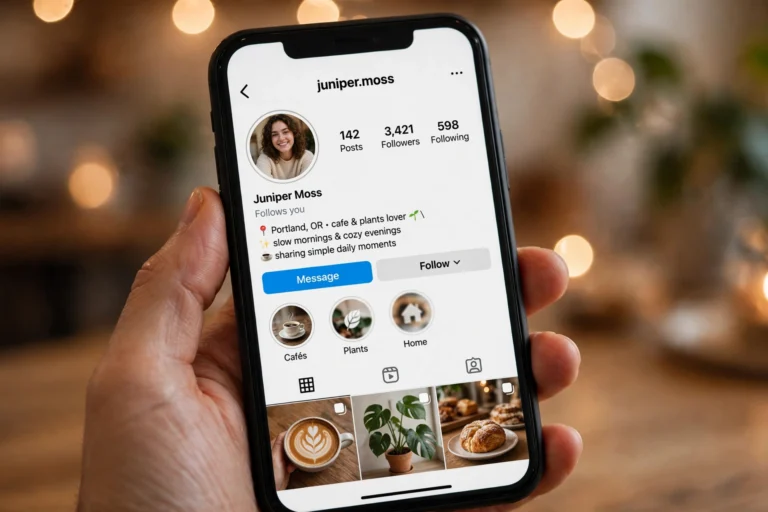
You can look at public Instagram profiles without logging in, and the web is the only place this works: the mobile app forces you to sign up before you see anything. The trick is the direct profile URL. Type instagram.com followed by the username, for example instagram.com/nasa, and the public profile loads with its photo, bio, follower counts, and post grid. A login popup usually appears after a few seconds: close it with the small X at the top and keep browsing the posts that already loaded.
The limits without an account are strict, so set your expectations correctly. You cannot like, comment, follow, save, or send messages. You cannot watch current Stories, because Instagram blocks Stories for logged-out visitors. Scrolling is limited: after a certain number of posts, Instagram stops loading more and pushes the login wall again. And private profiles are completely closed: without an approved follow, you see nothing at all, no matter which browser or tool you try. Any website that claims to unlock private profiles without following is a scam or a phishing trap, and entering your password there is the fastest way to lose your account. If you want to browse public profiles without an account and without your name appearing anywhere, our anonymous instagram viewer guide explains the legitimate viewer options and their limits honestly.

Instagram on Web on a Mobile Browser
Opening instagram.com in your phone browser works, but Instagram will repeatedly push you toward the app with banners and popups, and the mobile web layout is cramped compared to the desktop site. If you prefer the desktop layout on a phone, most mobile browsers offer a “Desktop site” option in their menu: turn it on, reload instagram.com, and the full sidebar layout appears, though you will need to pinch and zoom to tap small buttons. For daily use on a phone, the app is genuinely better. The mobile browser version is best kept for quick checks: reading one post someone sent you, checking a message on a borrowed phone, or viewing a public profile without installing anything.
Instagram Web vs App: Full Feature Comparison
The table below is the honest picture for 2026. The web version covers the daily essentials, and the app keeps the creation tools and newest features.
| Feature | Instagram on Web | Mobile App |
|---|---|---|
| Scroll feed, like, comment | Yes | Yes |
| Watch Stories and Reels | Yes | Yes |
| Direct messages and calls | Yes | Yes |
| Post photos and videos to feed | Yes | Yes |
| Upload Reels | Yes, most regions | Yes |
| Upload Stories directly | No | Yes |
| Schedule posts natively | No | No, needs a tool |
| Go Live | Only with streaming software | Yes, one tap |
| Shopping tags on posts | Limited | Yes |
| Advanced Reels editing | Basic | Full editor |
| Push notifications | Browser alerts only | Full push notifications |
| Browse without an account | Yes, public profiles | No, sign-up forced |
What You Cannot Do on Instagram Web
Three limits catch new web users by surprise, so it is better to know them now. First, you cannot upload a Story directly from the website, which matters if Stories are your main format. Second, you cannot schedule content inside instagram.com itself: there is no queue, no draft scheduler, and no auto-publish setting. Third, some features arrive on the app months before the web version, so brand-new stickers, effects, and Reels editing tools may simply not exist on the website yet. Shopping is also thinner on web: product tags that work fine in the app often do not show on the desktop site. None of these limits affect normal browsing, messaging, or feed posting, which is why most people never notice them.
Managing Multiple Instagram Accounts on the Web
Instagram lets you add up to five accounts in one browser and switch between them without logging out. Click your profile picture at the bottom of the sidebar, choose “Switch accounts”, and pick the account you want. Each account keeps its own feed, messages, and notifications, and switching takes two clicks. This is enough for a personal account plus a business account, which is how most people use it.
If you manage accounts for clients or run several brands, the built-in switcher starts to feel cramped, and logging in and out repeatedly can trigger security checks. The practical fix is browser profiles: create a separate Chrome or Edge profile for each client, log into one Instagram account in each profile, and keep their cookies, sessions, and saved logins completely separate. You can open two profiles side by side and work in both at once, with no risk of posting to the wrong account. If you track growth across those accounts, our instagram follower tracker guide shows how to watch follower changes without checking each profile by hand every day.
Useful Instagram Web Tips
A few small tricks make the web version noticeably better. First, dark mode: add ?theme=dark to the end of the instagram.com address and the site loads in a dark theme, though it resets to light when you leave the page or refresh, so it is a session trick rather than a permanent setting. Second, keyboard shortcuts: press L to like the open post and use the arrow keys to move through Stories and Reels in the viewer. Third, save your login only on devices you own, and use your browser’s password manager instead of writing passwords down. Fourth, if you customize your profile a lot from your computer, our instagram fonts guide shows how to style your bio text with fonts that display correctly on both web and mobile.

Instagram Web Login Problems and Fixes
Most login trouble on the web has a boring cause and a quick fix. Work through this list before assuming your account is gone.
- Wrong password error: retype slowly, check caps lock, and use “Forgot password?” to reset instead of guessing repeatedly, since too many failed attempts trigger a temporary lock.
- Two-factor code not arriving: check that your phone has signal, wait two full minutes, then request a new code. If you use an authenticator app, confirm your phone clock is set to automatic, because a wrong clock makes codes invalid.
- “Suspicious login attempt” message: this is Instagram protecting you after a login from a new device or location. Confirm it was you through the email Instagram sent, and you are in.
- Page loads but feed is blank: clear your browser cache and cookies for instagram.com, disable ad blockers for the site, and reload. If it still fails, try another browser to rule out an extension conflict.
- Login popup loops without an account: this is normal behavior for logged-out browsing, not a bug. Instagram limits how much you can view before pushing the login wall, and the only real fix is creating a free account.
- Instagram web down for everyone: check a status site or search for outage reports before changing any settings. If the whole platform is down, waiting is the only fix.
Is Instagram on Web Safe?
The official website is as safe as the app, with one condition: make sure you are actually on instagram.com. Phishing pages copy the Instagram login screen pixel for pixel and exist for one reason, to steal your password. Never log in through a link in a random email, message, or comment, even if it warns that your account will be closed. Instagram never asks for your password by email or direct message. Turn on two-factor authentication in Settings, review the “Login activity” list occasionally to spot unknown devices, and log out of shared computers with the “Log out” option in the sidebar instead of just closing the tab. A closed tab keeps your session alive on that computer, and the next person to open instagram.com walks straight into your account.
Instagram on Web for Business and Creator Accounts
Business and creator accounts gain the most from the web version, because their daily work already happens on a computer. Professional dashboards open from your profile on instagram.com, showing reach, profile visits, follower growth, and the performance of individual posts over the last 30 days. The numbers are easier to read on a wide screen, and you can screenshot a full dashboard for a client report without stitching phone screenshots together. Switching to a professional account is also done from the web: open Settings, choose “Account type and tools”, and select “Switch to professional account”, then pick Business or Creator and a category that matches what you do.
Community management is where the web version really pays off. Answering fifty comments from a keyboard takes a fraction of the time it takes on a phone, and you can open several posts in separate tabs to compare performance side by side. Contact buttons, action buttons for booking or ordering, and the link in your bio are all editable from the web profile editor, which matters when you update a campaign link every week. One habit worth building: check your “Hidden requests” message folder from the web inbox once a week, because collaboration offers and customer questions often land there instead of your main inbox, and they are easy to miss on a small screen.
Instagram Web on Chromebook, Tablet, and Smart TV Browsers
Chromebooks are a natural home for instagram.com, since ChromeOS is built around the browser and many Chromebooks cannot run the full Android Instagram app well. The web version runs smoothly on even basic Chromebook hardware, and the keyboard shortcuts work exactly as they do on Windows or Mac. On tablets, the experience depends on the browser: an iPad running Safari in desktop mode shows the full sidebar layout, while the default mobile layout looks like a stretched phone screen. Smart TV browsers can technically open instagram.com, but typing a password with a TV remote is painful and the layout is not designed for a television, so treat that as a last resort for showing a profile on a big screen, not a way to manage an account.
If your main device is a shared family computer, protect your account with two simple steps. First, never save login info on a shared browser profile: create your own browser profile or use a private window for Instagram. Second, open Settings and check “Login activity” after using a shared machine, which lists every device and location that recently accessed your account, and lets you log out of any session you do not recognize. These two habits cost thirty seconds and prevent the most common way people lose access to their accounts on shared computers.
Changing Instagram Settings from the Web
Nearly every account setting is available on the website, which means you rarely need the app for account management. Click “More” at the bottom of the sidebar, then “Settings”, and you reach the full settings panel. Under “Accounts Center” you can change your password, turn on two-factor authentication, and manage linked Facebook and Threads accounts. Turning on two-factor authentication from the web is strongly recommended: choose the authenticator app option if you have one, or text message codes if you do not, and save the backup codes Instagram shows you somewhere safe, because they are your way back in if you lose your phone.
Privacy settings are also fully adjustable from the web. You can switch your account between public and private, control who can mention you and tag you in posts, hide like counts on your own posts, and filter comments by keyword so abusive words never appear under your content. The “Blocked” list lives under the same settings area: search any username there to block or unblock, and review the accounts you have restricted or muted in the past. Notifications are managed per browser: when Instagram asks to send browser notifications, allow them only on your own computer, and you will get new message and comment alerts even while you work in other tabs. If the alerts get noisy, you can mute them from the browser address bar in two clicks without changing anything inside Instagram.
Frequently Asked Questions About Instagram on Web
Can I use Instagram on web without downloading the app?
Yes. Open instagram.com in any browser, log in, and you get the full logged-in experience with no install. This works on Windows, Mac, Chromebook, and Linux.
Is instagram.com the official Instagram website?
Yes, instagram.com is the only official Instagram website. Any other domain claiming to be Instagram login or Instagram web is not run by Instagram, no matter how similar it looks.
Can I post on Instagram from my computer?
Yes, you can post photos, videos, and Reels to your feed from the web through the Create menu. Direct Story uploads are not available on the website, so Stories still need the app or a scheduling tool.
Can I see who viewed my profile on Instagram web?
No. Instagram does not show profile viewers on web or on the app. You can see who viewed your Stories for 48 hours, and you can see likes and comments on your posts, but profile visits are never revealed.
Why does Instagram web keep asking me to log in?
Repeated login prompts usually mean cookies are being cleared, you are in private or incognito mode, or a browser extension is blocking Instagram storage. Allow cookies for instagram.com and avoid private mode for your main account.
Can I use Instagram web on my phone browser?
Yes, but Instagram pushes hard toward the app on mobile browsers, and the layout is cramped. It works fine for a quick check or viewing one profile, but daily phone use is better in the app.
Does Instagram web have dark mode?
There is no permanent dark mode setting on the website, but adding ?theme=dark to the instagram.com address loads a dark theme for that session. It resets when you leave or refresh the page.
Can I delete my Instagram account from the web?
Yes, account deletion and temporary deactivation are both handled through the website in your account settings. Deletion is permanent after the grace period, so download your data first if you want a copy of your photos.
Final Verdict: Should You Use Instagram on Web?
Instagram on web is the right choice whenever you are already at a computer, managing messages or profiles for work, or avoiding the app on purpose. You lose direct Story uploads and the newest app-first tools, but you gain a big screen, a real keyboard, easy profile management, and the ability to browse public profiles without an account. For most people, the best setup is both: the app on the phone for Stories and quick posting, and instagram.com on the computer for messages, feed browsing, and profile work. Open instagram.com, log in once, and save it as a bookmark. The next time your phone is in another room, you will not miss it at all.



2 Comments