Instagram GIFs: Easy Guide to Post a GIF in 2026
You found the perfect GIF, tapped upload on Instagram, and the animation froze into a dull still image. That is the exact problem almost every Instagram user hits with Instagram GIFs, because Instagram treats GIFs differently in every part of the app. The fix is simple once you know which route each placement needs: use the built-in GIPHY sticker for Stories and Reels, the GIF button for DMs and comments, and convert the GIF to a short MP4 video before it ever touches your feed. This guide walks you through every method step by step, so the GIF you post moves exactly the way you imagined it.

Where Instagram GIFs Work
Before you upload anything, it helps to know the map. Instagram does not treat a GIF file the same way everywhere, and using the wrong route is the reason most GIFs end up frozen. Here is the quick version so you can jump straight to the section you need.
| Where you want the GIF | Does it work? | How it works |
| Instagram Story | Yes, natively | GIF sticker from the GIPHY library |
| Instagram Reel | Yes, natively | GIF sticker while recording, or MP4 video |
| Feed post | Only as video | Convert GIF to MP4 first, then upload |
| Direct message | Yes, natively | GIF button in the chat, or send a saved GIF file |
| Comment | Yes, natively | GIF button next to the comment box |
Stories, DMs and comments are the easy placements because the GIF library is already built into Instagram. The feed and Reels need one extra step, and that extra step is where this guide spends the most time. Once you understand the split, posting GIFs on Instagram becomes a two minute job instead of a frustrating trial and error loop.
Can You Post a GIF on Instagram?
Yes, you can post Instagram GIFs, but not by uploading a raw .gif file to your feed. Instagram’s feed uploader accepts photos in JPG, PNG and HEIC formats and videos in MP4 and MOV. A .gif file is not on that list, so when you try to post one as a photo, Instagram shows only the first frame as a still image and the animation never plays. That single technical detail explains nearly every “my GIF is not moving” complaint on the platform.
The good news is that Instagram gives you two proper routes around this limit. The first route is the built-in GIPHY integration, which powers the GIF sticker in Stories and Reels and the GIF button in chats and comments. You never handle a file at all. You search, tap, and the GIF appears. The second route is conversion: you turn the GIF into a short MP4 video, and Instagram plays it as a looping video in the feed. To anyone scrolling, a short looping MP4 looks exactly like a GIF, and it plays automatically in most cases.
Which route you pick depends on where the GIF is going. If it is a reaction on top of a photo, the sticker route is faster and cleaner. If the GIF itself is the post, conversion is the only route that works in the feed. Keep that split in mind and the rest of this guide is just following steps.
How to Add Instagram GIFs to Your Story
Stories are the most GIF friendly place on Instagram. The app has a native GIF sticker powered by GIPHY, and the whole thing happens inside the Story editor without leaving the app or converting any file. If you are new to Instagram GIFs, Stories are the easiest place to start. The steps are the same on iPhone and Android, and the feature works only in the mobile app, not on instagram.com.

Add a GIF sticker to your Story step by step
- Open Instagram and swipe right from the home feed, or tap your profile picture at the top left, to open the Story camera.
- Take a new photo or video, or swipe up to pick one from your camera roll.
- Tap the sticker icon at the top of the editor. It looks like a square smiley face.
- Tap GIF in the sticker tray. The GIPHY search panel opens inside Instagram.
- Type a word or phrase in the search bar, for example “happy”, “congrats” or “good morning”, and browse the trending GIFs.
- Tap any GIF to place it on your Story. Drag it to move it, pinch to resize it, and tap it again to change its style if options appear.
- Tap Your Story at the bottom to publish.
A few things worth knowing before you post. The GIF sticker library is huge, but it is GIPHY’s library, not your own files, so you cannot upload a custom .gif file through the sticker. Some Business accounts now pull stickers from Tenor instead of GIPHY, with no in-app notice, so the search results can look slightly different from a friend’s phone.
Instagram also notes that the GIF sticker may be unavailable in Japan and some European countries, and that not every sticker is available to every account or for Reels. If the GIF sticker is missing from your tray, update the Instagram app to the latest version first, because a missing sticker is usually an outdated app rather than a removed feature.
If you have no photo or video to put the GIF on, open the Stories camera, tap the Create option on the left, and swipe through the options at the bottom until you reach GIF. Instagram lets you start a story from a GIF alone, which is handy for quick reactions, birthday wishes and poll style posts where the animation is the whole message.
One more tip that saves engagement: place the GIF where it supports the message instead of covering the main subject. A GIF in the corner or near your text draws the eye without hiding faces or captions. Creators who track their story performance in instagram insights often find that a well placed animated sticker lifts taps and replies, because movement stops the thumb mid scroll in a way a static sticker never does.
How to Add a GIF to an Instagram Reel
Reels work almost exactly like Stories for Instagram GIFs, with one difference: you add the sticker while you record or edit the Reel, not after. Open the Reels camera, record your clip or upload a video from your camera roll, then tap the sticker icon at the top of the editing screen. Tap GIF, search the GIPHY library, and place the sticker on your video. The sticker stays fixed to that spot for the full length of the clip, so position it where it will not cover faces, captions or the bottom right corner where the action buttons sit.
If the GIF itself is the whole Reel rather than a decoration on top of a video, use the conversion route instead. Turn the GIF into an MP4, upload it as a Reel, and it will loop for viewers the same way any short Reel does. This is the method meme pages and reaction accounts use, because a full screen looping clip gets far more watch time than a small sticker on a static background. For that kind of content, short loops under ten seconds tend to perform best, since viewers watch them two or three times before scrolling on, and every replay counts toward watch time.
How to Post Instagram GIFs on Your Feed
This is the section most people actually need, because the feed is the one place where Instagram refuses to play a raw .gif file. If you want Instagram GIFs in your feed, the fix is boring and reliable: convert the GIF to an MP4 video first, then upload the video as a normal post. A short looping MP4 looks identical to a GIF in the feed, plays automatically, and loops for viewers who pause on it.

Convert a GIF to MP4 with free tools
Three free tools handle this conversion well, and you only need one of them. GIPHY itself is the quickest route when the GIF came from GIPHY: open the GIF on the GIPHY website or app, and use the download or share option to export it as an MP4. Ezgif is the most flexible browser option: go to ezgif.com, open the GIF to MP4 converter, upload your GIF, and download the MP4 it produces. Adobe Express also converts GIFs to MP4, but it asks you to sign in first, so it is the slowest of the three for a one off conversion. CloudConvert works too and supports batch conversion if you have several GIFs to turn into videos at once.
Whatever tool you use, check two settings before you export. First, make the clip at least three seconds long, because Instagram videos need a minimum length and a one second loop can be rejected or padded oddly on upload. If your GIF is very short, repeat the loop three or four times in the converter before exporting. Second, export at 1080 by 1080 pixels for a square feed post, or 1080 by 1350 for a portrait post, so the video fills the feed properly instead of appearing small with empty borders.
Upload the converted video to your feed
- Save the converted MP4 to your phone’s camera roll.
- Open Instagram and tap the plus icon at the bottom center.
- Select Post, then choose the MP4 from your camera roll.
- Crop to square or portrait, pick a cover frame that shows the best moment of the loop, and add your caption and hashtags.
- Tap Share. The video uploads as a Reel style post and loops automatically in the feed.
A practical warning: scheduling tools like Hootsuite and Buffer hit the same wall you do. If you hand them a raw .gif file, most of them convert it to a still image, not a video. Always convert to MP4 yourself before scheduling, or the post that goes live will be a frozen frame. And if you are building feed posts around trending formats, pairing a looping GIF video with a clean layout from instagram templates gives the post a finished look without extra design work.
How to Send Instagram GIFs in DMs
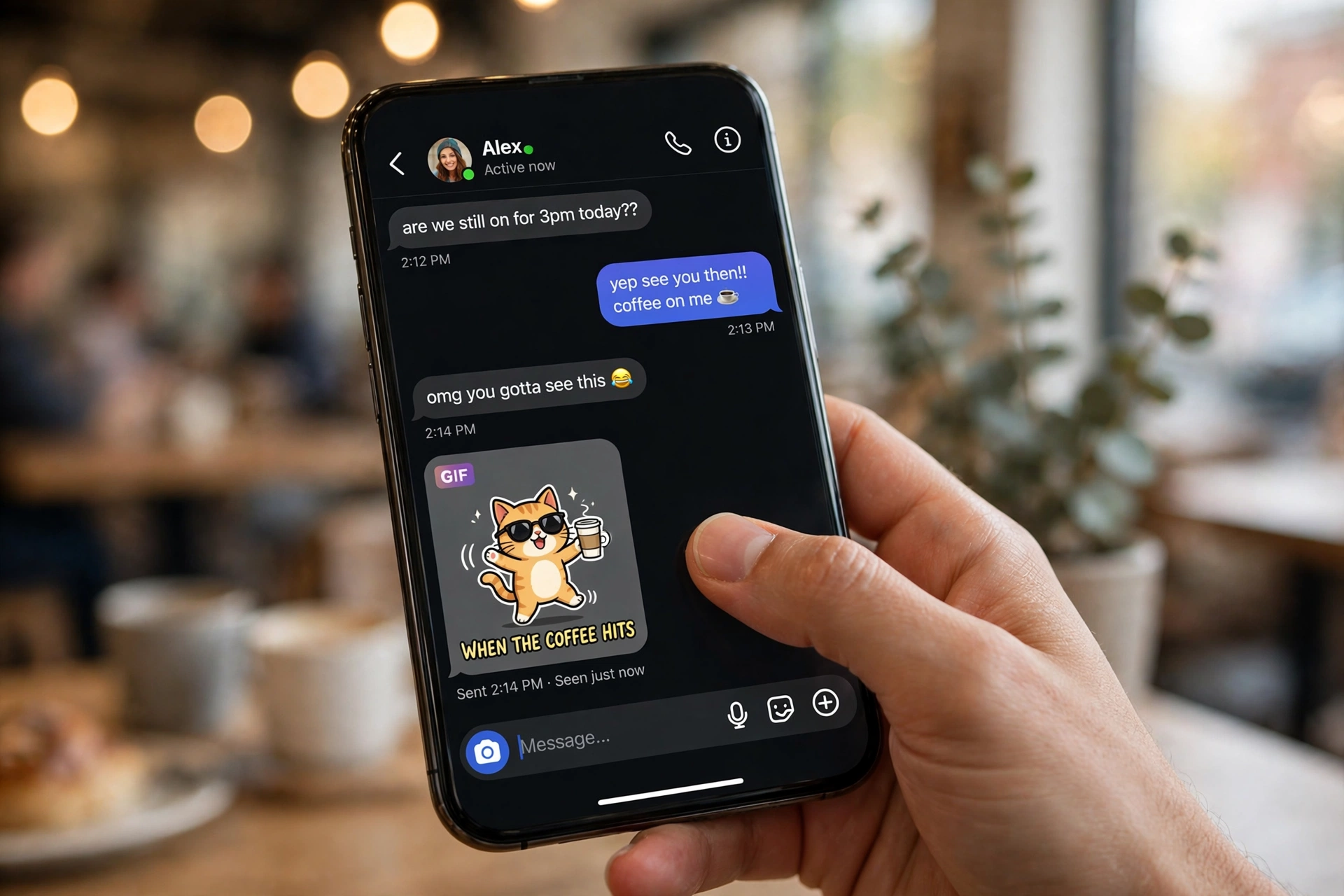
Direct messages have the cleanest Instagram GIFs experience on the platform, because the GIF button is built straight into the chat. You can send GIFs from the library without downloading anything, and DMs are also the one place where a saved .gif file of your own can actually be sent as an animated file.
Send a GIF from the built-in library
- Open the chat with the person or group you want to message.
- Tap the sticker icon next to the message box at the bottom.
- Tap the GIF icon, then scroll through trending GIFs or search for a word that matches your reaction.
- Tap the GIF you want. It sends instantly, so pick carefully before you tap.
Send a GIF file you saved yourself
If you have a specific GIF saved on your phone, perhaps a custom reaction your friend made, you can send that file directly. Save the .gif to your camera roll first. On iPhone, long press the GIF in Safari and tap Save to Photos, and make sure the saved file is actually a GIF, because saving a preview image instead gives you a still JPEG that will not animate.
Then open the DM thread, tap the gallery or camera icon, pick the .gif from your camera roll, and send it. Instagram sends it as an animated file, and this is the only place on the platform where a raw .gif upload keeps its animation.
One limitation to know: sending GIFs in chats is a phone only feature. Instagram’s own help article says it is not available on computers, so if you are messaging from instagram.com on a desktop, the GIF button will not appear. Use the iPhone or Android app for GIFs in DMs. If you are setting up messaging for a brand or creator account and want the full picture first, the instagram help center documents which chat features work on each device, and it is worth a quick check before you promise followers a reply format you cannot send from desktop.
How to Comment with Instagram GIFs
GIF comments arrived on Instagram in May 2023, when Meta announced the feature was rolling out globally. To use it, open any post or Reel, tap the comment icon, and look for the GIF icon to the right of the comment text box. Tap it, search the GIPHY library, and tap a GIF to post it as your comment. The GIF appears in the comment thread like any other comment, with your username attached.
A caveat worth knowing: Instagram rolls features out unevenly. One account can have GIF comments while another account on the same phone does not, and the GIF button may appear on posts but not on Reels, or the other way around. If the button is missing, update the app, log out and back in, and check again after a day or two. There is no setting that turns GIF comments on or off, so a missing button is a rollout issue, not something you did wrong. GIF comments also do not work everywhere in the world yet, so if you manage an international audience, do not build a campaign that depends on every follower being able to reply with a GIF.
How to Make Your Own Instagram GIFs
You cannot create a GIF directly inside Instagram. The looping feature Instagram documents is Boomerang, which lives in the Stories camera and takes a burst of photos that plays forward and backward. Boomerang is fun, but it is not a GIF file you can save and reuse. For a real GIF, make it outside Instagram and then bring it in through one of the routes above.
The simplest way is GIPHY’s own GIF Maker on the GIPHY website. Upload a video clip or paste a video link, trim it to the best few seconds, add text or stickers, and export it as a GIF. You can also turn a video into a GIF on your phone: on iPhone, the Shortcuts app has a Make GIF action that converts any video in your camera roll, and on Android, apps like ImgPlay and GIF Maker do the same job in a few taps. Keep your GIF short, two to five seconds is the sweet spot, because long GIFs get heavy, load slowly, and lose the punchy loop that makes people watch them twice.
For a GIF that carries your own branding, add your logo or handle as a small watermark in the corner before you export. Meme pages and creators do this so their GIFs keep working for them when other people share them. Just keep the watermark small and out of the center, because a GIF that looks like an ad gets skipped, while a clean GIF with a tiny credit gets shared.
Best Apps for Instagram GIFs
Instagram’s built-in GIPHY library covers most needs, but a dedicated GIF app gives you better search, custom creation, and a bigger library. These are the apps creators actually use, and each one fits a different job.
| App | Best for | Free? |
| GIPHY | Largest GIF library, GIF Maker, direct MP4 export for feed posts | Yes |
| Tenor | Reaction GIFs, keyboard integration, some Business accounts use it inside Instagram | Yes |
| ImgPlay | Turning phone videos into GIFs, iPhone and Android | Yes, with watermark on free plan |
| GIF Maker | Quick video to GIF conversion on Android | Yes |
| Ezgif | GIF to MP4 conversion in the browser, no install needed | Yes |
GIPHY deserves the top spot because it is the same library Instagram uses, so a GIF you find in the GIPHY app is the same GIF your followers can find in the sticker tray. That consistency matters when you tell an audience to search for a specific GIF by name. Tenor is the best backup, especially since some Business accounts already see Tenor results inside Instagram. For conversion work, keep Ezgif bookmarked in your browser, because it is the fastest way to turn a GIF into a feed ready MP4 without installing anything or creating an account.
Why Are My Instagram GIFs Not Moving?
A frozen GIF is the most common complaint about GIFs on Instagram, and it almost always has one of four causes. Work through them in order and you will find yours.
1. You uploaded a raw GIF to the feed
This is the number one cause. Instagram does not list GIF among the supported feed formats, so a .gif uploaded as a photo renders as its first frame and never animates. There is no fix inside Instagram for a post that is already live. Delete it, convert the GIF to MP4, and re-upload the video version.
2. The GIF froze in your Stories Archive
Instagram says some stories are changed when they are saved to the Stories Archive to save storage, and those changes can mean muting music or freezing videos and GIFs. The change is permanent and Instagram gives no way to restore the animation once it has been frozen. If a Story with a GIF sticker matters to you, save the original video to your camera roll before it expires, because the archived copy may not keep the motion.
3. Your scheduling tool converted it wrong
If a GIF looked fine in your scheduler’s preview but arrived frozen on Instagram, the tool converted the file to a still image on its way through. Convert to MP4 yourself before you schedule anything, and test one post manually before you queue a whole batch.
4. You saved a preview image, not a GIF
This catches people in DMs. Long pressing a GIF on a website sometimes saves a JPEG preview instead of the actual .gif file, and a JPEG can never animate. When you save a GIF from the web, check the file in your gallery first: if it does not move when you open it, you saved the wrong file. Go back, use the proper download or share button on GIPHY or Tenor, and save the real file.
5. The GIF sticker or button is missing
A missing GIF button is usually a rollout or version issue, not a setting you changed. Update Instagram from your app store, restart the app, and check again. On a brand new account, some features take days to appear, so if you just finished your instagram sign up and the sticker tray looks empty, give it a little time and keep the app updated. Instagram notes that the GIF sticker may also be unavailable in Japan and some European countries, which is a regional restriction you cannot switch off.
Tips to Make Your Instagram GIFs Get More Engagement
Posting a GIF is easy. Posting a GIF people actually react to takes a little more thought, and the difference is usually in the choice of GIF rather than the technique. A reaction GIF works because it says in one second what a paragraph would take ten seconds to say, so pick the GIF that matches the exact emotion of the moment: celebration, disbelief, laughter, or a knowing nod. A generic dancing GIF gets scrolled past. The right reaction GIF gets a reply.
Timing matters too. GIFs perform best when they are part of a conversation, not a broadcast. Reply to a comment with a GIF, answer a Story question with one, or drop one in a DM the moment a friend shares good news. The same GIF posted as a standalone feed post will usually do worse than the same GIF used as a reply, because replies feel personal and feed posts feel like content.
If you run a creator or business account, treat GIFs as a reply tool first and a posting format second, and check the results in your analytics before you build a whole series around them.
Keep the loop tight and the file light. A two to four second loop holds attention; a ten second GIF feels like a video that forgot to be a video. Avoid GIFs with heavy text, because the words are unreadable at sticker size, and avoid GIFs that flash rapidly, because they are uncomfortable to watch and Instagram may limit their reach.
If you are testing what your audience likes, try one GIF format at a time for a week, then compare the numbers, the same way you would compare any other format. Small creators who chase quick wins sometimes look for shortcuts like instagram likes free tactics, but a GIF that genuinely makes people laugh or reply will do more for your reach than any shortcut, because replies and shares are the signals Instagram actually rewards.
Instagram GIFs: Frequently Asked Questions
Can you upload a GIF to Instagram?
Yes, Instagram GIFs work in the places Instagram documents: as a GIF sticker in a Story or Reel, as a GIF in a chat, and as a GIF comment on a post or Reel. Each one uses the built-in GIPHY library. Instagram does not document uploading a .gif file as a feed post, so for movement in the feed, convert the GIF to MP4 and upload it as a video.
How do I add a GIF to an Instagram Story?
Take or choose a photo or video for your Story, tap the sticker icon at the top, tap GIF, then search the GIPHY library and tap a GIF to place it. The same steps work while you record a Reel. Instagram notes that the sticker may be unavailable in Japan and some European countries.
How do I post a GIF to my Instagram feed?
Convert the GIF to an MP4 video first using GIPHY, Ezgif, or Adobe Express, making sure the clip is at least three seconds long. Then upload the MP4 as a normal post. Short looping videos play automatically in the feed and look exactly like a GIF to anyone scrolling.
Why is my GIF not moving on Instagram?
The most common reason is that you uploaded a raw .gif file to the feed, where Instagram only shows the first frame. Other causes are a frozen Story in the archive, a scheduling tool that converted the GIF to a still image, or a saved preview JPEG instead of a real GIF file. Convert to MP4 and re-upload to fix the feed case.
Can I send a GIF in Instagram DMs?
Yes. Open the chat, tap the sticker icon next to the message box, tap the GIF icon, search, and tap to send. You can also send a saved .gif file from your camera roll, which is the one place a raw GIF keeps its animation. GIFs in chats are not available on computers, so use the mobile app.
Are GIFs free to use on Instagram?
The GIPHY library inside Instagram is free to use, and so are the GIFs you make yourself from your own videos. Be careful with GIFs made from movies, TV shows or other people’s work if you use them commercially, because the clip itself may belong to someone else even though the GIF format is free. For personal and reaction use, the built-in library is the safe route.
Final Words
Instagram GIFs look complicated only because the app treats them differently in every placement. Once you know the map, the whole thing is simple: stickers for Stories and Reels, the GIF button for DMs and comments, and a quick MP4 conversion for the feed. Start with the Story sticker today, because it takes less than a minute and it is the fastest way to see how much life Instagram GIFs add to your content. Then try one converted GIF video in your feed this week and watch how it performs against your usual photo posts. If you want to go deeper into Instagram features, the instagram plus guide covers the subscription side of the app, and the rest of the guides on this site cover everything from growing your account to fixing the features that stop working when you need them most.