Instagram Highlight Covers: How to Make, Add and Change Them (Free Ideas + Size Guide)
Your Instagram profile has less than three seconds to convince a visitor to hit follow, and the row of small circles under your bio does most of that work. Those circles are your Instagram highlight covers, and when they look random or messy, visitors scroll past without a second thought. The fix is simple: a matching set of Instagram highlight covers turns a plain profile into a neat, professional page that tells people exactly what you post, what you sell, and why they should stay. This guide shows you what Instagram highlight covers are, the exact size to design them at, how to make them free in Canva, how to add and change them on iPhone and Android, and 100 ready cover ideas you can copy today.
What Are Instagram Highlight Covers?
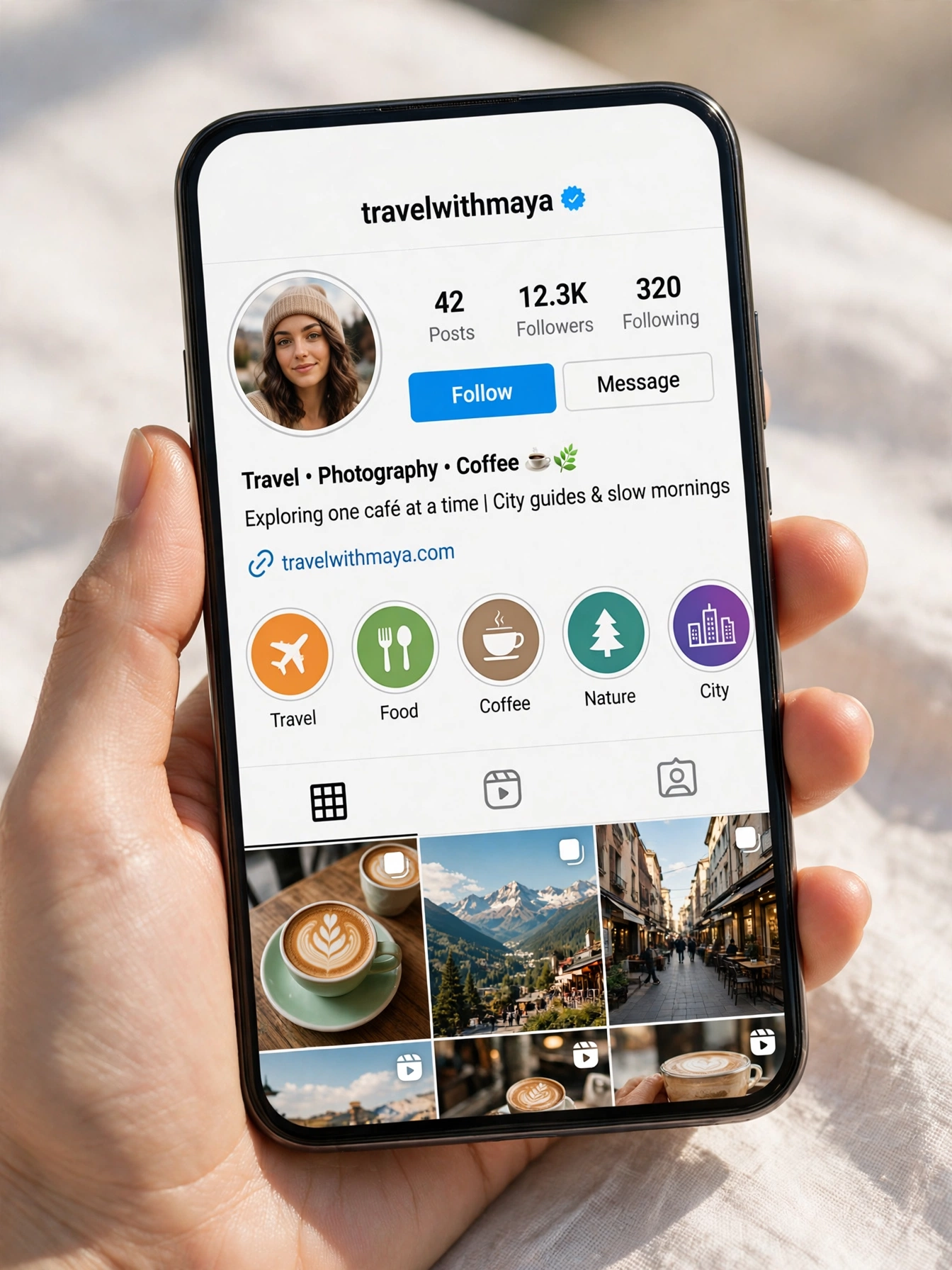
An Instagram highlight cover is the round image people see on your profile before they tap a highlight. Every highlight on Instagram is a saved group of Stories that stays on your profile after the usual 24 hours, and each one gets a cover. By default, Instagram picks a frame from one of the Stories inside the highlight, which is why so many profiles end up with random screenshots and blurry faces as covers. A custom cover replaces that random frame with a clean icon, a word, or a photo you chose on purpose.
Covers matter because they are the first thing a visitor reads on your profile. Your profile picture and bio say who you are, but your Instagram highlight covers act like a menu. A visitor can see at a glance that you have a Travel highlight, a Reviews highlight, a Shop highlight, and a FAQ highlight. When the covers match each other in color and style, the whole profile looks planned, and planned profiles get more follows, more profile taps, and more sales. Creators, small businesses, and influencers all use matching covers for the same reason: they make a profile look trustworthy in seconds.
Your profile picture works together with your covers to set the first impression. If you want to check how a profile photo looks at full size before you design around it, an instagram profile picture viewer shows it in full size without opening the app. And if you want to study how other creators design their highlight rows, an instagram highlight viewer lets you look at their highlights first, so you can borrow the layout ideas that work and skip the ones that do not.
Instagram Highlights vs Instagram Stories
Many people mix up highlights and Stories, but they work differently. A Story disappears after 24 hours. A highlight keeps those Stories on your profile until you remove them. The table below shows the difference in one look.
| Feature | Instagram Story | Instagram Highlight |
|---|---|---|
| How long it stays visible | 24 hours | Until you remove it |
| Where it appears | Stories bar at the top of the feed | Your profile, below the bio |
| Cover image | No cover | Round cover you can customise |
| Stories inside one highlight | One Story at a time | Up to 100 Stories |
| Viewer list | Visible for 48 hours | Same 48 hours, counted from the original Story |
| Best use | Timely updates and daily life | Evergreen info like prices, reviews, and FAQs |
Instagram Highlight Cover Size
Design your Instagram highlight covers at 1080 x 1920 pixels, the same size as a full Instagram Story, with a 9:16 aspect ratio. Instagram does not publish an official cover size on its help pages, but 1080 x 1920 is the size every designer and every cover tool uses, because it works whether Instagram shows your highlight as a circle or, on some accounts, as a tall picture in a highlights tab. Instagram crops your cover into a small circle on your profile, so keep your icon, letter, or word right in the center and leave plenty of empty space around the edges. Anything near the edge gets cut off.
The circle that shows on a phone screen is only about the size of a fingertip, so simple designs always win. One icon, one word, or one short phrase is enough. Detailed photos, thin lines, and small text turn into a blur at that size. Use a solid background color or a very simple pattern, keep the contrast strong between the icon and the background, and test the cover on your own phone before you settle on it. Dark icons on dark backgrounds disappear on phones with dark mode turned on, so check both modes if you can.
| Cover format | Pixels | When to use it |
|---|---|---|
| Story size (9:16) | 1080 x 1920 | Best choice for every cover, works as a circle and as a tall picture |
| Square (1:1) | 1080 x 1080 | Works fine when you pick the cover from your camera roll |
| Minimum safe size | 720 x 1280 | Lowest size that still looks sharp on most phones |
| File type | PNG or JPG | PNG keeps icons crisp, JPG keeps file size small |
How to Make Instagram Highlight Covers
You do not need design skills or paid software to make good Instagram highlight covers. The fastest free method is Canva, which has ready made highlight cover templates you can change with your own colors and icons in minutes. The steps below work on a phone or a computer, and the same design rules apply whichever tool you pick.

Method 1: Make Covers in Canva (Free)
- Open Canva and search for Instagram Story Highlight Cover templates, or start a custom design at 1080 x 1920 pixels.
- Pick a template set you like, then change the background color to match your profile theme. Use the same background on every cover so the row looks like a set.
- Add one simple icon in the center of each cover. Canva has free icons for travel, food, shopping, fitness, and almost every topic. Keep the icon large and centered.
- If you prefer words over icons, add one short word such as Travel, Shop, or Reviews in a bold, easy to read font. Keep it to one or two words at most.
- Download each cover as a PNG and save it to your phone. Make the full set in one sitting, because covers designed on different days rarely match.
If you want a head start instead of designing from a blank page, free instagram templates give you ready layouts for Stories, posts, and covers that you can change in minutes. A template set also helps you keep your Stories and your covers in the same style, which is what makes a profile look consistent.
Method 2: Make Covers With a Phone App
Several free phone apps are built only for highlight covers. Apps such as Highlight Cover Maker, StoryLight, and Adobe Express let you pick a background color, add an icon or a letter, and export the cover at the right size without opening a computer. The steps are the same in almost every app: choose a background, add one icon or word in the center, keep the colors the same across the set, and save the result to your camera roll. Phone apps are the best choice when you want to design and upload covers in one place, on the same device.
Method 3: Make Covers From Your Own Photos
You can also use your own photos as covers. Pick a clear photo where the main subject sits in the center, crop it to 1080 x 1920, and add a soft color overlay in your editing app so the row still looks matched. This method works well for travel, food, and photography accounts, because a real photo tells visitors what is inside the highlight better than an icon can. The rule stays the same: one clear subject, centered, with space around it. Busy photos with lots of small detail make poor covers.
How to Add an Instagram Highlight Cover
Adding a cover takes less than a minute once the design is saved on your phone. You can set the cover when you create a new highlight or change it later on an existing one. The steps are the same on iPhone and Android.
- Go to your Instagram profile and tap the + New circle at the start of the highlights row, or press and hold an existing highlight and tap Edit Highlight.
- Select the Stories you want inside the highlight and tap Next.
- Tap Edit Cover. Choose a frame from one of the Stories, or tap the gallery icon to pick your designed cover from your camera roll.
- Move and pinch the image so the icon or word sits in the center of the circle, then tap Done.
- Type a short name for the highlight, one or two words at most, and tap Add on iPhone or Done on Android.
Uploading a cover from your camera roll does not post anything to your Story. It only changes the image in the circle, so you can update covers any time without your followers seeing an extra Story.
How to Change an Instagram Highlight Cover
Changing a cover is useful when you rebrand your profile, change your color theme, or fix a cover that looks blurry. You do not need to delete the highlight or repost any Stories. Your highlight stays exactly as it is, only the circle image changes.

- Open your Instagram profile and find the highlight you want to change.
- Press and hold the highlight circle until a menu appears, then tap Edit Highlight.
- Tap Edit Cover at the top of the screen.
- Tap the gallery icon and choose your new cover image from your camera roll, or pick a different frame from the Stories inside.
- Adjust the image inside the circle so the design sits in the center, then tap Done twice to save.
If your new cover still looks off after you save it, the design is usually too close to the edge or too detailed for the small circle. Open the image again, move the icon further toward the center, and remove any small text. Simple covers always survive the crop better than busy ones.
How to Add a Highlight Cover Without Posting to Your Story
This is one of the most searched questions about highlights, and the honest answer is that Instagram does not officially let you add a Story to a highlight without posting it first. Every item inside a highlight has to start life as a Story. But your cover is different. You can change only the cover without posting anything, because the cover comes from your camera roll, not from a Story.
What works in practice is simple. Post the Story, add it to your highlight in the same minute, and let it run its 24 hours. Most of your followers will not think twice about one extra Story. If you are adding a batch of Stories, post them late at night when fewer people are watching. And if all you want is a new cover image, skip the Story completely and follow the change cover steps above. No post, no Story, just a new circle on your profile.
You will also see a popular workaround online: make a Close Friends list with only yourself on it, post the Story to that list, then save it to a highlight. The problem is that a highlight made from a Close Friends Story stays visible only to your Close Friends. With only you on the list, nobody else can see that highlight. It is not a real solution for a public profile, so do not waste time on it.
If you spot a cover style you like inside someone else’s Story and want to study it closely, an instagram story downloader lets you save that Story to your phone so you can look at the design, colors, and layout in detail before you make your own version.
100 Instagram Highlight Cover Ideas
Short on ideas for what to put on your covers? The 100 ideas below are grouped by topic so you can copy a full set in minutes. Pick one idea per highlight, keep the same background color across the set, and use one icon or one short word on each cover. Pair your covers with fresh instagram bio ideas and the same color theme, and your whole profile will look like it was designed in one sitting.

Personal Profile Cover Ideas
- About Me: a portrait icon or your initial letter
- My Life: a heart icon for daily moments
- Favorites: a star icon for things you love
- Memories: a camera icon for old photos
- Friends: two people icon for your circle
- Family: a home icon for family moments
- Birthday: a cake icon for celebrations
- Quotes: a speech bubble for words you love
- Daily: a sun icon for everyday Stories
- Throwback: a clock icon for old memories
Travel Cover Ideas
- Travel: an airplane icon for trips
- Beaches: a palm tree for seaside trips
- Mountains: a mountain icon for hikes
- City Trips: a skyline icon for city breaks
- Road Trips: a car icon for drives
- Hotels: a bed icon for stays
- Food Abroad: a fork icon for local dishes
- Adventures: a compass for new places
- Weekends: a suitcase for short getaways
- Bucket List: a map pin for dream places
Food Cover Ideas
- Recipes: a chef hat for your dishes
- Coffee: a coffee cup for cafe days
- Baking: a whisk for cakes and bread
- Brunch: a pancake stack for slow mornings
- Healthy: a leaf icon for fresh meals
- Desserts: an ice cream icon for sweets
- Restaurants: a fork and knife for eating out
- Drinks: a cocktail glass for evenings
- Snacks: a popcorn icon for movie nights
- Meal Prep: a lunchbox for weekly plans
Fitness Cover Ideas
- Workouts: a dumbbell for gym days
- Running: a shoe icon for runs
- Yoga: a lotus icon for calm sessions
- Progress: a chart icon for results
- Meal Plans: an apple for nutrition
- Challenges: a trophy for goals
- Stretching: a figure icon for flexibility
- Outdoors: a trail icon for hikes
- Rest Days: a moon icon for recovery
- Tips: a lightbulb for quick advice
Fashion Cover Ideas
- Outfits: a hanger icon for daily looks
- Hauls: a shopping bag for new buys
- Shoes: a heel icon for footwear
- Accessories: a handbag for finishing touches
- Sale Finds: a price tag for deals
- Street Style: a camera for city looks
- Seasonal: a leaf for autumn looks
- Try Ons: a mirror icon for fittings
- Vintage: a retro icon for thrift finds
- Lookbook: a book icon for styled sets
Beauty Cover Ideas
- Makeup: a lipstick for beauty looks
- Skincare: a drop icon for routines
- Hair: a scissors icon for styles
- Nails: a polish bottle for manicures
- Tutorials: a play button for how to videos
- Reviews: a star for honest opinions
- Glow Up: a sparkle for transformations
- Self Care: a candle for slow days
- Products: a jar icon for favorites
- Before After: a split icon for results
Business Cover Ideas
- Shop: a storefront icon for products
- Pricing: a tag icon for prices
- Reviews: five stars for customer love
- FAQ: a question mark for answers
- New In: a gift box for launches
- Sale: a percent sign for discounts
- Orders: a box icon for shipping
- Behind Scenes: a camera for real work
- Book Now: a calendar for appointments
- Contact: a chat bubble for messages
Pets Cover Ideas
- My Dog: a paw print for dog days
- My Cat: a cat face for feline moments
- Puppy: a bone icon for new pups
- Playtime: a ball for fun hours
- Walks: a leash icon for outings
- Treats: a biscuit for snack time
- Training: a whistle for lessons
- Sleepy: a moon for nap time
- Funny: a laugh icon for silly clips
- Birthday: a party hat for pet parties
Photography Cover Ideas
- Portraits: a face icon for people shots
- Landscapes: a mountain for wide views
- Street: a building for city frames
- Weddings: rings for big days
- Nature: a tree for wild shots
- Golden Hour: a sun for warm light
- Black White: a contrast icon for monochrome
- Gear: a lens for camera talk
- Edits: a slider for before and after
- Prints: a frame for wall art
Creative Cover Ideas
- Art: a brush for paintings
- Music: a note icon for songs
- Books: a bookmark for reads
- Movies: a film reel for watchlists
- DIY: a hammer for handmade projects
- Gaming: a controller for play sessions
- Podcast: a mic for episodes
- Journal: a pen for daily notes
- Vision Board: a pin board for goals
- Inspo: a sparkle for mood boards
Best Instagram Highlight Covers for Business
For a business, highlights work like a small menu on your profile. Someone who lands on your page can find your prices, reviews, and FAQs without scrolling through months of posts. Most business profiles only need five to eight highlights. More than that and the important ones get pushed off screen, because most phones only show the first four or five before visitors have to swipe. Put your most important highlight first, and remember that the last highlight you add to moves to the front of the row.
| Highlight name | What goes inside |
|---|---|
| Start Here | Who you are, who you help, and what to do next |
| Services | One Story per service, with a short explanation |
| Pricing | Prices, packages, or how to get a quote |
| Reviews | Screenshots of reviews and reshared customer Stories |
| Results | Before and after photos, case studies, and numbers |
| FAQ | Answers to the questions you get most in DMs |
| Behind the Scenes | Your team, your workspace, and how things get made |
| Book Now | Booking link, opening hours, and location |
Refresh your Reviews and Results highlights every month, because old screenshots make a business look inactive. Archive seasonal highlights instead of deleting them, and bring them back next year. Use the FAQ highlight to cut down DMs: every time you answer the same question twice in your inbox, add the answer to the FAQ highlight. And write short instagram captions for the Stories inside each highlight, so visitors who tap through get clear, useful text instead of a silent slideshow.
Design Tips That Make Covers Look Professional
Good covers follow a few simple rules. First, use one background color across the whole set. A matching row looks planned, while a mix of random colors looks like an accident. Second, use the same icon style everywhere. Do not mix thin line icons with filled icons and photos in one row. Third, keep the design in the center with plenty of space around it, because Instagram crops the edges into a circle. Fourth, use no more than two colors per cover: one for the background and one for the icon or text. Fifth, check contrast in both light and dark mode, because a dark icon on a dark background disappears on phones with dark mode on. Sixth, design the full set in one sitting so the colors, icons, and spacing match. Covers made weeks apart almost never look like a set.
Color choice matters more than most people think. Beige, cream, and soft pastels suit lifestyle, beauty, and fashion accounts. Black and white suits photography and minimal brands. Bright colors suit kids, food, and entertainment accounts. Pick the palette that matches your feed, not the palette that is trending this month, because you will live with these covers for a long time. If you change your brand colors later, change all the covers at once so the row stays matched.
Common Mistakes to Avoid
- Using random Story frames as covers. The default frame is almost always a blurry face or a random screenshot. Design a cover on purpose instead.
- Putting text near the edges. Anything near the edge gets cropped by the circle. Keep words and icons in the center.
- Mixing styles in one row. Photos, icons, and text covers in the same row look messy. Pick one style and use it everywhere.
- Using long highlight names. Names longer than two words get cut off under the circle. Keep names short and obvious.
- Having too many highlights. More than eight highlights pushes the important ones off screen. Keep five to eight and archive the rest.
- Forgetting to update covers. Old covers with last year’s colors make a profile look abandoned. Refresh them when your theme changes.
FAQs About Instagram Highlight Covers
What size should Instagram highlight covers be?
Design your Instagram highlight covers at 1080 x 1920 pixels with a 9:16 aspect ratio, the same size as a Story. Keep your icon or word in the center, because Instagram crops the cover into a small circle and anything near the edges gets cut off.
How do I change my Instagram highlight cover?
Press and hold the highlight on your profile, tap Edit Highlight, then tap Edit Cover. Pick a new image from your camera roll or choose a different frame from the Stories inside, adjust it inside the circle, and tap Done twice to save.
Can I add a highlight cover without posting a Story?
Yes, for the cover only. You can upload a cover image from your camera roll without posting anything, because changing a cover does not create a Story. But the Stories inside a highlight must start as posted Stories. Instagram does not officially let you add a Story to a highlight without posting it first.
Where can I make free Instagram highlight covers?
Canva and Adobe Express both have free highlight cover templates you can change with your own colors and icons. Free phone apps built only for covers, such as Highlight Cover Maker, also work well when you want to design and upload on the same device.
How many highlights should I have on Instagram?
Five to eight highlights is the sweet spot for most profiles. There is no limit on how many highlights you can have, and each one can hold up to 100 Stories, but most phones only show the first four or five circles before visitors have to swipe. Keep your best highlights first.
Do highlight covers affect followers?
Covers do not directly change your follower count, but they change first impressions. A neat, matching row of covers makes a profile look professional and trustworthy, and visitors are more likely to tap through your highlights and hit follow when the profile looks planned.
Can I use a photo as a highlight cover?
Yes. Pick a clear photo with one main subject in the center, crop it to 1080 x 1920, and add a soft color overlay so the row still looks matched. Busy photos with lots of small detail make poor covers, so keep it simple.
Why does my highlight cover look blurry?
A blurry cover usually means the image was too small or too detailed for the tiny circle. Redesign it at 1080 x 1920, use one large icon or one short word, and keep thin lines and small text out of the design. PNG files keep icons sharper than JPG files.
Can I use different colors for each highlight cover?
You can, but a matching set looks better. Covers with the same background color and the same icon style look like a planned set, while a mix of random colors looks messy. If you want variety, use different icons on the same background color, or use shades of one color across the row.
How do I see who viewed my highlights?
You can see who viewed a Story in your highlight, but only for 48 hours after you first posted that Story. After that, the list of names disappears. Adding a Story to a highlight does not restart that clock, so check the viewer list early if it matters to you.
Instagram Highlight Cover Ideas by Color Theme
If you cannot decide on icons first, start with a color theme instead. A color theme decides the whole look of your highlight row in one choice, and it makes every later decision easier. Pick the theme that matches your feed, then use the same background color on every cover.
Beige and Minimal
Beige and cream backgrounds with thin brown or black line icons suit lifestyle, beauty, and fashion accounts. This theme looks calm and expensive, and it matches almost any feed. Use one icon per cover, keep the lines thin, and leave lots of empty beige space around the icon so the row looks clean and quiet.
Pastel
Soft pink, mint, lavender, and baby blue backgrounds suit personal, parenting, and creative accounts. Pastel covers look friendly and gentle, and they work well with white icons or white one word text. Keep the pastel shades light and even across the set, because one dark cover in a pastel row stands out for the wrong reason.
Black and White
Black backgrounds with white icons, or white backgrounds with black icons, suit photography, minimal brands, and men’s fashion accounts. This theme never looks dated, and it matches any feed color. Use bold, simple icons, because thin lines disappear on a black background at small size.
Bold and Bright
Bright red, orange, yellow, and hot pink backgrounds suit food, kids, entertainment, and travel accounts that want energy. Use one bright color per cover or one bright color for the whole set. White icons read best on bright backgrounds, and one word in bold white text also works well.
Earthy and Boho
Terracotta, sage green, sand, and warm brown backgrounds suit handmade, wellness, home decor, and travel accounts. Pair these backgrounds with simple line icons in cream or white. This theme looks warm and natural, and it ages well because it does not follow a short lived trend.
Pink and Girly
Soft pink and rose backgrounds with white icons suit beauty, fashion, and lifestyle accounts aimed at a young audience. Add one small heart or sparkle icon to keep the set playful, but keep the icons simple. Too many decorative details in one small circle turn into a blur on a phone screen.
How to Reorder Your Highlights
Instagram does not let you drag highlights into a custom order. The highlight you added to most recently always moves to the front of the row, and that rule is the only way to change the order. To move a highlight to the front, add any old Story from your archive to it, then remove that Story again. Removing a Story does not change the order, so the highlight stays in front. Work from the highlight you want last to the one you want first, and put your most important highlight, such as Start Here or Book Now, at the front of the row where every visitor sees it first.
How to Delete a Highlight Cover
You cannot delete a cover on its own, because every highlight needs a cover image. What you can do is change the cover back to a frame from one of the Stories inside, or replace it with a plain solid color image from your camera roll. If you want the highlight gone completely, press and hold it, tap Delete Highlight, and confirm. Deleting a highlight does not delete the Stories inside it. They stay in your Story archive, so you can rebuild the highlight later if you change your mind.
Final Words
Instagram highlight covers are a small detail with a big effect. They turn a plain profile into a clear menu that shows visitors what you post, what you sell, and why they should follow you. Design them at 1080 x 1920, keep one icon or one short word in the center, use the same colors across the set, and change them whenever your theme changes. Start with the 100 ideas above, make your set in Canva in one sitting, and your profile will look planned before your next post goes live.
Sources: Instagram Help Center guidance on highlights and covers, and the Instagram highlights guides from PostPlanify and Digital Trends for current steps and size details.