
Instagram Insights: How to See and Use Your Instagram Analytics (App and Desktop)
You post reels, stories, and photos every week, yet you have no idea which ones actually work, because Instagram never tells you on the feed itself. Instagram Insights fixes that blind spot. It is the free analytics tool built into Instagram that shows how many people saw your content, how they interacted with it, who your followers are, and when they are online. This guide shows you exactly where to find Instagram Insights on the app and on your computer, what every metric means in plain words, and how to turn those numbers into more reach and more followers. You do not need to pay for anything, install any app, or switch to a business account to see the basics.
What Is Instagram Insights?
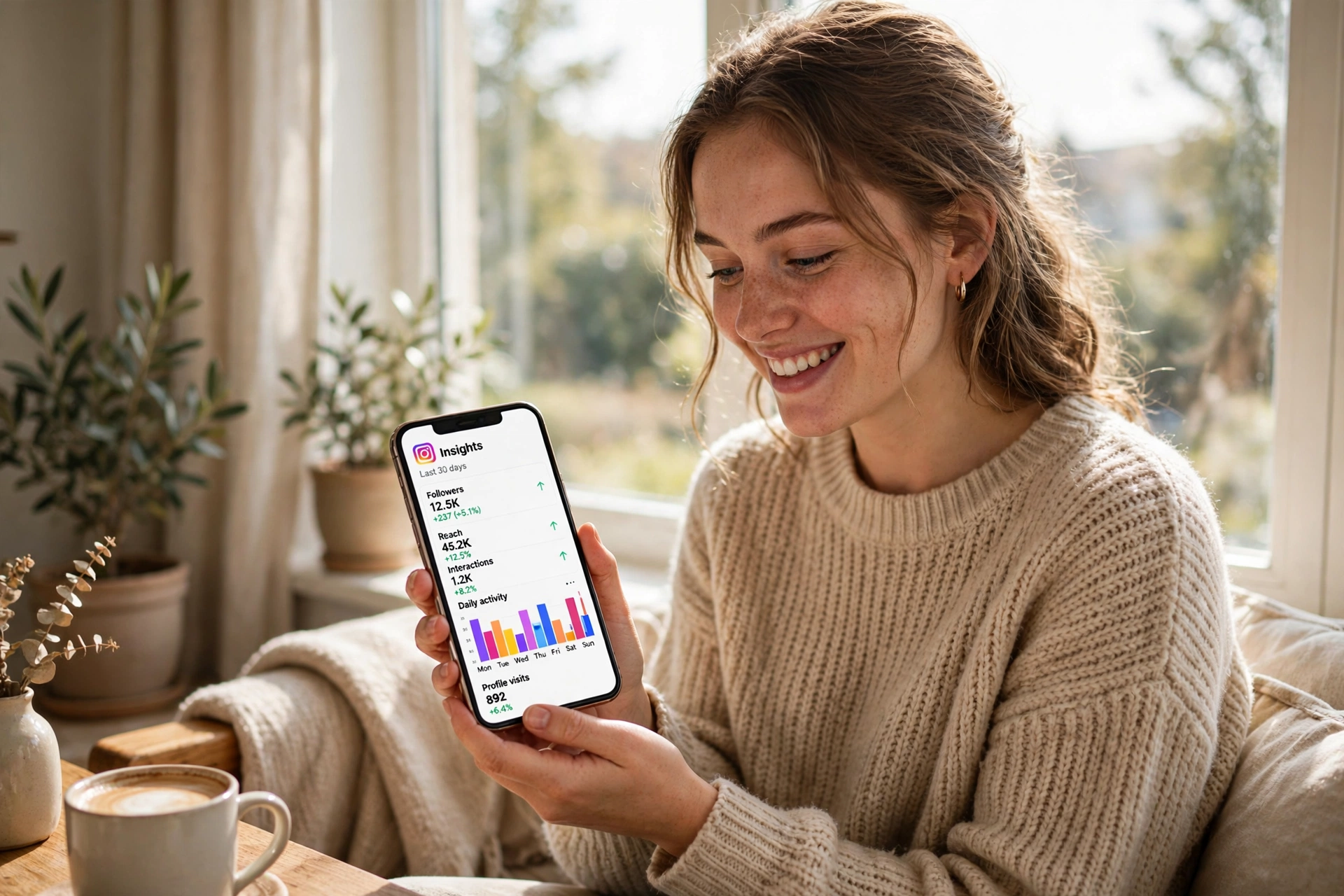
Instagram Insights is the name Instagram gives to its built-in analytics. It is a set of free statistics about your account and about every post, story, reel, and live video you publish. It answers the questions every creator and small business asks: how many times was my content viewed, how many different accounts saw it, how many people liked, commented, saved, or shared it, and how did my follower count change over the same period. Instagram also shows audience data such as top countries, cities, age ranges, and the hours your followers are most active.
The data lives inside your own account, so only you can see it. Nobody else can open your Instagram Insights, and you cannot open anyone else’s. That privacy is the point. The numbers are there to help you decide what to post next, not to rank you against other accounts. Instagram introduced the current set of metric names in 2025, when it replaced older terms like impressions and plays with a single Views metric across posts, reels, stories, and live videos. If you read an old guide that still talks about impressions, treat it as outdated and use the definitions in this guide instead.
Who Can See Instagram Insights?
Any public account can see Instagram Insights, personal or professional, according to Instagram’s current Help Center pages. That is a change from the old rule, which limited insights to business accounts and accounts with high engagement. Today a public personal account gets its own dashboard, called Your dashboard, while a business or creator account gets the Professional dashboard with extra tools for ads and monetisation. The core numbers are the same on both.
There are three limits to know. First, your account must be public. A private account shows no insights at all. If you switch a public account to private, you lose access to the data, but Instagram keeps your past data for 90 days, so switching back to public within that window brings it back. Second, some audience details only appear once your content reaches or engages more than 100 accounts in the chosen period. Third, follower trends need at least 100 followers before Instagram shows them. If you are just starting out and you do not see a section yet, that is normal, not a bug. A fresh instagram sign up with no posts and no followers will show an almost empty dashboard until you publish content and people start engaging with it.
How to See Instagram Insights in the App
The app is where most people check their numbers, because it takes less than a minute. The steps are the same on iPhone and Android, and they follow Instagram’s Help Center exactly.
- Tap your profile picture in the bottom right to open your profile.
- Tap Professional dashboard if you have a business or creator account, or Your dashboard if you have a personal account.
- If you do not see the dashboard, tap More to open Settings and activity, then tap Insights under For professionals, or Your dashboard under Your insights and tools.
- You will see the last 30 days of Views, Interactions, New followers, and Content you shared.
- To change the date range, tap any insight, tap the dropdown, and pick a preset or a custom range, then tap Update.
Tap the small (i) icon in the top right of any insights screen to read Instagram’s own definition of that metric. It is the fastest way to settle what a number counts when two metrics look similar. The date range matters more than most people realise. The app opens on the last 30 days by default, but you can pick the last 7 days, the last 14 days, the previous month, or the last 90 days, or set a custom range with a start and end date at least one day apart. Short ranges show what is working right now, while the 90 day view shows real trends instead of one lucky post.
How to See Instagram Insights on Desktop
You can check the same numbers on a computer at instagram.com, which is useful when you want a bigger screen for charts or you are working through a weekly review. The web dashboard mirrors the app, with one difference: it splits insights into Account and Content views, so you pick which one you want first.
- Go to instagram.com and select Dashboard from the left-hand menu.
- Select Insights under For professionals on a professional account, or Your dashboard under Your insights and tools on a personal account.
- From the Insights dropdown, select Account for overall numbers or Content for numbers on individual posts, reels, and stories.
- Use the date dropdown to pick the last 7, 14, 30, or 90 days, or a custom range within the past 90 days.
If you already use instagram on web for posting and replying to comments, the dashboard sits in the same left menu, so there is nothing new to install. One thing the desktop version cannot do is show live video insights, which stay available in the mobile app only. For everything else, the numbers match the app exactly, because both read the same account data.
Do You Need a Professional Account for Instagram Insights?
No, you do not need a professional account to see basic Instagram Insights. A public personal account gets the same Views, Interactions, and follower numbers. Switching to a business or creator account is still worth considering if you run a shop, take brand deals, or want to boost posts, because the professional dashboard adds ad insights such as results, cost per result, and spend, plus contact buttons and monetisation tools. The switch is free and reversible, and it is done from Settings and activity under Account type and tools. Keep in mind that switching a private personal account to professional makes it public automatically, and all pending follow requests are accepted at the same time. The creator account is the safer choice of the two for anyone who wants the extra tools without losing the personal feel of the account. The extra features are part of the wider set of tools Instagram bundles for creators, and instagram plus covers the newer paid subscription options Meta added in 2026 for people who want more from the app.
What Instagram Insights Metrics Mean
The dashboard looks crowded the first time you open it, because Instagram shows a dozen different numbers. In practice only a handful decide whether your content is working. The table below gives Instagram’s own definition of each metric, so you can stop guessing and start comparing posts fairly.
| Metric | What it counts | Where it appears |
|---|---|---|
| Views | Times your content was played or displayed, repeats included | Account, posts, stories, reels, live |
| Viewers | Unique accounts that saw your content on screen at least once | Account, stories, reels |
| Interactions | Likes, comments, saves, and shares on your content | Account, posts, stories |
| Accounts engaged | Unique accounts that interacted with your content | Account, posts, stories, live |
| Profile activity | Actions people take on your profile after engaging with a post | Posts |
| Watch time | Total time a reel was played, including replays | Reels |
| Average watch time | Watch time divided by the number of initial views | Reels |
| Follows | Accounts that followed you after viewing a reel | Reels |
| New followers | Followers gained in the selected period | Account overview |
| Total followers | Follower growth, top locations, age range, most active times | Account insights |
| Content you shared | Stories, reels, and posts published in the period | Account overview |
Two pairs of metrics confuse almost everyone, so learn them once and the rest falls into place. Views counts plays, while Viewers counts people. If one person watches your reel three times, that adds three Views but only one Viewer. A big gap between the two means people are rewatching, which is a strong sign the content holds attention. Interactions counts actions, while Accounts engaged counts the people behind them. One enthusiastic follower who likes, comments, and saves the same post adds three Interactions but only one Account engaged. When you compare posts, Accounts engaged is the fairer number, because it cannot be inflated by one person tapping everything. Instagram labels Viewers and Accounts engaged as estimated and still in development, and it says Views is being introduced gradually, so you may not see the new names on every screen yet.
How to See Insights for a Post
Post insights tell you what happened after a single photo or carousel went live. Open the post from your profile and tap View insights. You will see Views, Interactions, and Profile activity, which covers profile visits, follows, and website taps that came from that post. Post insights stay available for up to two years, so you can compare a post from last year with one from last week on equal terms. The comparison is where the value sits. Find your five best posts by Interactions in the last 90 days, look for what they share, and you will usually spot a pattern in seconds: a topic, a format, a caption style, or a posting time. That pattern is your next content plan. Likes are only one part of the Interactions total, and people who want more of them without paying often search for instagram likes free methods, but the honest route is the one Insights rewards: content that earns saves and shares, because those two actions tell Instagram the post is worth showing to more people.
How to See Insights for a Story
Story insights work differently from posts because stories disappear after 24 hours, while their numbers live on for up to two years. To see insights for a story that is still live, open it, tap Activity, then tap the Insights icon. You will see Views, Viewers, Interactions such as replies, shares, sticker taps, and link taps, Accounts engaged, and Profile activity. For stories that have already expired, go to your dashboard, tap Insights, then Content you shared, and open the story from there. The story viewer list is the one place Instagram shows you names: only you can see it, and only for up to 48 hours after posting. After that the list is gone, but the counts remain. Stories are also the best place to test ideas cheaply, because a poll, a question sticker, or a simple behind the scenes clip costs nothing to publish, and the sticker taps in Insights tell you within a day whether your audience cares.
How to See Insights for a Reel
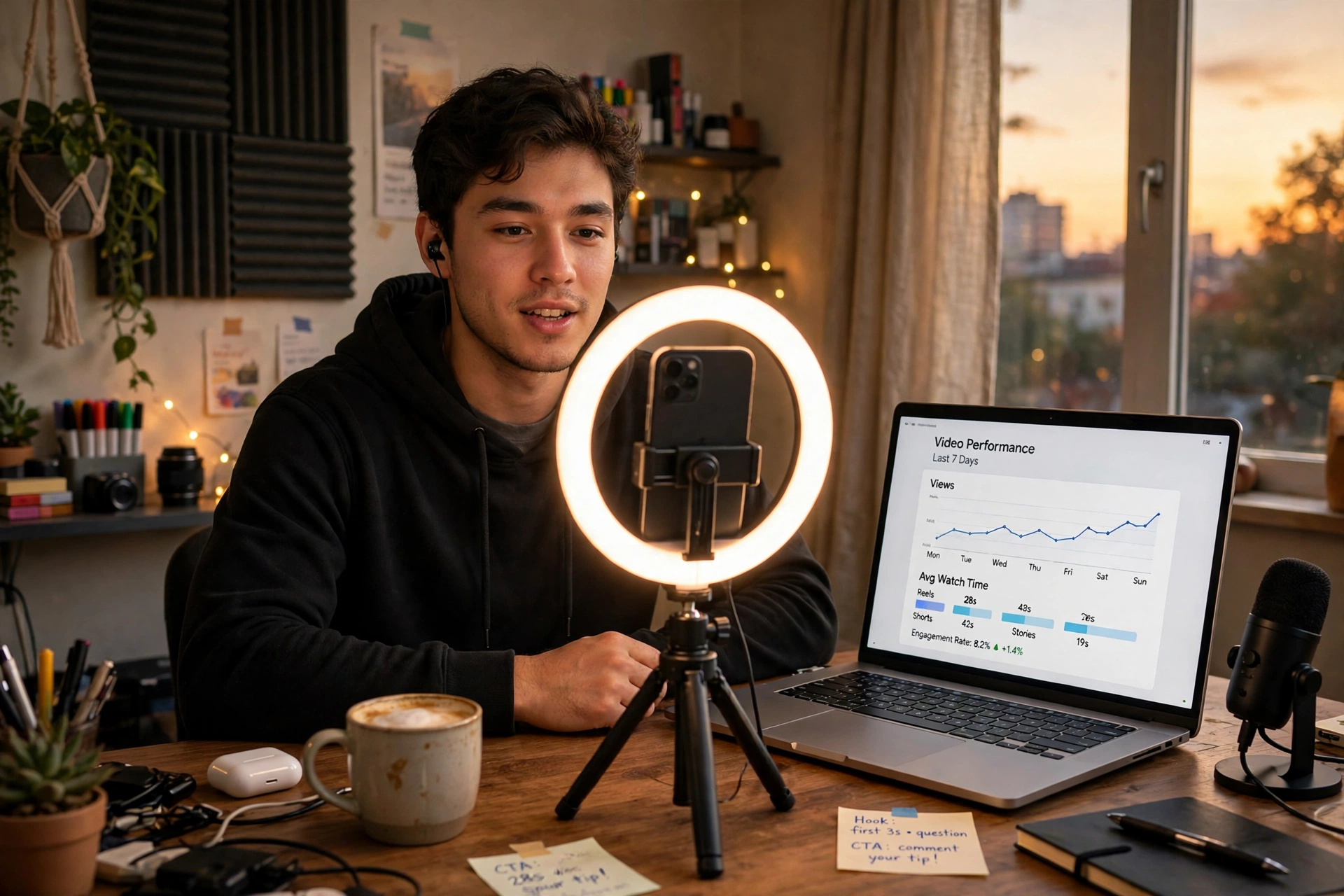
Reels carry the most detailed metrics of any format, because Instagram wants creators to understand watch behaviour. Go to the Reels tab on your profile, open the reel, and tap View insights. Alongside Views and Viewers you get Watch time, Average watch time, and Follows, which counts the accounts that followed you after watching that reel. Two details trip people up. First, the number in the bottom left of each reel on your Reels tab counts plays, meaning how many times the reel started to play, without replays. Views in reel insights counts starts and replays, so it runs higher whenever anyone rewatches. Second, if you recommend a reel to Facebook, Instagram says its play and like counts may include Facebook interactions. Reels posted before 14 May 2021 have no insights at all. A reel with high Views but low Average watch time is being opened and abandoned, which usually means the hook is weak or the first three seconds promise something the rest does not deliver. A reel with modest Views but high Average watch time and several Follows is doing the harder job: turning strangers into followers.
How to See Insights for a Live Video
Live video has its own rules. You need a public account with at least 1,000 followers to go live, and live insights are available in the mobile app only, for 30 days after the broadcast. The numbers cover Viewers, Peak concurrent viewers, Comments, Shares, and Accounts engaged. Peak concurrent viewers is the number to watch, because it shows the highest moment of your live audience, and comparing it across broadcasts tells you which topics and times pull a crowd. If you boost a post, you also get ad insights such as results, cost per result, and spend, but boosting is only available to professional accounts, and ad numbers sit separately from organic numbers so they never mix into your normal Insights totals.
How Far Back Does Instagram Insights Go?
Instagram keeps different kinds of data for different lengths of time, and knowing the limits stops you from losing numbers you will want later. Account level insights cover any range within the past 90 days, no further back. Single posts, reels, and stories keep their insights for up to two years. Live video insights last only 30 days. The story viewer list lasts just 48 hours. The practical fix is simple: once a month, copy your key numbers into a spreadsheet, because Insights only goes back 90 days for your account and there is no export button to do it for you.
| What you are checking | How long Instagram keeps it |
|---|---|
| Account insights | Any range within the past 90 days |
| Post insights | Up to two years |
| Reel insights | Up to two years after publishing |
| Story insights | Up to two years after the story is created |
| Story viewer list | Up to 48 hours after posting |
| Live video insights | 30 days after the broadcast |
| Past data after going private or personal | Recoverable for 90 days if you switch back |
Why Can I Not See Insights on Instagram?
When Insights does not appear, the cause is almost always one of a short list of fixable problems. Work through them in order before assuming your account is broken. First, check that your account is public, because a private account shows no insights at all. Second, check that you have published something in the selected date range, because an empty period shows empty numbers. Third, check the audience thresholds: demographics need more than 100 accounts reached or engaged in the period, and follower trends need at least 100 followers. Fourth, update the Instagram app, because the new Views metric is still rolling out and older app versions may show the old labels or nothing at all. Fifth, if you recently switched from private to public, wait a day, because past insights may not appear immediately. Sixth, if you switched a business or creator account back to personal, you lose in-app insights until you switch back to a professional account, though your data stays recoverable for 90 days. If none of these apply and the dashboard still will not load, log out and back in, then check the instagram help center troubleshooting pages, which cover the current known issues with viewing insights and link to the exact Help Center articles Instagram keeps updated.
How to Use Instagram Insights to Grow
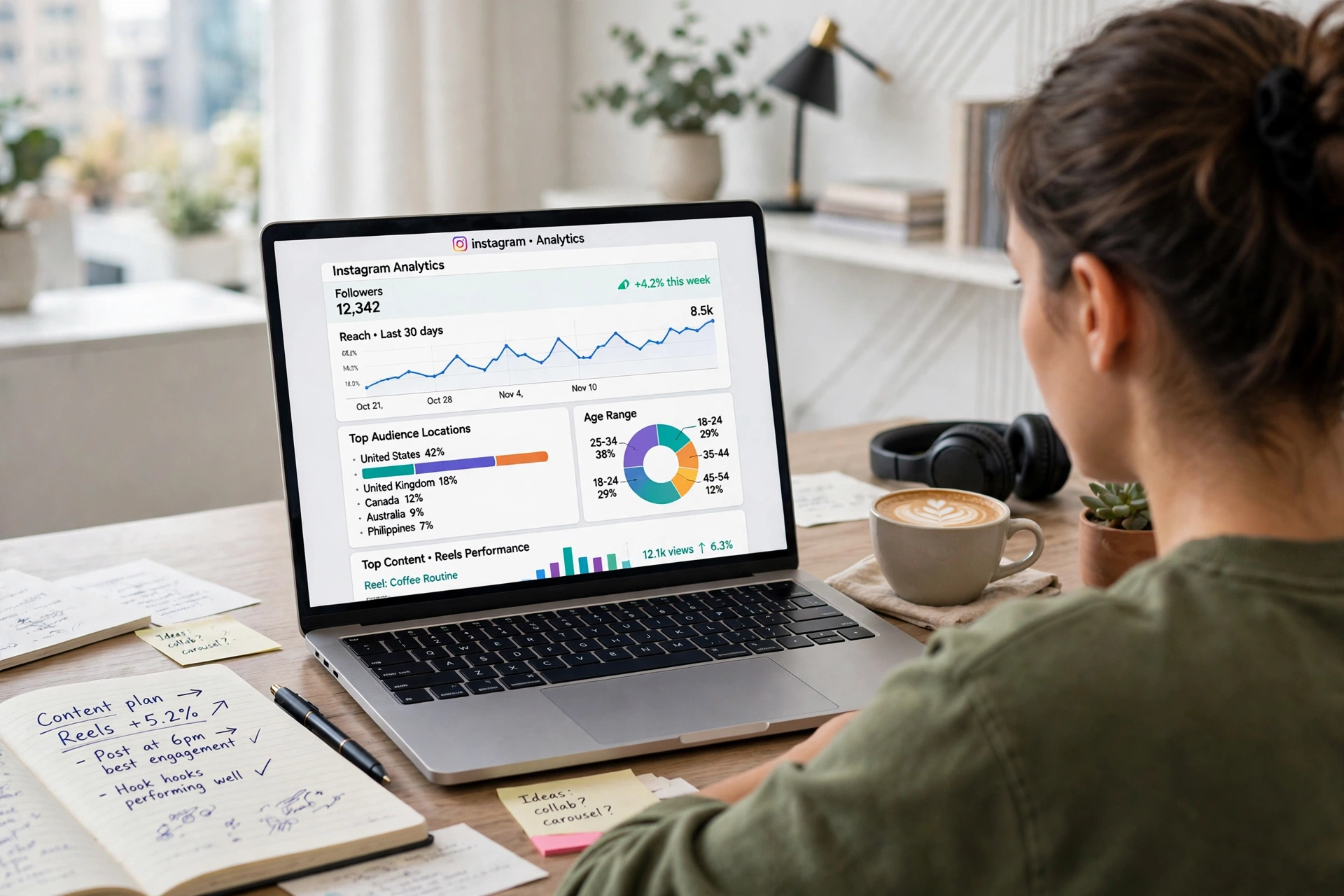
Numbers only help if they change what you post next. The simplest routine that works is a weekly check of about fifteen minutes, always on the same day, always on the same date range, so the numbers stay comparable. Start with the account overview for the last 7 days and note three numbers: Views, Accounts engaged, and New followers. Then open Content you shared, sort by Interactions, and write down your best and worst post of the week. Ask what the best one did differently: a stronger first line, a clearer promise in the first three seconds of a reel, a topic your audience already cares about, or a posting time that matched when your followers are online. Then check Total followers for the most active times and move your next three posts into those windows. Repeat the same check the next week and keep only the changes that moved the numbers.
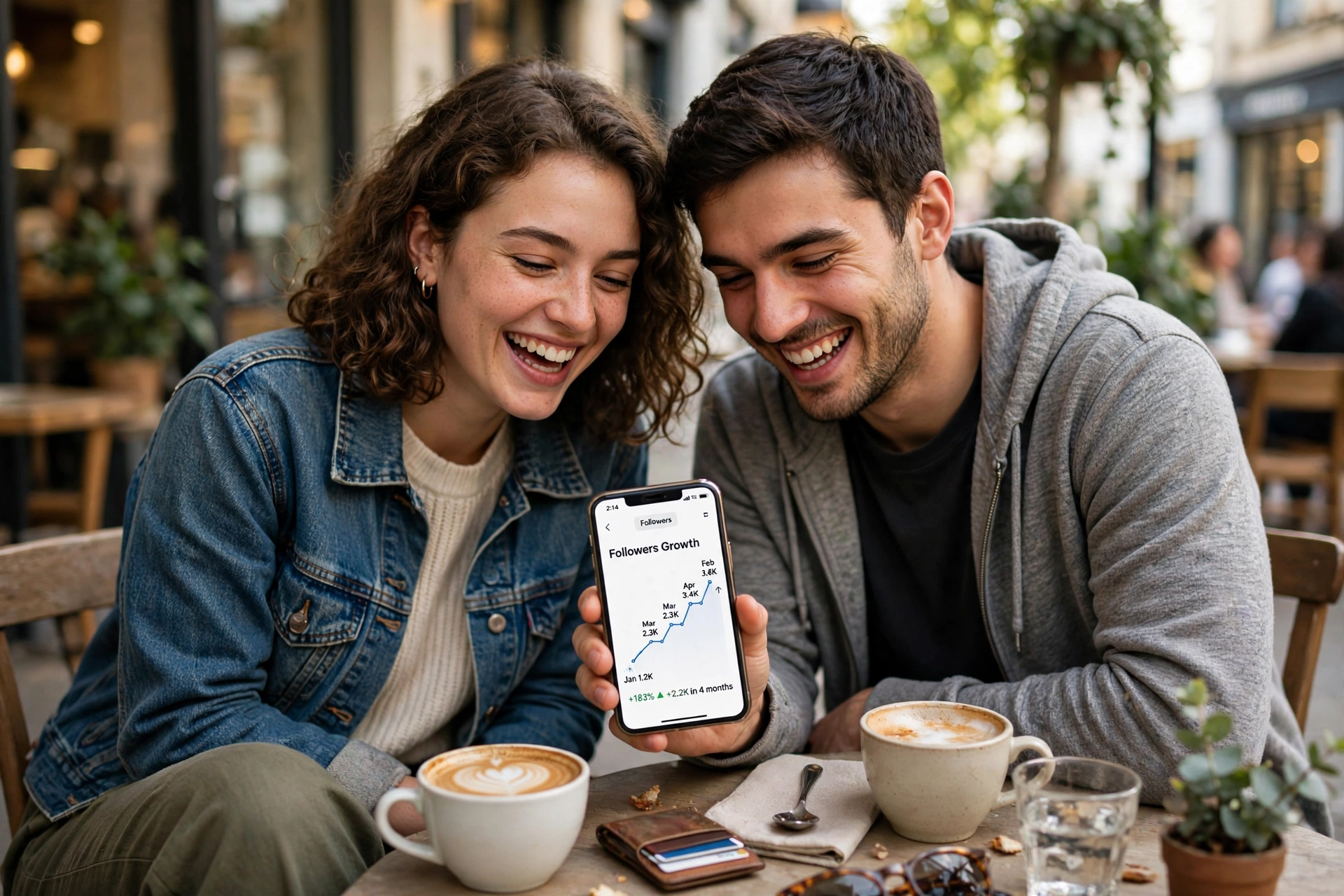
Three habits separate accounts that grow from accounts that guess. First, judge formats by Follows and Accounts engaged, not by Views alone, because a viral view count that adds no followers is entertainment, not growth. Second, treat saves and shares as the strongest signals, because they are the actions people take when content is useful enough to keep or good enough to send to a friend, and Instagram’s ranking reads them that way. Third, use the audience section before planning content, not after: if most of your viewers live in two countries and are online between 7 and 9 in the evening, that is when your best work should go out, and that is the audience your examples and references should speak to. Creators who partner with brands may also be asked to share these exact numbers, so keeping a monthly screenshot of your account overview saves an awkward scramble when a brand asks for your reach and engagement rate.
Can Instagram Insights Show Who Viewed Your Profile?
No, Instagram Insights cannot show who viewed your post or your profile by name. The metrics it defines are counts and breakdowns, such as top cities or age ranges, never a list of names. The only viewer list Instagram documents is for stories, and only you can see it, for up to 48 hours after posting. Anyone who tells you otherwise is selling something that does not exist. For the full answer to the profile views question, including what third-party apps claim and why they cannot deliver it, read our guide on how to see who views your instagram profile, which covers the same warning in detail and explains which numbers Instagram does make visible.
Should You Use Third-Party Instagram Analytics Apps?
Most third-party analytics apps add little that Instagram Insights does not already show for free, and some create real risk. Instagram warns against apps that offer likes or followers in exchange for your login, because they can get complete access to your account. Treat any app that asks for your Instagram password to show you profile visitors the same way: it cannot see data Instagram does not share, so whatever it shows you is invented or scraped. The legitimate use case for a third-party tool is scheduling, link tracking, or comparing several social accounts in one place, and even then you should connect through Instagram’s official login flow, never by handing over your password. If an app promises to reveal who viewed your profile, who unfollowed you in real time, or secret viewers of your stories, close it and check your own Insights instead. The official numbers are free, accurate, and tied to your real account, which is more than any unofficial app can claim.
Frequently Asked Questions
What are Instagram Insights?
Instagram Insights is the free analytics tool built into Instagram. It shows Views, Viewers, Interactions, Accounts engaged, follower growth, and audience demographics for your account and for every post, story, reel, and live video you publish.
How do I see Instagram Insights on the app?
Go to your profile and tap Professional dashboard on a business or creator account, or Your dashboard on a personal account, then tap Insights. You will see the last 30 days by default, and you can change the date range to any period within the past 90 days.
How do I see Instagram Insights on desktop?
On instagram.com, select Dashboard from the left-hand menu, then Insights under For professionals or Your dashboard under Your insights and tools. Choose Account or Content from the Insights dropdown, then set your date range.
Are Instagram Insights free?
Yes. Instagram Insights is completely free for any public account, personal or professional. There is nothing to subscribe to, and no paid version of the core analytics exists.
Why can I not see Insights on Instagram?
The most common reason is a private account, which shows no insights at all. Other causes are an empty date range with no posts, fewer than 100 followers for follower trends, fewer than 100 accounts reached for demographics, or an outdated app version.
What is the difference between Views and Viewers?
Views counts how many times your content was played or displayed, including replays. Viewers counts the unique accounts that saw it at least once. One person watching a reel three times adds three Views but only one Viewer.
How far back does Instagram Insights go?
Account insights cover any range within the past 90 days. Insights for a single post, reel, or story stay available for up to two years, while live video insights last 30 days after the broadcast.
Can I see who viewed my Instagram profile in Insights?
No. Insights shows counts and audience breakdowns, never names. The only viewer list Instagram provides is for stories, visible only to you for up to 48 hours after posting.
Do I need a business account for Instagram Insights?
No. Any public personal account can see the core insights. A business or creator account adds the professional dashboard with ad insights and monetisation tools, but the basic numbers are the same.
What happens to my insights if I go private?
Making your account private cuts off insights, and so does switching a business or creator account back to personal. Instagram keeps your past data for 90 days, so switching back within that window restores it.
Final Verdict
Instagram Insights is the closest thing Instagram gives you to a free coach. It tells you which posts earned attention, which ones earned followers, and when your audience is actually online, and it costs nothing beyond fifteen minutes a week to read it properly. Open your dashboard today, set the range to the last 30 days, and find your best and worst post of the month. Post more of what the best one did and less of what the worst one did, then check again next week. That loop, repeated for a few months, is how small accounts turn guessing into growth, and it is the whole point of having Instagram Insights in the first place.



5 Comments