
Instagram Help Center: How to Contact Instagram Support, Recover Your Account and Fix Any Problem
Your Instagram account is locked, hacked or disabled and you cannot find a real person to talk to. The Instagram Help Center at help.instagram.com is the official place where Instagram routes every account problem, from a forgotten password to a hacked profile and a disabled account appeal. This guide shows you exactly how to open it, which section matches your problem, how to contact Instagram support when the self-help pages are not enough, and what to do when the Help Center itself does not load or does not answer.
Most Instagram problems have a fix inside the Help Center, but only if you reach the right page. Searching random phone numbers or paying a third party “recovery service” usually ends in a scam, because Instagram does not publish a support phone number that connects you to a human agent. The steps below use only official Instagram and Meta channels, so you can recover your account, report abuse or fix a bug without risking your login details.
What Is the Instagram Help Center?
The Instagram Help Center is Instagram’s official self-service support hub. It is a library of step-by-step articles, forms and recovery flows maintained by Meta, and it covers almost everything that can go wrong with an Instagram account. Login problems, hacked accounts, disabled accounts, privacy settings, reporting content, ad payments, verification requests and technical bugs all have their own Help Center page with the exact steps Instagram wants you to follow.
The Help Center is different from Instagram Support. The Help Center gives you articles and forms you can use yourself, any time, without waiting for a reply. Instagram Support is the team behind those forms. You reach a support agent only through an in-app support request, an appeal form or, for some business accounts, a chat inside Meta Business Suite. There is no public email inbox that guarantees a reply and no phone line with a live agent, which is why knowing the right Help Center path matters more than finding a contact number.
Every fix in this guide starts at the same address, help.instagram.com, and the same logic applies throughout. First find the article or form that matches your exact problem, then follow its steps in order, and only then escalate to a support request if the self-help steps do not work. Jumping straight to a random form or repeating the same appeal five times usually slows the process down instead of speeding it up.
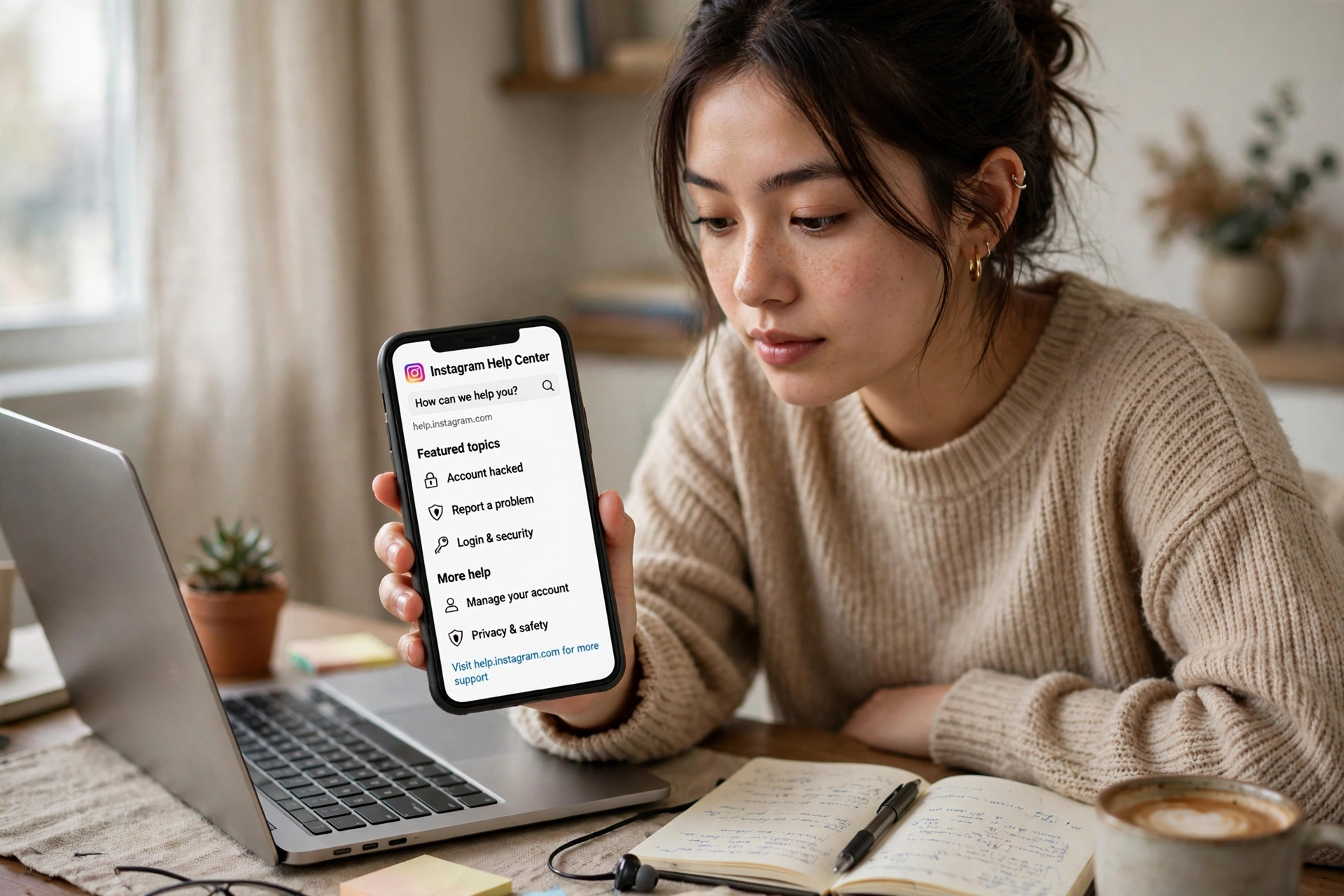
How to Access the Instagram Help Center
You can open the Instagram Help Center from the app or from any web browser. Both routes lead to the same articles, so use whichever device you have in hand. If you are logged out of your account, the web version still works for most help articles, while the app version needs you to be signed in.
Open the Help Center From the Instagram App
- Open the Instagram app and tap your profile picture in the bottom right corner to go to your profile.
- Tap the three horizontal lines in the top right corner to open the menu.
- Scroll down and tap “Settings and privacy”.
- Scroll to the bottom of the Settings menu and tap “Help”.
- Tap “Help Center”. Instagram opens help.instagram.com inside the app browser.
- Use the search bar at the top of the Help Center to type your problem in plain words, for example “account hacked” or “forgot password”, and open the article that matches it.
Open the Help Center From a Web Browser
- Open any browser on your phone or computer and go to help.instagram.com.
- If you are logged in to Instagram in that browser, the Help Center shows content matched to your account. If you are logged out, you can still read most articles.
- Pick a topic from the homepage categories, such as “Login and Passwords”, “Privacy, Security and Reporting” or “Managing Your Account”, or search for your exact problem.
- Follow the steps on the article page. Some recovery forms ask you to log in first, so keep your username and the email or phone number linked to the account nearby.
A useful shortcut is to search Google for your exact error message followed by “site:help.instagram.com”. That usually lands you on the official article instead of a third-party blog. If you prefer using Instagram in a desktop browser, our guide on Instagram on web explains how the web version works and what it cannot do compared with the app.
How to Contact Instagram Support
Instagram does not offer a general support hotline or a live chat button for every user. That is frustrating when your account is locked, but it also means any website or video promising a direct Instagram support number is almost certainly a scam. These are the real contact routes Instagram provides, in the order you should try them.
1. In-App Support Request
The most reliable way to reach a human at Instagram is a support request from inside the app. Go to your profile, open the menu, tap “Settings and privacy”, then “Help”, then “Report a Problem” or “Support Requests”. Describe the issue in one or two short paragraphs, include the exact error message you see, the date the problem started, and the steps you already tried. Instagram replies through the Support Requests section, so check it every couple of days instead of sending the same request again.
2. Email Instagram Support
Instagram lists support@instagram.com as a contact email. You can write to it with a clear subject line, your username, the email or phone number linked to the account, and screenshots of the problem. In practice, replies from this address are slow and many users never get one, so treat email as a backup, not your main route. Never send your password in an email, and never trust a different “support” email address you find in a comment or an ad.
3. Phone Number: What Actually Happens If You Call
Instagram’s parent company Meta lists a corporate number, +1 650-543-4800. Calling it does not connect you to a support agent. You hear a pre-recorded message that directs you to the Instagram Help Center on the web. No department at that number handles hacked accounts, disabled accounts or login problems, and nobody there can reset your password. Save your time and use the Help Center instead.
This is also how you spot a scam. Any number in a YouTube comment, a sponsored ad, a WhatsApp message or a “recovery agent” profile claiming to be Instagram support is fake. Real Instagram support never calls you first, never asks for your password or a verification code, and never charges a fee to recover an account. If someone demands payment or your login code, block them and report the account.
4. Social Media and Meta Accounts Centre
You can send a direct message to Instagram’s official account @instagram on X, but this is a public relations channel, not a support desk, so do not expect account recovery through it. Business and creator accounts have one more option. If your Instagram account is linked to a Facebook Page or to Meta Accounts Centre, you may be able to open a support chat from Meta Business Suite or from the Accounts Centre settings. That chat is the closest thing Instagram offers to live support, and it is mainly available to advertisers and business accounts.

What Problems Can the Instagram Help Center Solve?
Almost every common Instagram problem has a Help Center page. The table below matches the most frequent issues to the section that handles them, so you can skip the search and go straight to the right form.
| Your problem | Help Center section | What happens next |
|---|---|---|
| Forgot password or cannot log in | Login and Passwords | Password reset link or login link by email or SMS |
| Account hacked or email changed | Privacy, Security and Reporting | Secure your account flow and identity check |
| Account disabled by mistake | Managing Your Account | Appeal form with identity verification |
| Someone impersonating you | Privacy, Security and Reporting | Report form, government ID may be required |
| Content stolen or copyright issue | Intellectual Property | Copyright report form or Brand Rights Protection |
| Harassment or bullying | Privacy, Security and Reporting | Report the post or account, block and restrict tools |
| App crashing or a feature not working | Troubleshooting | Report a Problem flow inside the app |
| Verification badge request | Managing Your Account | Request Verification form in Settings |
| Ads or payment problem | Ads and Payments | Support request through Meta Business Suite |
How to Recover a Hacked Instagram Account
A hacked account is the most urgent reason people visit the Instagram Help Center, and speed matters. If the hacker changed your email address, the normal password reset will not reach you, so use the recovery flow designed for exactly this situation.
- Open the Instagram login screen and tap “Forgot password?” then “Need more help?” or go to help.instagram.com and search for “hacked account”.
- Enter your username, email address or phone number and choose the recovery option Instagram offers, such as a login link sent to your email.
- If your email was changed, look for the “Secure my account” message Instagram sent to your original email address when the change happened. That link lets you reverse the change.
- If the login link does not work, request support from Instagram through the same flow. Instagram will ask for the email or phone number you used when you created the account and the type of device you used.
- For accounts with photos of you, Instagram may ask for a video selfie to confirm your identity. Instagram says it deletes the video after 30 days and does not store it.
- Once you are back in, change your password immediately, check the email and phone number on the account, turn on two-factor authentication, and review the “Login Activity” list to remove any device you do not recognise.
While you wait for recovery, warn your followers from another account that your profile may be posting scam links, and do not click any “recovery” link sent to you by a stranger. Real recovery links come from Instagram only. For a deeper walkthrough of the signs that someone else is inside your account, our guide on how to see who blocked you on Instagram also covers the account checks that reveal unusual activity.
How to Appeal a Disabled Instagram Account
Instagram disables accounts that break its Community Guidelines, and sometimes it gets the decision wrong. If you open the app and see a message saying your account has been disabled, you can appeal directly from that screen.
- Open the Instagram app and try to log in with your username and password.
- On the disabled notice, tap the appeal option and follow the on-screen prompts.
- Fill in your full name, username and a secure email address where Instagram can reach you.
- Explain in two or three sentences why you believe the disable was a mistake, and mention the specific content or action Instagram flagged if you know it.
- Submit the appeal and wait. Instagram usually reviews appeals within a few days, though complex cases take longer.
- If the appeal is rejected, check the Support Requests section for the reason. You can submit a new appeal only if Instagram offers that option, so make the first one count.
A disabled account is different from a deactivated one. If you deactivated your own account, logging back in with the same username and password reactivates it with your posts and followers intact. A permanently deleted account cannot be restored at all, and even the same username may not be available again, so never delete an account to “fix” a problem. If you are thinking about leaving Instagram for good, read our guide on how to delete Instagram account first so you understand the difference between deactivation and permanent deletion.

How to Report a Problem or Bug on Instagram
When a feature stops working, a feed will not refresh or the app keeps crashing, the Help Center wants the report to come from inside the app so it carries your device details automatically. You have two ways to send it.
Shake Your Phone to Report a Problem
- Open the Instagram app and go to the screen where the bug appears.
- Shake your phone gently. A pop-up asks if you want to report a problem.
- Describe the bug, add the steps that trigger it, and submit. Instagram attaches a screenshot and device information automatically.
Report a Problem From Settings
- Go to your profile, tap the menu, then “Settings and privacy”.
- Scroll down, tap “Help”, then “Report a Problem”.
- Choose “Something Isn’t Working”, describe the issue, and follow the prompts to send it.
Before reporting, update the app to the latest version and restart your phone. A surprising number of bugs disappear with an update. If the problem continues after that, the report above is the right next step, and Instagram tracks these reports to prioritise fixes, even though it rarely replies to each one individually.
How to Report Harassment, Impersonation or Stolen Content
The Help Center treats safety reports seriously, but the report has to reach the right team. For a single abusive post, story or comment, tap the three dots on that piece of content and choose “Report”. For an entire account, open the profile, tap the three dots and choose “Report”. Pick the reason that fits best, such as bullying, harassment, impersonation or intellectual property theft.
If someone is pretending to be you, Instagram asks for a photo of your government ID with the report, and the report stays anonymous except in intellectual property cases. Only the person being impersonated, or their authorised representative, can file it. For stolen photos or videos, use the copyright report form on the Help Center, or the Brand Rights Protection tool if you own a registered trademark. Keep screenshots and links to the original content, because Instagram may ask for proof that you are the rights owner.
Reporting is only one layer. Block the account so it cannot find or follow you, restrict it if you want its comments hidden without a full block, and turn on the Hidden Words filter in your privacy settings to screen abusive messages automatically. If the harassment continues off Instagram, save the evidence and file a report with your local police or cybercrime unit, because Instagram alone cannot stop someone who moves to another platform.
How Long Does Instagram Support Take to Reply?
Instagram does not publish an official response time, and the wait depends on the type of problem. Based on what users report, an initial reply to a support request usually takes 24 to 48 hours, while a full resolution often takes about a week. Appeals for disabled accounts commonly get a decision within a few days. Bug reports sent through “Report a Problem” usually get no individual reply at all, because Instagram uses them to fix the issue for everyone rather than answering each reporter.
If three weeks pass with no reply, send one fresh inquiry with the same details instead of repeating the same message every day. Check your spam and junk folders first, because Instagram replies sometimes land there. You can track the status of your reports in the app under “Settings and privacy”, then “Help”, then “Support Requests”. Note that not every report appears there, so an empty list does not always mean Instagram ignored you.
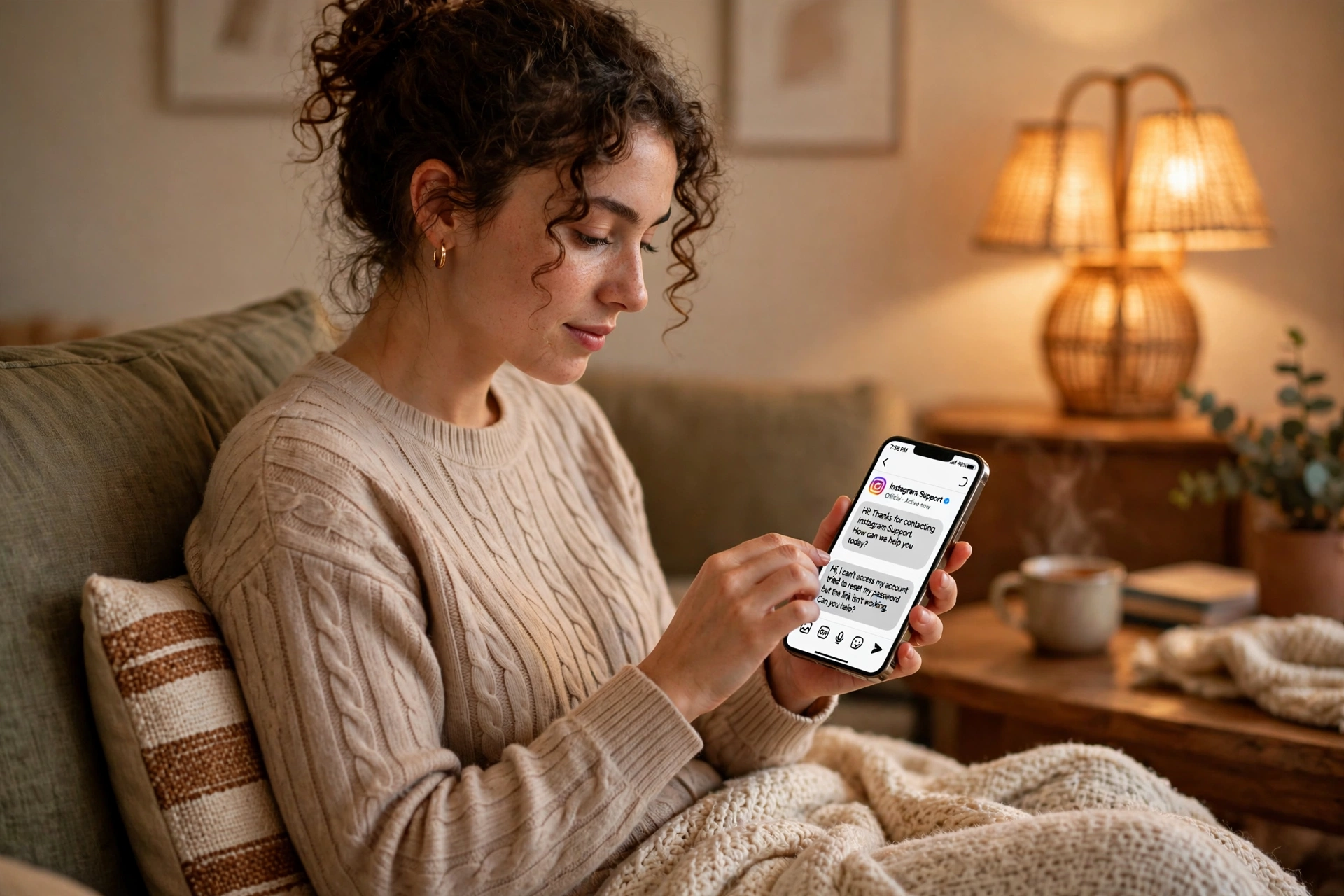
Instagram Help Center Not Working? Try These Fixes
Sometimes the problem is the Help Center itself. A page that will not load, a form that loops back to the start, or a search that shows nothing usually has a simple cause.
- Update the app. An old Instagram version can open a broken Help Center page. Update from the Play Store or App Store and try again.
- Switch to the web version. If the in-app Help Center fails, open help.instagram.com in a browser instead. The web version often works when the in-app browser does not.
- Clear cache and cookies. In your browser, clear cached files for instagram.com. In the app, clear the cache from your phone settings or reinstall the app.
- Log out and log back in. A stale session can break Help Center forms. Logging out and signing in again refreshes it. If the login itself is the problem, our IG login guide walks through the common login errors and their fixes.
- Try another network. A weak or filtered connection can stop Help Center pages halfway. Switch between Wi-Fi and mobile data to test it.
- Wait and retry. Instagram services go down sometimes. If the Help Center and the app both fail at once, check whether Instagram is down overall and try again in an hour.
Tips to Get a Faster Reply From Instagram Support
Support teams handle thousands of requests a day, and a clear request gets answered faster than a vague one. Write your problem in short sentences, include the exact error message word for word, and state the date the problem started. Attach a screenshot that shows the error on your screen, not a photo of another screen. Mention the steps you already tried, so the agent does not send you back to the same steps. Keep the request to one issue only. Mixing a hacked account, a missing feature and a billing question into a single ticket slows all three down.
While you wait, use the Help Center articles to fix what you can yourself. Most login and privacy problems have a self-service answer, and the time you save is real. If your account is safe and you simply want to grow it again after a lockout, tools such as an Instagram follower tracker can help you watch your follower changes once you are back in, and readers looking for engagement ideas often check our Instagram likes free guide as well.
Instagram Help Center FAQs
Is there a phone number for Instagram support?
No. Instagram does not publish a support phone number that connects you to a human agent. The corporate number +1 650-543-4800 only plays a recorded message directing you to the Instagram Help Center. Any other number claiming to be Instagram support is a scam.
What is the Instagram Help Center email address?
Instagram lists support@instagram.com as a contact email. Replies are slow and not guaranteed, so use the in-app support request or the Help Center appeal forms as your main route and treat email as a backup.
How do I talk to a real person at Instagram?
For most users, the only route to a human is a support request from inside the app or an appeal form on the Help Center. Business accounts linked to Meta Business Suite may also get a support chat. Instagram does not offer a public live chat or a call centre for personal accounts.
How do I recover my Instagram account without an email or phone number?
Use the “Need more help?” option on the login screen and follow the hacked account recovery flow. Instagram will ask for your username, the email or phone you used when you created the account, and possibly a video selfie to verify your identity. Without any recovery details, recovery is very difficult, which is why keeping your contact information current matters.
Why is my Instagram account disabled for no reason?
Instagram disables accounts automatically when its systems flag a Community Guidelines violation, and automated flags sometimes get it wrong. If you believe the disable was a mistake, appeal from the disabled notice in the app and explain the situation clearly. Avoid submitting the same appeal repeatedly, because that can cancel your application.
Can I get my hacked Instagram account back?
Yes, in most cases. Use the “Secure my account” link in the email Instagram sent when your email was changed, or the hacked account flow on the Help Center. Act fast, because the longer a hacker controls the account, the harder recovery becomes. Once you are back in, change your password and turn on two-factor authentication right away.
Conclusion
The Instagram Help Center is the only official route to fixing a hacked, disabled or locked Instagram account, and it works when you reach the right page instead of searching for shortcuts. Open it from the app or at help.instagram.com, pick the section that matches your exact problem, and follow its steps in order. Contact Instagram support through an in-app request or an appeal form, ignore any phone number or paid recovery service that claims to be Instagram, and give the team a few days to reply. Keep your email, phone number and two-factor authentication up to date now, so the next problem is a five-minute fix instead of a week-long recovery.


5 Comments